Introduction
Web Design Software refers to the suite of digital tools used by designers and developers to conceptualize, create, and prototype the visual and functional aspects of a website. This category has expanded to include everything from vector-based UI design tools (like Figma) to visual development platforms (like Webflow) that output production-ready code. Historically, design and development were two distinct phases separated by a “handoff.” Today, modern web design software aims to bridge that gap, allowing for real-time collaboration, interactive prototyping, and even the direct publishing of web assets.
The importance of these tools lies in their ability to provide a “source of truth” for digital projects. They allow stakeholders to visualize a product before a single line of backend code is written, saving thousands of dollars in potential rework. Key real-world use cases include creating high-fidelity mockups, building interactive prototypes for user testing, managing design systems (reusable components), and exporting assets for developers. When evaluating these tools, users should look for collaboration features, responsiveness controls, prototyping depth, and the robustness of the community plugin ecosystem.
Best for: UI/UX designers, front-end developers, creative agencies, and product managers. These tools are vital for tech startups, e-commerce brands, and any business that views its digital interface as a primary touchpoint for customer interaction.
Not ideal for: Backend developers who do not touch the visual layer, or very small local businesses that only require a basic, unchanging “business card” site. For the latter, a simple, non-design-heavy template in a basic website builder is usually more efficient than learning professional web design software.
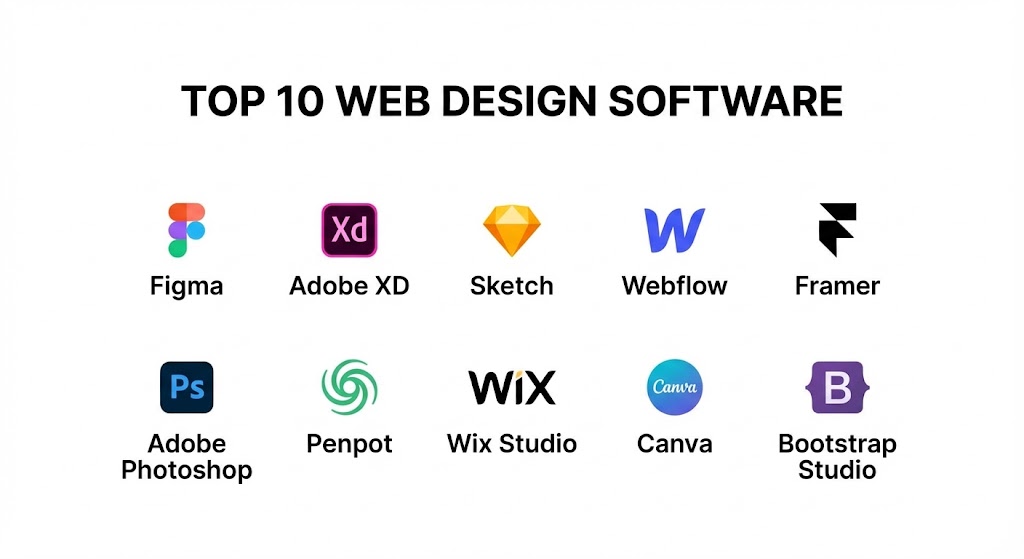
Top 10 Web Design Software Tools
1 — Figma
Figma has become the industry standard for collaborative web design. It is a cloud-based vector graphics editor and prototyping tool that allows multiple users to work on the same file simultaneously, much like a Google Doc for designers.
- Key features:
- Real-time Collaboration: Multiple designers can edit a single file at once with live cursors.
- Auto Layout: A powerful tool that mimics CSS Flexbox, allowing elements to grow or shrink as content changes.
- Design Systems: Create centralized libraries of components and styles that update across all files.
- Dev Mode: A dedicated space for developers to inspect designs and translate them into code.
- Variables: Advanced support for design tokens like spacing, color, and numbers to manage themes (Dark/Light mode).
- Interactive Prototyping: Advanced transitions and “smart animate” to create life-like app flows.
- Plugin Ecosystem: Thousands of community-made tools for automation, accessibility testing, and asset generation.
- Pros:
- Unrivaled for team-based projects where communication and speed are critical.
- Platform-agnostic (works in any browser or as a desktop app on Mac and Windows).
- Cons:
- Requires a constant internet connection for most features (limited offline mode).
- The pricing structure for large enterprise teams can be significantly high.
- Security & compliance: SOC 2 Type II, ISO 27001, GDPR, and CCPA compliant. Supports SAML SSO and advanced audit logs for enterprise tiers.
- Support & community: Extensive documentation, a massive “Figma Community” for sharing files/plugins, and high-level enterprise support.
2 — Adobe XD
Adobe XD is Adobe’s dedicated UI/UX design tool. While Figma has gained significant market share, XD remains a powerful choice for those already integrated into the Adobe Creative Cloud ecosystem.
- Key features:
- Repeat Grid: Quickly replicate elements like lists or galleries without manual copying.
- Auto-Animate: High-end motion design features to create realistic transitions between artboards.
- Voice Prototyping: Design and test voice-activated interactions and commands.
- Creative Cloud Sync: Seamlessly pull in assets from Photoshop, Illustrator, and After Effects.
- Component States: Manage different versions of a button (hover, active, disabled) in a single component.
- 3D Transforms: Simulate depth and spatial relationships by rotating objects in 3D space.
- Pros:
- Extremely fast performance, even with hundreds of artboards in a single file.
- The best integration for users who spend their day in other Adobe software.
- Cons:
- Collaboration features are not as seamless or “live” as Figma’s.
- The future of the product is somewhat uncertain following market shifts in 2024.
- Security & compliance: ISO 27001, SOC 2, GDPR, and HIPAA compliance (subject to specific agreements).
- Support & community: Adobe’s world-class help center, extensive tutorials on Behance, and global customer support.
3 — Sketch
Sketch is the original disruptor of the web design space. Although it is strictly limited to macOS, it remains a favorite for many veteran UI designers due to its focused, polished experience and native performance.
- Key features:
- Native macOS App: Built specifically for the Mac, providing a snappy, high-performance experience.
- Symbol System: A powerful way to manage reusable components with nested overrides.
- Shared Libraries: Sync symbols and styles across a design team via the Sketch Cloud.
- Offline Workflow: Unlike Figma, Sketch is a local-first application, making it ideal for travel.
- Smart Layout: Elements automatically resize based on their content, keeping spacing consistent.
- Extensions: A long-standing community of developers providing professional-grade plugins.
- Pros:
- Superior typography control and rendering compared to browser-based tools.
- A “local-first” privacy model that many security-conscious designers prefer.
- Cons:
- Not available for Windows or Linux users, which limits cross-functional team collaboration.
- Does not offer the same level of “live” co-editing as Figma.
- Security & compliance: GDPR compliant; SOC 2 (Varies by hosting/cloud use).
- Support & community: High-quality documentation, a loyal user base, and excellent direct customer support.
4 — Webflow
Webflow bridges the gap between design and development. It is a visual development platform that allows you to design a site while the software writes clean, semantic HTML, CSS, and Javascript in the background.
- Key features:
- Visual Canvas: A design interface that provides direct control over the “Box Model” and CSS properties.
- CMS (Content Management System): Build complex, database-driven sites for blogs, portfolios, or real estate listings.
- Interactions: Create professional, scroll-based animations without writing a single line of Javascript code.
- Hosting & Security: Integrated enterprise-grade hosting powered by AWS and Fastly.
- Logic: Built-in automation to connect your site to other apps or manage user workflows.
- Editor Mode: A simplified interface for clients to update text and images without breaking the design.
- Pros:
- The output is production-ready code, not just a mockup or a flat image.
- Gives designers the power of a developer without the need to learn syntax.
- Cons:
- A very steep learning curve—you must understand the fundamentals of web architecture (Flexbox, Grid).
- It is a “walled garden”; you are generally tied to Webflow’s hosting for many advanced features.
- Security & compliance: SOC 2 Type II, ISO 27001, GDPR, and CCPA compliant.
- Support & community: “Webflow University” (the gold standard for video training), an active global forum, and enterprise account management.
5 — Framer
Framer started as a prototyping tool for developers but has evolved into a high-end web design and publishing platform. It is designed for those who want to build high-fidelity, interactive sites with a “Figma-like” ease of use.
- Key features:
- Figma-to-Web: A plugin that allows you to copy designs from Figma and paste them into Framer as live sites.
- High-Fidelity Prototyping: The best tool for creating complex micro-interactions and transitions.
- CMS & Localization: Easily manage multiple languages and dynamic content.
- AI Site Generation: Describe a site in text and let the AI generate a layout and copy.
- Responsive Breakpoints: Visually manage how your design shifts from desktop to mobile.
- Component Effects: Easily add hover, scroll, and loop animations with a few clicks.
- Pros:
- The fastest way to turn a high-fidelity design into a live, published URL.
- Incredible performance—Framer-built sites are notoriously fast and SEO-friendly.
- Cons:
- Not as robust as Webflow for complex, custom backend logic or massive databases.
- Pricing per site can add up for agencies managing many small projects.
- Security & compliance: SOC 2 Type II, GDPR, and CCPA compliant.
- Support & community: A very active Discord community, high-quality video tutorials, and a growing marketplace of templates.
6 — Adobe Photoshop
While primarily a photo editor, Photoshop remains a staple in the web design world for asset creation. It is the tool of choice for designing complex raster graphics, hero images, and textures that vector tools cannot handle.
- Key features:
- Advanced Photo Manipulation: Unmatched tools for retouching, masking, and compositing.
- Artboards: Allows for multiple layouts within a single file for social media and web banners.
- Generative Fill (AI): Powered by Adobe Firefly to extend images or remove objects instantly.
- Layer Comps: Manage different versions of a design within one document.
- Web-Safe Export: Optimized exporting for PNG, JPEG, and WebP formats.
- Pros:
- The absolute industry standard for high-end digital imagery and pixel-level control.
- Deep integration with the rest of the Adobe Creative Cloud suite.
- Cons:
- Not a UI/UX tool; it lacks prototyping, auto-layout, and interactive features.
- Can be resource-intensive and “heavy” for modern, agile web workflows.
- Security & compliance: ISO 27001, SOC 2, GDPR, and HIPAA compliance (subject to agreement).
- Support & community: Decades of tutorials, a massive global user base, and 24/7 corporate support.
7 — Penpot
Penpot is the first open-source design and prototyping platform. It has gained significant traction in 2025 as the primary alternative for teams that want to avoid proprietary “vendor lock-in.”
- Key features:
- Open Source: Totally free to use, or can be self-hosted on your own servers for maximum privacy.
- Flex Layout: Built natively on CSS standards, making the transition from design to code easier.
- SVG-First: The platform uses SVG as its native file format, ensuring high compatibility.
- Collaborative: Supports real-time co-editing and comments.
- Interactive Prototyping: Create transitions and flows similar to Figma.
- Pros:
- No cost for the basic cloud version and total control over your data if you self-host.
- Because it’s built on CSS standards, what you see in design is much closer to the final web output.
- Cons:
- The feature set is still maturing and lacks some of the advanced AI/Auto-layout polish of Figma.
- A smaller plugin ecosystem compared to the market leaders.
- Security & compliance: GDPR compliant. Self-hosting allows teams to manage their own ISO/SOC standards.
- Support & community: Community-driven forum, open-source contributors, and a growing library of templates.
8 — Wix Studio
Wix Studio is the professional-grade evolution of the Wix platform. It is designed specifically for agencies and freelancers who need the ease of a visual builder but the power of a custom development environment.
- Key features:
- Responsive AI: Automatically applies responsive behavior to sections of your site with one click.
- Collaborative Workspace: Multiple team members can work on the same site simultaneously.
- Wix Blocks: Create reusable, custom components that can be used across multiple client sites.
- Custom Code: Full access to the backend (Velo) to add custom Javascript, APIs, and databases.
- Client Management: A dedicated dashboard for agencies to manage client permissions and billing.
- Pros:
- Combines the “it just works” nature of Wix with professional design tools.
- The AI responsiveness feature is a massive time-saver for complex layouts.
- Cons:
- The interface is significantly more complex than the standard Wix builder.
- It is a proprietary platform; you cannot export the code to host it elsewhere.
- Security & compliance: PCI DSS, GDPR, CCPA, and SOC 2 Type II compliant.
- Support & community: Priority support for agency partners and a dedicated “Wix Studio” community.
9 — Canva (Web Mode)
While often overlooked by “hardcore” designers, Canva’s website design feature has become a powerful tool for non-designers and small business owners to create simple, beautiful sites in minutes.
- Key features:
- Drag-and-Drop Library: Access to millions of photos, fonts, and graphics.
- One-Click Publishing: Host your site on a Canva domain or connect your own.
- Templates: Thousands of professionally designed layouts for specific industries.
- Mobile Responsive: All designs are automatically optimized for mobile screens.
- Collaboration: Easily share a design with a client for feedback.
- Pros:
- The lowest barrier to entry of any tool on this list; if you can use PowerPoint, you can use Canva.
- Extremely cost-effective for small brands.
- Cons:
- Very limited in terms of SEO, CMS functionality, and complex interactions.
- You cannot export the site as code or add custom scripts (limited “head” tag access).
- Security & compliance: ISO 27001, GDPR, and CCPA compliant.
- Support & community: Massive “Canva Design School,” extensive templates, and global support.
10 — Bootstrap Studio
Bootstrap Studio is a specialized desktop app for web developers who want to build responsive websites using the popular Bootstrap framework. It is a “visual-first” IDE (Integrated Development Environment).
- Key features:
- Bootstrap Focused: Every component is a real Bootstrap element (navbars, cards, modals).
- Real-time Preview: See your site on multiple devices simultaneously as you edit.
- CSS & Javascript Editors: Advanced code editors for those who want to fine-tune the visual design.
- Smart Drag-and-Drop: Prevents you from placing elements where they don’t belong in the Bootstrap grid.
- Export to HTML/CSS: Outputs clean, professional code that can be hosted anywhere.
- Pros:
- Perfect for developers who love Bootstrap but want to work faster than manual coding.
- One-time purchase model (Standard license) is very refreshing in a subscription-heavy market.
- Cons:
- You are “locked” into the Bootstrap framework; it’s not for highly custom, non-standard layouts.
- Not a tool for UI/UX prototyping or collaboration.
- Security & compliance: Local desktop app; security is managed by the user’s hosting environment.
- Support & community: Strong community forum and very detailed documentation.
Comparison Table
| Tool Name | Best For | Platform(s) Supported | Standout Feature | Rating (Gartner/TrueReview) |
| Figma | UI/UX Collaboration | Web, Win, Mac | Live Co-editing | 4.8 / 5 |
| Adobe XD | Adobe Users | Win, Mac | Auto-Animate | 4.3 / 5 |
| Sketch | macOS Purists | macOS Only | Native Performance | 4.5 / 5 |
| Webflow | Visual Development | Web | Semantic Code Output | 4.6 / 5 |
| Framer | High-end Prototypes | Web | Figma-to-Web Sync | 4.7 / 5 |
| Photoshop | Raster Assets | Win, Mac | AI Generative Fill | 4.6 / 5 |
| Penpot | Open Source Teams | Web (Self-hostable) | Open Standards | 4.4 / 5 |
| Wix Studio | Agencies | Web | Responsive AI Engine | 4.5 / 5 |
| Canva | Beginners / SMBs | Web, iOS, Android | Massive Asset Library | 4.7 / 5 |
| Bootstrap Studio | Responsive Devs | Win, Mac, Linux | Grid-first Builder | 4.4 / 5 |
Evaluation & Scoring of Web Design Software
To provide an objective overview, we have scored the general web design software category using a weighted rubric. This helps businesses determine which tool provides the most value for their specific operational model.
| Criteria | Weight | Evaluation Rationale |
| Core Features | 25% | Presence of vector tools, prototyping, and design system management. |
| Ease of Use | 15% | The learning curve relative to the power of the tool. |
| Integrations | 15% | Ability to connect with Figma, Adobe, Slack, and developer handoff tools. |
| Security & Compliance | 10% | Adherence to GDPR, ISO, and SOC standards. |
| Performance | 10% | Speed of the editor and handling of large, complex files. |
| Support & Community | 10% | Documentation quality and the size of the plugin/template market. |
| Price / Value | 15% | Cost of the tool relative to the revenue-generating potential. |
Which Web Design Software Tool Is Right for You?
Solo Users vs SMB vs Mid-market vs Enterprise
If you are a solo freelancer, Webflow or Framer offer the most power to build and launch sites without a partner. For SMBs looking for simple internal designs, Canva or Figma’s free tier is sufficient. Mid-market agencies should look toward Wix Studio or Figma Professional. Enterprises with complex security and massive design teams must choose between the scale of Figma Enterprise or the deep compliance of the Adobe Creative Cloud.
Budget-conscious vs Premium Solutions
If budget is the primary driver, Penpot is the ultimate winner as it is open-source and free. For those looking for a Premium experience where time-to-market is the priority, Framer and Webflow are high-end investments that pay for themselves by eliminating the need for a separate front-end developer.
Feature Depth vs Ease of Use
If you need Feature Depth (e.g., custom animations, complex databases, and logic), Webflow is the leader. If you prioritize Ease of Use (e.g., you want a site live in an hour), Canva and Wix Studio are much more approachable for non-technical users.
Integration and Scalability Needs
If your business is already standardized on Windows and Adobe, Adobe XD and Photoshop are logical choices. However, for a modern, scalable design team that needs to pull data via API or use advanced design tokens, Figma and Webflow provide the most future-proof integration ecosystem.
Frequently Asked Questions (FAQs)
1. Is Figma really better than Adobe XD?
For collaboration, yes. Figma’s cloud-native architecture allows for much smoother co-editing and stakeholder feedback. However, Adobe XD is often faster for heavy motion design and offline work.
2. Can I build a website using Photoshop?
You can design the look of a website in Photoshop, but it won’t be a “live” site. You will need to export those images and use a developer or a tool like Webflow to turn them into HTML/CSS.
3. What is the difference between Web Design and Web Development?
Web design is the visual part (UI) and how a user feels (UX). Web development is the coding part that makes the site actually work (HTML, CSS, JS, and Backend). Tools like Webflow blend the two.
4. Do I need to learn code to use Webflow or Framer?
You don’t need to write code, but you do need to understand “Box Model” logic—how padding, margins, and containers work. This “mental model” is the secret to mastering professional web design software.
5. How much does professional web design software cost?
Most professional tools range from $12 to $25 per user, per month. However, tools like Canva and Penpot have free tiers, while Bootstrap Studio offers a one-time purchase for around $60.
6. Is Sketch still relevant in 2025?
Yes. For Apple-centric agencies and designers who value privacy and local performance, Sketch remains a high-quality, focused tool.
7. Can I use these tools on a tablet?
Figma and Canva have excellent tablet apps for viewing and minor edits. However, for serious design work, a desktop environment (Mac or PC) is still highly recommended for precision.
8. What are “Design Systems”?
A design system is a collection of reusable components (buttons, fonts, colors) guided by clear standards. Professional tools like Figma allow you to manage these centrally so every page of your site looks consistent.
9. Is my data safe in the cloud?
Top-tier tools like Figma and Wix Studio use SOC 2 Type II and ISO 27001 standards. If you are in a hyper-sensitive industry, an open-source tool like Penpot allows you to self-host data on your own servers.
10. What is “Figma-to-Web”?
This is a modern workflow where you design in Figma and use a plugin or a tool like Framer to “paste” that design into a website builder, turning it into a live URL instantly.
Conclusion
The “best” web design software is the one that removes the friction between your imagination and the user’s screen. In 2025, the boundaries between designing an image and building a functional site have blurred.
If you are a team-oriented designer, Figma is your foundational tool. If you are a creator who wants to build without a developer, Webflow and Framer are your best bets. And if you are just starting your journey, the accessibility of Canva and the freedom of Penpot offer incredible value. Ultimately, choose the tool that aligns with your technical comfort and your project’s scale. The digital future is visual—start designing it today.