Introduction
Screen capture tools are software applications that allow users to capture still images or video recordings of their computer screens. They are essential for creating tutorials, documenting workflows, recording presentations, and sharing technical or creative content. Screen capture tools often include additional features such as annotation, webcam overlay, video editing, and cloud sharing, which make them versatile solutions for both personal and professional use.
These tools are particularly important in education, software development, marketing, gaming, and customer support, where visual communication enhances clarity and engagement. When choosing a screen capture tool, users should evaluate factors such as image/video quality, annotation features, ease of use, export formats, platform compatibility, and additional functionality like editing or live streaming support.
Best for: Educators, content creators, corporate trainers, marketing teams, software developers, and support personnel.
Not ideal for: Users who only need occasional screenshots without additional features or editing.
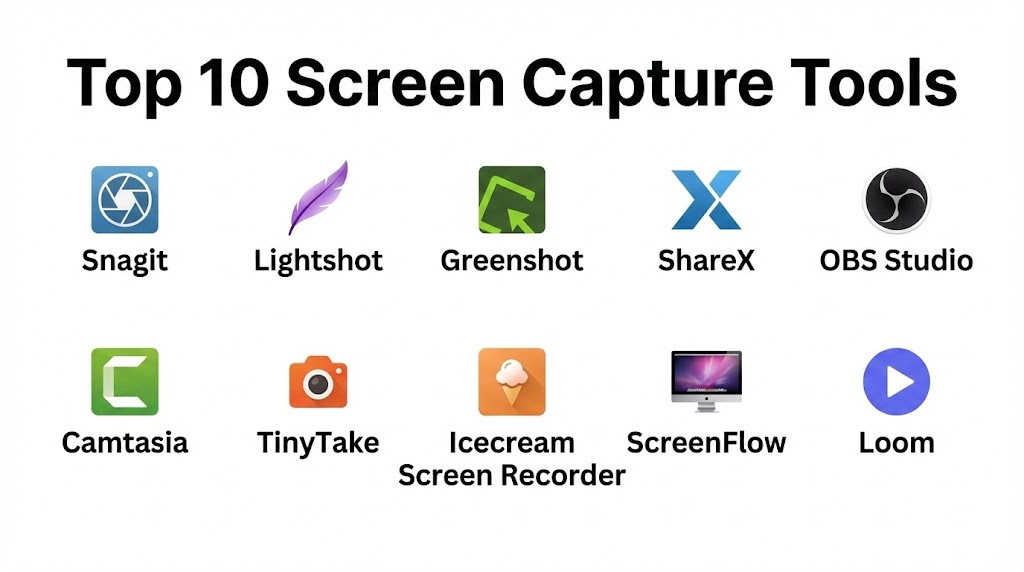
Top 10 Screen Capture Tools
1 — Snagit
Short description:
Snagit is a robust screen capture tool designed for professionals who need high-quality images and quick video captures for tutorials and documentation.
Key features:
- Capture images and videos from your screen
- Advanced editing and annotation tools
- Record webcam and audio
- Panoramic scrolling capture
- Quick sharing options
- Create GIFs
- Library for organizing captures
Pros:
- Intuitive interface
- Professional annotation options
- Efficient workflow for repeated tasks
Cons:
- Paid software
- Limited advanced video editing
Security & compliance:
Varies / N/A
Support & community:
Tutorials, documentation, email support
2 — Lightshot
Short description:
Lightshot is a simple and fast screen capture tool suitable for users needing quick screenshots with minimal fuss.
Key features:
- Quick screenshot capture
- Edit screenshots immediately
- Cloud sharing option
- Lightweight and fast
- Customizable hotkeys
- Supports Windows and Mac
Pros:
- Extremely easy to use
- Free version available
- Fast performance
Cons:
- Limited video capture
- Basic annotation features
Security & compliance:
Varies / N/A
Support & community:
Documentation, online support
3 — Greenshot
Short description:
Greenshot is an open-source screenshot tool for Windows users designed for productivity and quick sharing.
Key features:
- Full-screen, window, or region capture
- Annotation tools
- Export to various formats
- Lightweight and fast
- Integration with productivity apps
- Open-source
Pros:
- Free and lightweight
- Excellent for documentation
- Simple interface
Cons:
- Windows-only
- Limited video functionality
Security & compliance:
Varies / N/A
Support & community:
Forums, documentation, online tutorials
4 — ShareX
Short description:
ShareX is a free and open-source screen capture tool with advanced features for image and video capture.
Key features:
- Full-screen, region, or window capture
- Record video and GIFs
- Built-in editor and annotation tools
- Cloud uploads
- Automation options
- Supports numerous formats
Pros:
- Feature-rich and free
- Automation and customization
- Supports video recording
Cons:
- Steeper learning curve
- Interface can feel cluttered
Security & compliance:
Varies / N/A
Support & community:
Active forum, documentation, tutorials
5 — OBS Studio
Short description:
OBS Studio is a free, open-source software ideal for recording and streaming with professional-quality video.
Key features:
- Screen and webcam recording
- Live streaming capabilities
- Multiple scene support
- High-performance recording
- Plugins for extended functionality
- Windows, Mac, Linux support
Pros:
- Free and open-source
- High customizability
- Multi-platform
Cons:
- Requires learning
- Limited built-in editing
Security & compliance:
Varies / N/A
Support & community:
Tutorials, active online community
6 — Camtasia
Short description:
Camtasia is a professional screen recorder and editor designed for educators and content creators.
Key features:
- HD screen capture
- Multi-track video editing
- Webcam and audio capture
- Annotations and callouts
- Effects and transitions
- Export to multiple formats
- Library management
Pros:
- Professional-grade video editing
- Beginner-friendly
- All-in-one solution
Cons:
- Expensive
- Large file sizes
Security & compliance:
Varies / N/A
Support & community:
Tutorials, email support, documentation
7 — TinyTake
Short description:
TinyTake is a simple screen capture and video recording software for personal and business use.
Key features:
- Capture images and video
- Annotate images
- Cloud sharing
- Video recording up to 120 minutes
- Easy to use interface
- Quick capture options
Pros:
- User-friendly
- Free version available
- Simple annotation
Cons:
- Limited editing tools
- Paid version needed for longer videos
Security & compliance:
Varies / N/A
Support & community:
Documentation, tutorials, email support
8 — Icecream Screen Recorder
Short description:
Icecream Screen Recorder is a versatile tool for screen capture, video recording, and basic editing.
Key features:
- Capture full screen or custom area
- Record video and audio
- Annotate during recording
- Export to multiple formats
- Scheduled recording
- Screenshot capture
Pros:
- Easy to use
- Annotation during recording
- Affordable
Cons:
- Limited editing features
- Watermark on free version
Security & compliance:
Varies / N/A
Support & community:
Documentation, email support
9 — ScreenFlow
Short description:
ScreenFlow is a macOS-based screen capture tool with professional editing features for video creators.
Key features:
- Record screen and webcam
- Multi-track editing
- Audio capture and editing
- Transitions and annotations
- Export to multiple formats
- Stock media integration
Pros:
- High-quality editing
- Mac-optimized
- Easy workflow
Cons:
- Mac-only
- Premium pricing
Security & compliance:
Varies / N/A
Support & community:
Documentation, tutorials, email support
10 — Loom
Short description:
Loom is a web-based screen capture tool designed for team communication, remote work, and video messaging.
Key features:
- Screen, webcam, and audio recording
- Instant sharing with link
- Annotation tools
- Cloud storage
- Recording history and analytics
- Browser extension available
Pros:
- Quick sharing
- Great for remote teams
- User-friendly
Cons:
- Limited advanced editing
- Free version has recording limits
Security & compliance:
Varies / N/A
Support & community:
Tutorials, email support, online resources
Comparison Table
| Tool Name | Best For | Platform(s) Supported | Standout Feature | Rating |
|---|---|---|---|---|
| Snagit | Professional tutorials | Windows, Mac | Annotation and editing | N/A |
| Lightshot | Quick screenshots | Windows, Mac | Fast capture | N/A |
| Greenshot | Productivity | Windows | Open-source, lightweight | N/A |
| ShareX | Advanced users | Windows | Automation & GIF recording | N/A |
| OBS Studio | Streamers & gamers | Windows, Mac, Linux | Free, professional | N/A |
| Camtasia | Educators & content creators | Windows, Mac | All-in-one recording & editing | N/A |
| TinyTake | Business & personal | Windows, Mac | Cloud sharing | N/A |
| Icecream Screen Recorder | Tutorials & demos | Windows, Mac | Annotation during recording | N/A |
| ScreenFlow | Mac content creators | Mac | High-quality editing | N/A |
| Loom | Remote teams | Windows, Mac, Web | Instant sharing & video messaging | N/A |
Evaluation & Scoring of Screen Capture Tools
| Criteria | Weight | Description |
|---|---|---|
| Core features | 25% | Capture options, webcam, audio, annotations |
| Ease of use | 15% | Intuitive interface and workflow |
| Integrations & ecosystem | 15% | Editing tools, cloud integration |
| Security & compliance | 10% | Data protection, encryption |
| Performance & reliability | 10% | Quality of recording, stability |
| Support & community | 10% | Tutorials, forums, technical support |
| Price / value | 15% | Free vs paid features and cost |
Which Screen Capture Tool Is Right for You?
- Beginners / quick screenshots: Lightshot, TinyTake, Greenshot
- Professional tutorials: Camtasia, ScreenFlow, Snagit
- Gamers / streamers: OBS Studio, ShareX
- Team communication / remote work: Loom
- Annotation-heavy workflow: Snagit, Icecream
Frequently Asked Questions (FAQs)
- What is a screen capture tool?
Software to capture images or video of your computer or device screen for tutorials, demos, or content. - Can beginners use these tools?
Yes, tools like Lightshot, TinyTake, and Greenshot are very beginner-friendly. - Which software allows video editing?
Camtasia, ScreenFlow, and Snagit include editing tools. - Can I capture webcam and audio simultaneously?
Yes, most tools including Camtasia, Loom, OBS Studio, and ScreenFlow support both. - Are there free options available?
OBS Studio, ShareX, Greenshot, and Lightshot are free. - Can I share recordings instantly?
Loom and TinyTake provide instant sharing options via links. - Which tool is best for Mac users?
ScreenFlow, Snagit, and Camtasia are optimized for Mac. - Do these tools allow annotations?
Yes, Snagit, Icecream, Camtasia, and Loom allow annotation. - Can I schedule recordings?
Icecream and TinyTake support scheduled recordings. - Which tool is lightweight and fast?
Lightshot and Greenshot are fast and minimal resource-intensive.
Conclusion
Choosing the best screen capture tool depends on your workflow, experience level, and purpose. Beginners can opt for Lightshot, TinyTake, or Greenshot, while educators and professionals benefit from Camtasia, ScreenFlow, or Snagit. Streamers and gamers may prefer OBS Studio or ShareX. For team communication and quick sharing, Loom is ideal. Prioritizing features, usability, and pricing ensures optimal results for creating professional and engaging screen content.
Screen capture tools are vital for effective visual communication, whether you’re creating tutorials or sharing quick feedback. This guide provides a balanced look at everything from the professional precision of Snagit to the instant sharing power of Loom, helping you find the right fit for your workflow.