Introduction
Photo organization tools are specialized software applications designed to catalog, tag, search, and manage vast libraries of digital images. Unlike basic file browsers, these tools create a database (or “catalog”) that tracks metadata such as GPS coordinates, camera settings (EXIF), and user-generated tags. The primary goal is to turn an unorganized mass of data into a searchable, structured library where any specific memory or professional asset can be retrieved in seconds.
The importance of these tools has skyrocketed as data volume grows. Without them, “digital amnesia” sets in—you have the photos, but you can’t find them when they matter. Key real-world use cases include professional photographers managing client shoots, marketing teams organizing brand assets, and families preserving generations of digitized heritage. When evaluating these tools, users should look for AI-powered tagging, non-destructive workflows, cross-device synchronization, and robust privacy controls.
Best for: Professional photographers, social media managers, high-volume hobbyists, and families with large digital archives (10,000+ images) who need to find specific content quickly and maintain long-term backups.
Not ideal for: Casual users who only take a few dozen photos a year, or those who are perfectly satisfied with the basic “Camera Roll” functionality provided by their smartphone’s native operating system without needing advanced search or archival features.
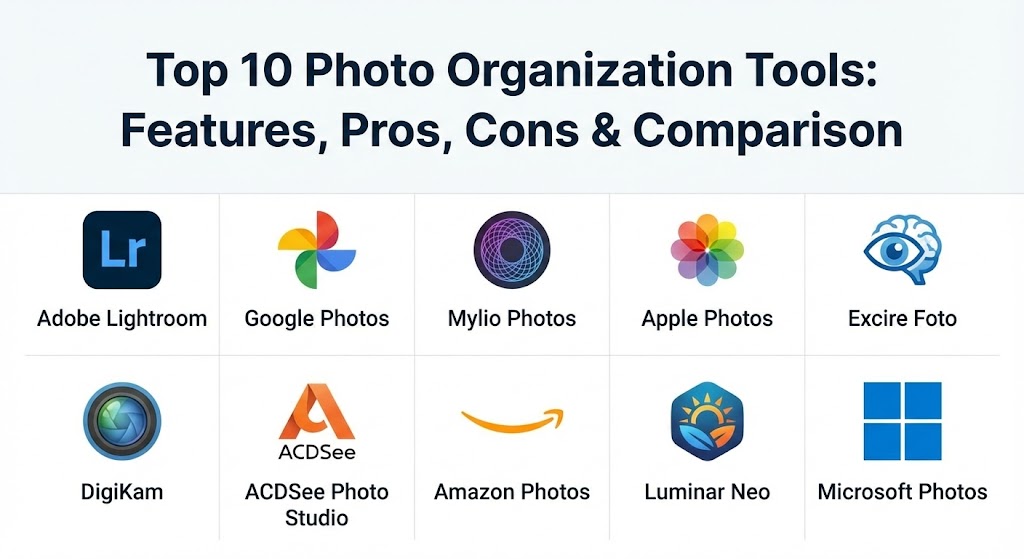
Top 10 Photo Organization Tools
1 — Adobe Lightroom
Adobe Lightroom is the undisputed industry standard for professional photographers. It combines world-class non-destructive editing with a powerful database system that tracks every image in your collection without moving the original files.
- Key features:
- Sensei AI Integration: Automatically tags photos based on content (e.g., “mountains,” “dog,” “wedding”).
- Advanced Face Detection: Groups photos of the same people automatically to streamline portrait searches.
- Smart Collections: Dynamic folders that automatically populate based on metadata (e.g., “All photos taken with a 50mm lens”).
- Non-Destructive Cataloging: Stores edits as instructions, leaving the original RAW files untouched.
- Cloud Syncing: Seamlessly access your entire organized library on mobile, web, and desktop.
- Map Module: Uses GPS data to visualize your photo library on a global map.
- Batch Metadata Editing: Apply keywords and copyright info to thousands of photos simultaneously.
- Pros:
- Unmatched search capabilities using a combination of AI and traditional metadata.
- The most robust ecosystem, with endless tutorials and third-party plugin support.
- Cons:
- Monthly subscription model can be expensive over time.
- Significant learning curve for beginners due to the complexity of the “Catalog” system.
- Security & compliance: GDPR compliant; utilizes Adobe’s enterprise-grade encryption; SSO available for Creative Cloud for Teams; SOC 2 Type 2 certified.
- Support & community: Extensive official help center; massive global user community; 24/7 enterprise support for business accounts; “Lightroom Academy” for structured learning.
2 — Google Photos
Google Photos is the global leader in consumer-facing AI organization. It is designed for users who want the “hands-off” approach, where the software does 99% of the organizational work automatically in the cloud.
- Key features:
- Semantic Search: Find photos using natural language like “me eating pizza in Rome.”
- Automatic Album Creation: AI recognizes trips or events and suggests curated albums for you.
- Shared Libraries: Automatically share photos of specific people with a partner or family member.
- Magic Eraser and Editor: AI-powered tools that help clean up photos directly within the organizer.
- Google Lens Integration: Extract text or identify landmarks and products within your images.
- Storage Saver: Efficiently compresses images to maximize your Google One storage quota.
- Pros:
- The best search algorithm in the industry; often finds photos even without manual tags.
- Completely seamless integration with Android and ChromeOS ecosystems.
- Cons:
- Privacy concerns regarding how Google analyzes image data for its AI models.
- Limited folder-based organizational control; it is very “timeline” centric.
- Security & compliance: Encrypted in transit and at rest; GDPR compliant; 2FA/SSO supported through Google Accounts; ISO/IEC 27001, 27017, and 27018 certified.
- Support & community: Robust help center; user-led community forums; direct support available for Google One subscribers.
3 — Mylio Photos
Mylio Photos is a unique, privacy-first tool that creates a local “mesh network” between your devices. It allows for a cloud-like experience without actually requiring your photos to be stored on a third-party server.
- Key features:
- Device Syncing without Cloud: Syncs your entire library directly between your phone, tablet, and computer over Wi-Fi.
- Life Calendar: An intuitive way to browse photos through a lifetime timeline.
- AI Smart Tags: Local AI tagging that identifies objects and scenes without sending data to the cloud.
- Dynamic Search: Filters photos by camera, date, person, or location instantly.
- Vault System: Designated devices (like an external drive) act as your primary high-resolution backup.
- Privacy-First Face Recognition: All facial processing happens locally on your hardware.
- Pros:
- Total privacy; your photos never have to leave your physical control.
- Incredibly fast performance because it doesn’t rely on internet upload/download speeds.
- Cons:
- Requires you to manage your own hardware for backups (e.g., having an external drive).
- Can be confusing to set up the mesh network for non-technical users.
- Security & compliance: Local-first encryption; no data mining; GDPR compliant; privacy-by-design architecture.
- Support & community: Active user forum; “Mylio Academy” video training; responsive email support; extensive documentation.
4 — Apple Photos
Deeply integrated into the macOS and iOS ecosystem, Apple Photos is the default choice for millions. In 2026, it has become much more than a simple viewer, offering sophisticated on-device intelligence.
- Key features:
- iCloud Integration: Syncs edits and organization across iPhone, iPad, Mac, and Apple TV.
- Visual Look Up: Identifies plants, pets, landmarks, and art within your organized collection.
- Curated View: AI hides duplicates and clutter (receipts, screenshots) to show only your “Best” shots.
- Shared iCloud Photo Library: Up to six people can contribute to a single, organized family collection.
- Memories & Featured Photos: Automatically generated slideshows based on significant events.
- On-Device Intelligence: All face and object recognition happens on the device’s neural engine.
- Pros:
- Zero-cost (software-wise) for Apple users; only pay for iCloud storage.
- The “People & Pets” recognition is exceptionally accurate and private.
- Cons:
- Locked strictly to the Apple ecosystem; no native Windows or Android apps.
- Limited metadata editing (IPTC) compared to professional tools like Lightroom.
- Security & compliance: End-to-end encryption for iCloud (Advanced Data Protection); GDPR compliant; Apple Account security (2FA).
- Support & community: Apple Genius Bar support; massive online knowledge base; community discussion boards.
5 — Excire Foto
Excire Foto is a specialized organizer that uses “state-of-the-art” AI to tag your photos locally. It is often used as a companion to other editing apps that lack deep organizational features.
- Key features:
- Local AI Auto-Tagging: Automatically keywords thousands of images in minutes using your GPU.
- Find Similar Photos: Select one image, and the AI finds others with similar composition or content.
- Find People: High-speed facial recognition and grouping without cloud processing.
- Excire Analytics: Provides insights into your photography habits (e.g., most used focal length).
- Search by Color: Find images based on dominant color palettes.
- Lightroom Plugin: Can be used to enhance the organizational power of Adobe Lightroom Classic.
- Pros:
- One-time purchase price; no ongoing subscription fees.
- Extremely fast and accurate AI tagging that works entirely offline.
- Cons:
- Lacks built-in advanced editing tools; it is primarily for organization.
- No native mobile app for on-the-go organization.
- Security & compliance: GDPR compliant; 100% offline processing ensures maximum data privacy.
- Support & community: Email support; downloadable manual; German and English language community support.
6 — DigiKam
DigiKam is an advanced, open-source photo management application. It is the go-to choice for power users, researchers, and those who want absolute control over their underlying database.
- Key features:
- SQL Database Support: Can handle libraries of 100,000+ images using a robust backend (SQLite, MySQL, MariaDB).
- Advanced Metadata Management: Full support for EXIF, IPTC, and XMP metadata standards.
- Face Detection & Recognition: Uses powerful libraries to group and identify people.
- Batch Queue Manager: Automate repetitive organizational tasks (e.g., renaming and converting).
- Geo-Location Tools: Detailed GPS tagging and map view for travel photography.
- RAW Support: Built-in support for hundreds of RAW image formats.
- Pros:
- Completely free and open-source (FOSS); no hidden costs.
- Unparalleled customization; you can tweak almost every aspect of the organizational workflow.
- Cons:
- The interface is cluttered and can be overwhelming for casual users.
- No official cloud sync; users must set up their own syncing solution (e.g., Nextcloud).
- Security & compliance: Varies by deployment; highly secure for air-gapped systems; GDPR compliant (no data collection).
- Support & community: Volunteer-driven mailing lists; extensive Wiki; IRC and matrix chat channels for developers.
7 — ACDSee Photo Studio
ACDSee has been a staple in the photo management world for decades. It is known for its speed and its “folders-first” approach, making it ideal for those who don’t want to deal with complex imports.
- Key features:
- Direct Access: Browses your folders directly; no need to “import” photos into a proprietary catalog.
- Face Recognition: Includes AI-powered facial grouping and naming.
- Advanced Search: Find files by date, size, rating, or even color profiles.
- Action Browser: Automate repetitive organizational tasks with one click.
- Cloud Sync Integration: Connects with OneDrive, Google Drive, and Dropbox for hybrid workflows.
- Category & Keyword Management: Professional-level tools for organizing commercial assets.
- Pros:
- Extremely fast file browsing; legendary performance on Windows.
- Great balance of professional organization and modern AI features.
- Cons:
- The interface can feel a bit “legacy” compared to modern SaaS apps.
- The Mac version often lags behind the Windows version in features.
- Security & compliance: Standard local encryption; GDPR compliant; enterprise-grade security for Home/Pro versions.
- Support & community: High-quality video tutorials; dedicated support tickets; active online user forums.
8 — Amazon Photos
Amazon Photos is an often-overlooked perk for Prime members. It provides a robust, cloud-based home for photos with a focus on family sharing and high-resolution storage.
- Key features:
- Unlimited Full-Res Storage: Prime members get unlimited storage for photos (including many RAW files).
- Family Vault: Invite up to five members to collect photos in a single, shared, organized space.
- AI Search: Search by person, place, or thing using natural language.
- Fire TV Integration: Use your organized albums as high-definition screensavers.
- Groups Feature: Create conversational photo sharing groups with specific friends or family.
- Daily Memories: Automated reminders of “This Day” in past years.
- Pros:
- Included “for free” with an existing Amazon Prime subscription.
- One of the few cloud services that doesn’t compress your high-resolution photos.
- Cons:
- Video storage is severely limited compared to the unlimited photo storage.
- The organizational tools (albums/folders) are very basic compared to Google or Adobe.
- Security & compliance: Amazon Web Services (AWS) security infrastructure; 2FA; GDPR compliant.
- Support & community: 24/7 Amazon customer service; extensive help articles; limited community interaction.
9 — Luminar Neo
Luminar Neo is primarily known as an AI editor, but its 2026 iteration includes robust organizational modules designed to help creative professionals manage their aesthetic assets.
- Key features:
- AI Structure: Analyzes images to suggest organizational groupings based on visual style.
- Catalog-Based Workflow: Efficiently manages large libraries with flags and ratings.
- Sky AI and Relight AI: Integrated directly into the browser for quick “hero shot” identification.
- Plugin Capability: Works as an organizer for Photoshop or a plugin for Lightroom.
- Cloud Sync: Basic syncing between mobile and desktop versions.
- Preset Management: Organizes look-and-feel assets alongside your physical images.
- Pros:
- The most modern and beautiful user interface on the market.
- Excellent for users who want organization and creative editing in one package.
- Cons:
- Performance can struggle with extremely large libraries (100k+ images).
- Lacks the deep metadata/search flexibility of ACDSee or Lightroom.
- Security & compliance: Standard encryption; GDPR compliant; SOC 2 (Skylum) certified.
- Support & community: Skylum “Insiders” community; high-quality video walkthroughs; responsive email support.
10 — Microsoft Photos
For Windows users, Microsoft Photos is the native solution. In 2026, it has been rebuilt to integrate deeply with OneDrive and Windows AI (Copilot), offering a very “clean” management experience.
- Key features:
- OneDrive Integration: Automatically backs up and organizes photos from your PC and phone.
- Multi-View Interface: Quickly switch between folders, years, and specific “memories.”
- AI Search with Copilot: Ask questions like “Find the photo of the blue house from last summer.”
- Import from External Devices: Streamlined import process for cameras and SD cards.
- Basic Editing: Integrated cropping, filtering, and “markup” tools.
- Automatic Face Grouping: Groups your contacts’ photos for easy browsing.
- Pros:
- Deeply integrated into Windows; no extra software to install or manage.
- The “Spotlight” feature highlights the best photos from your collection daily.
- Cons:
- Relies heavily on a OneDrive subscription for the best features.
- Lacks professional-level metadata (IPTC) or advanced RAW management.
- Security & compliance: Microsoft Account security; GDPR compliant; ISO/IEC 27001 standards via OneDrive.
- Support & community: Windows Feedback Hub; Microsoft Support forums; global enterprise support.
Comparison Table
| Tool Name | Best For | Platform(s) Supported | Standout Feature | Rating (Gartner/TrueReview) |
| Adobe Lightroom1 | Professionals2 | Win, Mac, iOS, Android3 | Smart Collections & Sync4 | 4.8 / 55 |
| Google Photos6 | Hands-off AI7 | Web, iOS, Android8 | Semantic Search9 | 4.6 / 510 |
| Mylio Photos11 | Privacy /12 Offline | Win, Mac, iOS, Android | Local Mesh Sync | 4.5 / 5 |
| Apple Photos | Apple Users | Mac, iOS, iPadOS | On-device Privacy AI | 4.4 / 5 |
| Excire Foto | Local AI Tagging | Win, Mac | High-speed Local AI | 4.3 / 5 |
| DigiKam | Power Users / FOSS | Win, Mac, Linux | SQL Database Support | 4.7 / 5 |
| ACDSee Studio | Speed / Folders | Win, Mac | Direct Folder Access | 4.5 / 5 |
| Amazon Photos | Prime Members | Web, iOS, Android | Unlimited RAW Storage | 4.2 / 5 |
| Luminar Neo | Creative Pros | Win, Mac | AI-Driven Aesthetic Mgmt | 4.4 / 5 |
| Microsoft Photos | Casual Win Users | Windows | Copilot AI Search | 4.1 / 5 |
Evaluation & Scoring of Photo Organization Tools
The following rubric provides a weighted look at how these tools compare across essential categories for 2026.
| Category | Weight | Evaluation Criteria |
| Core Features | 25% | AI tagging, face recognition, search speed, and metadata handling. |
| Ease of Use | 15% | UI design, onboarding experience, and complexity of workflows. |
| Integrations | 15% | Support for cloud services, external editors, and social sharing. |
| Security | 10% | Encryption, privacy policy, and local vs. cloud data handling. |
| Performance | 10% | Load times for large libraries and speed of batch operations. |
| Support | 10% | Documentation, community forums, and customer support response. |
| Price / Value | 15% | Subscription vs. one-time fee and features provided per dollar. |
Which Photo Organization Tool Is Right for You?
Selecting the right tool depends heavily on your hardware ecosystem, your privacy preferences, and whether you are a professional or a hobbyist.
Solo Users vs SMB vs Mid-Market vs Enterprise
- Solo Users: Simplicity is king. Google Photos or Apple Photos are usually the best fit because they automate the “drudge work” of tagging and sorting.
- Small Businesses/Pros: Efficiency and metadata consistency matter most. Adobe Lightroom or Capture One are necessary to manage client shoots and professional archives.
- Mid-Market/Teams: You likely need Digital Asset Management (DAM) features. Canto or Bynder (beyond this list) or the enterprise versions of Lightroom are better for collaborative environments with many users.
Budget-Conscious vs Premium Solutions
- Budget-Conscious: DigiKam is entirely free, while Amazon Photos is effectively free for Prime members. Excire Foto offers a one-time purchase if you want to avoid subscriptions.
- Premium: Adobe Lightroom and Luminar Neo require recurring payments but offer the most advanced, cutting-edge AI features.
Feature Depth vs Ease of Use
- Feature Depth: DigiKam and Lightroom provide the most control but require time to learn.
- Ease of Use: Google Photos and Microsoft Photos have virtually no learning curve; you just upload and search.
Integration and Scalability Needs
If you have a library of 500,000+ images, you need a robust database. DigiKam (SQL) or Lightroom Classic are the only ones that truly scale to that level without performance degradation. For mobile-first users, Google Photos scales infinitely in the cloud.
Frequently Asked Questions (FAQs)
1. What is the difference between “Catalog-based” and “Folder-based” organization?
Catalog-based tools (like Lightroom) create a separate database file that stores all your tags and edits, leaving original files alone. Folder-based tools (like ACDSee) interact directly with your hard drive’s file structure.
2. Can AI organization tools recognize my pets?
Yes, most top-tier tools in 2026, including Google Photos, Apple Photos, and Lightroom, have specific AI models trained to distinguish between individual dogs and cats.
3. Is it possible to organize photos without using the cloud?
Absolutely. Tools like Mylio Photos, DigiKam, and Excire Foto are designed specifically for users who want to keep their entire organized library on local hardware for privacy or speed.
4. How do I handle duplicate photos automatically?
Most modern tools like Luminar Neo and Google Photos have built-in duplicate detection. They can group “burst” shots or identical files to keep your library clean.
5. Do these tools work with RAW files?
Professional tools like Lightroom, Capture One, and DigiKam provide full RAW support. Consumer tools like Apple Photos support RAW but may not offer the same depth of organizational metadata.
6. Can I move my library from Google Photos to another tool easily?
It can be difficult. While you can download your photos using Google Takeout, the AI-generated tags often don’t transfer perfectly to other software. It’s best to use IPTC metadata for long-term portability.
7. Are one-time payment tools better than subscriptions?
One-time payment tools (Excire Foto, ACDSee) are better for your wallet in the long run, but subscription tools (Adobe, Google) usually receive much more frequent AI updates and cloud features.
8. What is “Non-destructive” organization?
This means that when you tag or edit a photo, the original file is never changed. The software just remembers your choices and applies them “on the fly” when you view or export the image.
9. How does “Semantic Search” work?
Semantic search uses machine learning to understand the context of your query. Instead of just looking for tags like “beach,” it understands phrases like “vacation with my kids near the ocean” by analyzing the visual content.
10. What is the biggest mistake people make in photo organization?
The biggest mistake is relying on a single cloud provider without a local backup. Always follow the 3-2-1 rule: 3 copies of your data, on 2 different media types, with 1 copy off-site.
Conclusion
Choosing a photo organization tool in 2026 is no longer just about storage; it’s about leveraging AI to make your memories searchable and useful. If you value privacy and local control, Mylio or DigiKam are your best bets. If you want the ultimate professional workflow, Adobe Lightroom remains the gold standard. For everyday ease of use, Google Photos is hard to beat. The “best” tool is ultimately the one that fits your current hardware and ensures your photos don’t just sit on a hard drive, but are accessible and enjoyed for years to come.