Introduction
OCR and Document Capture Software refers to a suite of technologies designed to convert different types of documents—such as scanned paper documents, PDF files, or images captured by a digital camera—into editable and searchable data. While OCR focuses on the character recognition itself, Document Capture encompasses the broader workflow: scanning, enhancing image quality, classifying the document type, and exporting the data into a business system like an ERP or CRM.
The importance of these tools lies in their ability to eliminate manual data entry, which is notoriously slow and prone to error. Real-world use cases are vast, ranging from automated invoice processing and identity verification (KYC) to archiving historical manuscripts and digitizing medical records. When evaluating tools in this category, users should prioritize accuracy rates, language support, handwriting recognition (ICR), and automation capabilities.
Best for: Accounting and finance teams, legal professionals, healthcare administrators, and government agencies. It is essential for any organization—from mid-market to enterprise—that manages high volumes of physical paperwork or unstructured digital files.
Not ideal for: Casual users who only need to copy text from a single image occasionally; for them, the built-in OCR in standard smartphone apps or basic “Save as PDF” features in Word are usually sufficient.
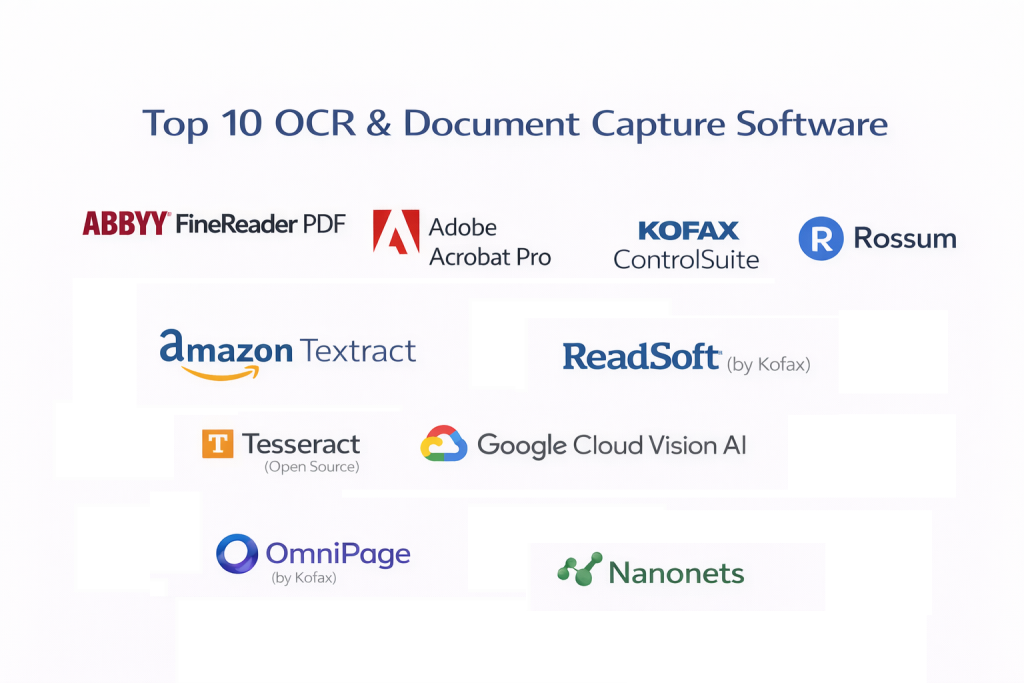
Top 10 OCR & Document Capture Software Tools
1 — ABBYY FineReader PDF
ABBYY FineReader is widely considered the industry benchmark for OCR accuracy. It is a comprehensive PDF and document tool that allows professionals to maximize efficiency in the digital workplace by leveraging AI-based recognition technology.
- Key features:
- AI-Powered OCR: Exceptional accuracy in text recognition across 190+ languages.
- Document Comparison: Automatically identifies changes between two versions of a document, regardless of format.
- Advanced Table Extraction: Preserves complex formatting when converting to Excel.
- Automated Processing: Schedule batch conversions for large volumes of documents.
- Handwriting Recognition: Sophisticated ICR for interpreting hand-printed text on forms.
- Pros:
- Industry-leading accuracy for low-quality scans and complex layouts.
- Seamless integration of PDF editing and OCR in one interface.
- Cons:
- The desktop software is resource-intensive and can be slow on older hardware.
- High cost of entry compared to lightweight alternatives.
- Security & compliance: SSO, password protection, redaction tools, GDPR, and HIPAA compliant.
- Support & community: Professional technical support, extensive knowledge base, and a large global user community.
2 — Adobe Acrobat Pro
Adobe Acrobat Pro is the world’s most famous PDF tool, and its integrated OCR engine is a primary feature for millions of business users. It is designed for those who need a unified platform for creating, converting, and protecting documents.
- Key features:
- High-Fidelity Conversion: Turns scans into searchable PDFs that look identical to the original.
- Action Wizard: Create customized, multi-step document capture workflows.
- Mobile App Integration: Use Adobe Scan to capture documents via smartphone and sync to the desktop.
- Automated Field Detection: Recognizes form fields in static scans and makes them interactive.
- Export to Office: High-quality conversion from PDF to Word, Excel, or PowerPoint.
- Pros:
- The most intuitive interface for general business users.
- Part of the Adobe Creative Cloud ecosystem, offering seamless cross-app functionality.
- Cons:
- OCR settings are less granular than specialized tools like ABBYY.
- Subscription-only model can be expensive over the long term.
- Security & compliance: SSO, AES-256 encryption, audit logs, SOC 2, and GDPR compliant.
- Support & community: Robust official support, massive library of tutorials, and global enterprise support availability.
3 — Kofax ControlSuite
Kofax is an enterprise-grade document capture platform that focuses on “Cognitive Capture.” It is designed for large organizations that need to automate the intake of information across multiple channels (mobile, email, scanner).
- Key features:
- Multichannel Capture: Ingests data from mobile, web, desktop, and multi-function printers.
- Natural Language Processing (NLP): Understands the context of the text, not just the characters.
- Unified Print Management: Combines document capture with secure print workflows.
- Auto-Classification: Uses machine learning to identify document types (e.g., invoice vs. contract).
- Digital Workflows: Routes extracted data directly into downstream business systems.
- Pros:
- Unrivaled for enterprise-scale automation and high-volume processing.
- Strongest security features for regulated industries like banking and insurance.
- Cons:
- Extremely high complexity; requires professional implementation and training.
- Pricing is generally opaque and tailored only for large enterprises.
- Security & compliance: ISO 27001, SOC 2, HIPAA, GDPR, and PCI DSS compliant.
- Support & community: Dedicated enterprise support teams and a specialized partner network.
4 — Rossum
Rossum is a modern, cloud-native “Intelligent Document Processing” (IDP) platform that focuses on a “unique-map” approach. It is designed to extract data from documents without requiring rigid templates.
- Key features:
- Template-free Extraction: Uses AI to find data points (like Invoice Total) regardless of document layout.
- Human-in-the-loop (HITL): A simple UI for humans to verify and correct AI “guesses.”
- Low-Code Integration: Easy to connect to ERPs like SAP, NetSuite, and Microsoft Dynamics.
- Rapid Self-Learning: The AI improves with every document processed by a human.
- Web-Based Interface: No heavy software installation required.
- Pros:
- Dramatically faster setup time compared to traditional template-based OCR.
- Very high accuracy for semi-structured documents like invoices and bills of lading.
- Cons:
- Not suitable for long-form “unstructured” text like legal briefs.
- Pricing is based on document volume, which can scale quickly.
- Security & compliance: ISO 27001, SOC 2 Type II, GDPR, and HIPAA compliant.
- Support & community: Responsive customer success teams and detailed API documentation.
5 — Amazon Textract
Amazon Textract is a developer-focused machine learning service that automatically extracts text, handwriting, and data from scanned documents. It goes beyond simple OCR to identify the contents of fields in forms and information stored in tables.
- Key features:
- Form Extraction: Automatically detects key-value pairs in forms.
- Table Recognition: Maintains the composition of data stored in tables during extraction.
- Pay-as-you-go: Only pay for the documents you actually process.
- AWS Ecosystem: Deep integration with S3, Lambda, and SageMaker.
- Queries Feature: Ask natural language questions about the document (e.g., “What is the patient’s name?”).
- Pros:
- Virtually unlimited scalability through the AWS cloud.
- No upfront costs; perfect for developers building their own document apps.
- Cons:
- No user-friendly “out-of-the-box” interface; requires coding knowledge to implement.
- Can be difficult to estimate costs for extremely high-volume, variable workloads.
- Security & compliance: SOC 1/2/3, ISO, HIPAA, and GDPR compliant via AWS infrastructure.
- Support & community: Massive AWS developer community and professional AWS support tiers.
6 — ReadSoft (by Kofax)
ReadSoft is a specialized solution within the Kofax family focused primarily on Accounts Payable (AP) automation. It is the gold standard for companies looking to automate invoice processing.
- Key features:
- Verified Invoice Extraction: Specialized logic for line-item extraction on invoices.
- ERP Integration: Direct, battle-tested connectors for SAP and Oracle.
- Exception Handling: Built-in workflows for managing mismatched invoices.
- Supplier Portal: Allows suppliers to see the status of their invoices.
- Master Data Matching: Checks extracted data against your existing vendor database.
- Pros:
- The most reliable tool for complex global financial departments.
- Reduces invoice processing time by up to 80%.
- Cons:
- Very narrow focus (primarily finance); not a general-purpose OCR tool.
- Expensive implementation and maintenance costs.
- Security & compliance: SSO, audit logs, SOC 2, and GDPR compliant.
- Support & community: Professional enterprise support and extensive technical training.
7 — Tesseract (Open Source)
Tesseract is the most famous open-source OCR engine in the world. Originally developed by HP and now maintained by Google, it serves as the engine for thousands of other software applications.
- Key features:
- Completely Free: No licensing fees for any use case.
- 100+ Language Support: Extensive community-driven language packs.
- Custom Training: Ability to train the engine on specific fonts or character sets.
- Command Line Interface: Lightweight and programmable for automation scripts.
- Active Development: Constant updates from a global developer pool.
- Pros:
- Zero cost for individuals and developers.
- Highly portable; runs on Windows, Linux, and macOS.
- Cons:
- Requires significant technical skill to set up and achieve high accuracy.
- Struggles with complex page layouts and low-quality images compared to AI-based tools.
- Security & compliance: N/A (Local-first); security depends on the environment where it is hosted.
- Support & community: Massive GitHub community and extensive online documentation.
8 — Google Cloud Vision AI
Google’s OCR is powered by the same technology used in Google Search and Google Lens. It is a powerful API that provides state-of-the-art recognition for text in images and documents.
- Key features:
- Detect Handwriting: Superior recognition of cursive and hand-printed text.
- Object Detection: Can identify objects and landmarks alongside text.
- Document AI: A specialized suite for extracting data from structured forms (H-1B, 1040).
- Global Scale: Leverages Google’s global infrastructure for near-instant processing.
- Integration: Easily connects with Google Workspace and Cloud Storage.
- Pros:
- Best-in-class for recognizing text in diverse, “real-world” photos.
- Competitive pricing for high-volume API calls.
- Cons:
- Privacy-conscious organizations may have concerns about sending data to Google’s cloud.
- Requires development expertise to build a usable business front-end.
- Security & compliance: ISO, SOC, HIPAA, and GDPR compliant through Google Cloud.
- Support & community: Strong developer documentation and Google Cloud support plans.
9 — OmniPage (by Kofax)
OmniPage is a venerable desktop OCR tool that has been a favorite of power users for decades. It is known for its “Ultimate” version, which provides a high-volume processing engine for the desktop.
- Key features:
- Logical Form Recognition: Converts paper forms into fillable electronic forms.
- Workflow Assistant: Easy-to-use tool for creating automated “watch folders.”
- eDiscovery Tools: Optimized for converting legal documents for searchability.
- Kindle Support: Convert documents specifically for reading on e-readers.
- High-Accuracy Tables: Superior handling of multi-page spreadsheets.
- Pros:
- Excellent balance of professional features and desktop-level ease of use.
- One-time purchase options are still available (avoiding subscriptions).
- Cons:
- The user interface hasn’t been significantly modernized in several years.
- Development has slowed compared to Kofax’s newer cloud-based offerings.
- Security & compliance: SSO, encryption, and GDPR compliant.
- Support & community: Knowledge base and standard technical support.
10 — Nanonets
Nanonets is an AI-first OCR platform that prides itself on being “smarter” than traditional software. It is designed for businesses that need to extract custom data fields from varied document types.
- Key features:
- Custom Model Training: Easily train the AI on your specific company documents in minutes.
- Automated Data Validation: Checks extracted data against predefined rules (e.g., date formats).
- Auto-Cropping: Automatically cleans up and straightens mobile-captured images.
- Zapier/Make Integration: Connect to 5,000+ apps without writing code.
- Multilingual OCR: Works across dozens of different scripts and languages.
- Pros:
- Extremely fast time-to-value; you can have a working model in under an hour.
- Very intuitive for non-technical managers.
- Cons:
- Pricing can be high for high-frequency processing.
- Cloud-only; may not suit organizations requiring an on-premise installation.
- Security & compliance: SOC 2 Type II, GDPR, and HIPAA compliant.
- Support & community: Responsive chat support and a detailed “How-to” blog.
Comparison Table
| Tool Name | Best For | Platform(s) Supported | Standout Feature | Rating (Gartner) |
| ABBYY FineReader | High Accuracy | Windows, Mac | Advanced Table OCR | 4.7 / 5 |
| Adobe Acrobat Pro | General Business | Win, Mac, Web | Mobile-to-Cloud Sync | 4.5 / 5 |
| Kofax ControlSuite | Enterprise BPA | Win, Cloud | Multichannel Capture | 4.4 / 5 |
| Rossum | Invoices/Logistics | Web/Cloud | Template-free AI | 4.8 / 5 |
| Amazon Textract | Developers | API/AWS | Key-Value Form Logic | 4.6 / 5 |
| ReadSoft | Finance/AP | Win, Cloud | ERP Native Connectors | 4.3 / 5 |
| Tesseract | Open Source | Linux, Win, Mac | Completely Free/Open | N/A |
| Google Cloud Vision | Real-world Photos | API/Cloud | Handwriting Expertise | 4.7 / 5 |
| OmniPage | Desktop Power Users | Windows | Watch Folder Automation | 4.2 / 5 |
| Nanonets | Custom Data Fields | Web/Cloud | Low-code AI Training | 4.8 / 5 |
Evaluation & Scoring of OCR & Document Capture Software
To provide an objective overview, we have used a weighted scoring rubric that reflects the priorities of 2025’s digital-first organizations. Accuracy and security remain the most critical factors.
| Criteria | Weight | Evaluation Rationale |
| Core Features | 25% | OCR accuracy, handwriting recognition, and table extraction. |
| Ease of Use | 15% | The learning curve and quality of the user interface. |
| Integrations | 15% | Native connectors for ERPs, CRMs, and Cloud storage. |
| Security & Compliance | 10% | Encryption standards and industry certifications (HIPAA/SOC 2). |
| Performance | 10% | Processing speed and batch handling reliability. |
| Support & Community | 10% | Documentation quality and technical support responsiveness. |
| Price / Value | 15% | Cost-per-document and total cost of ownership. |
Which OCR & Document Capture Software Tool Is Right for You?
Choosing the right tool is a matter of matching your specific document volume and technical capability to the right platform.
Solo Users vs. SMB vs. Enterprise
- Solo Users: If you are an individual researcher or student, Adobe Acrobat Pro or the free Tesseract are your best options. They provide high power without the need for complex server setups.
- SMB (Small to Mid-Market): Nanonets or ABBYY FineReader are the winners here. They offer professional-grade extraction without requiring a massive IT budget or long implementation times.
- Enterprise: For global giants with millions of documents, Kofax or Rossum provide the necessary scalability, security, and deep ERP integration.
Budget-Conscious vs. Premium Solutions
- Budget-Conscious: Tesseract is the only zero-cost option. For those with a small budget, Amazon Textract and Google Cloud Vision provide “pay-as-you-go” models that are very affordable for low volumes.
- Premium: If accuracy is non-negotiable (e.g., in a legal firm), the premium price of ABBYY FineReader or Kofax is a necessary investment to avoid the cost of errors.
Feature Depth vs. Ease of Use
If you want a tool that “just works” out of the box with a friendly interface, choose Adobe Acrobat or Nanonets. If you need deep technical control over the recognition engine and have a development team, Amazon Textract or Tesseract are the superior choices.
Frequently Asked Questions (FAQs)
1. Is OCR accuracy 100%?
No. Even the best tools in 2025 usually peak at 98–99% for clean digital text. For handwriting or blurry scans, accuracy can drop to 80–90%. Always include a human verification step for critical data.
2. Can OCR read handwriting?
Yes, this is called ICR (Intelligent Character Recognition). Modern AI tools like Google Cloud Vision and ABBYY are excellent at reading hand-printed text, though cursive still remains a challenge for most.
3. What is the difference between OCR and IDP?
OCR (Optical Character Recognition) just turns pictures of letters into digital letters. IDP (Intelligent Document Processing) uses AI to understand what those letters mean (e.g., recognizing that “Total Due” is followed by a currency value).
4. Can I use OCR on my phone?
Yes. Apps like Adobe Scan and Google Lens use high-quality cloud-based OCR to turn smartphone photos into searchable text instantly.
5. How much does OCR software cost?
It varies widely. Desktop tools like ABBYY are around $200. Cloud APIs like AWS Textract cost about $0.01 per page. Enterprise systems can cost tens of thousands in annual licensing.
6. Is my data safe when using cloud OCR?
Most major providers (AWS, Google, Adobe) use enterprise-grade encryption. However, if you handle extremely sensitive data (e.g., top-secret or private health info), look for tools that offer on-premise processing.
7. Does OCR work on multi-page documents?
Yes. All professional tools on this list can handle multi-page PDFs or TIFF files and output them as a single cohesive document or spreadsheet.
8. Why is my OCR output full of garbled characters?
This usually happens if the scan quality is too low (less than 300 DPI) or if the document contains non-standard fonts that the engine hasn’t been trained on.
9. Can OCR handle tables?
Yes, but this is a complex feature. High-end tools like OmniPage and ABBYY are significantly better at recreating Excel tables than basic free tools.
10. How do I start automating my documents?
Start with a “Capture Audit.” Identify your most common document (e.g., an invoice) and use a tool like Nanonets or Rossum to build a trial workflow that extracts just 3-4 key fields.
Conclusion
The “best” OCR and document capture tool is no longer just about recognizing letters; it’s about the speed and intelligence of the data extraction. For those who need absolute precision on a desktop, ABBYY FineReader remains the king. For organizations looking to eliminate manual data entry in their finance departments, the AI-first approach of Rossum and Nanonets is the future.
Before committing to a high-cost license, take advantage of the free API credits or trials offered by these vendors. Run your “worst” documents—the ones that are blurry, tilted, or handwritten—through the engines to see which one handles your specific challenges with the least amount of friction.