Introduction
AR Education Apps represent a shift from passive consumption to active exploration. By blending virtual elements with the real world, these tools bridge the gap between abstract theory and practical understanding. The importance of AR in education lies in its ability to cater to various learning styles, particularly kinesthetic and visual learners, while significantly boosting student engagement and memory retention. In an age of digital distraction, AR provides a “wow factor” that anchors a student’s attention to the subject matter.
Key real-world use cases include STEM simulations where students can experiment with hazardous chemicals without risk, historical tours where artifacts are “restored” in front of the viewer, and language learning where vocabulary is mapped to physical objects. When choosing an AR tool, educators and institutions should evaluate them based on curriculum alignment, the quality of 3D assets, ease of teacher control, and the “barrier to entry”—specifically whether the app requires specialized hardware like the Merge Cube or works on standard mobile devices.
Best for: K–12 teachers seeking to increase classroom engagement, university professors in medical or engineering fields, corporate trainers for technical skills, and homeschooling parents looking for immersive supplementary tools.
Not ideal for: Purely text-based subjects where visual representation adds little value, or underfunded institutions that lack the necessary hardware (smartphones/tablets) to support the software.
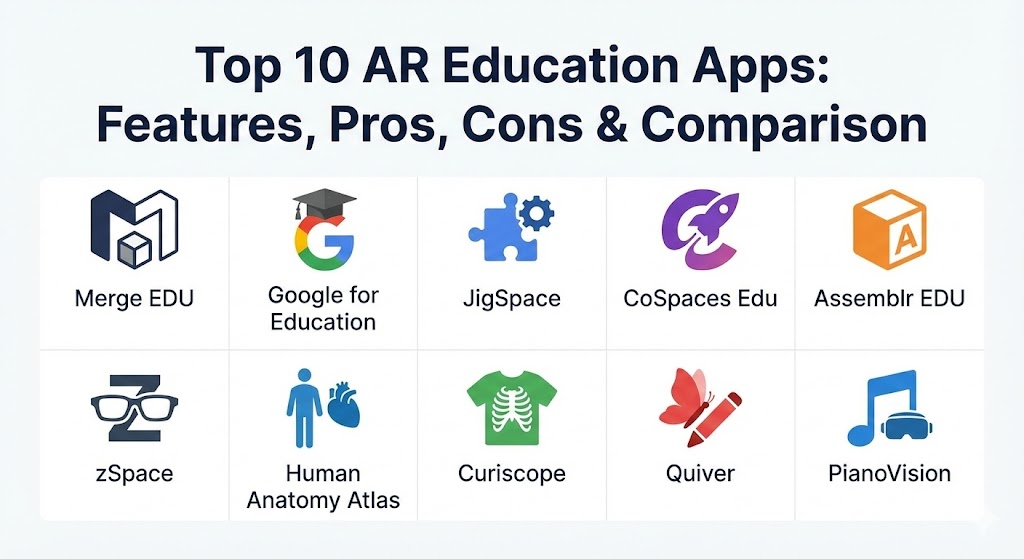
Top 10 AR Education Apps
1 — Merge EDU
Merge EDU is an award-winning platform that focuses heavily on K–12 STEM education. Its standout feature is its integration with the Merge Cube, a physical foam cube that acts as a digital anchor, allowing students to “hold” holograms in their hands.
- Key features:
- Hundreds of interactive 3D simulations for science and math.
- Merge Cube integration for tactile, hands-on AR experiences.
- Teacher Dashboard with lesson plans and activity guides.
- Support for remote and hybrid learning environments.
- Integrated “Object Viewer” to upload and view custom 3D models.
- Comprehensive STEM curriculum alignment for various grade levels.
- Pros:
- The physical cube provides a unique sensory experience that aids motor skills.
- Highly intuitive for younger students; feels like a toy but functions as a lab.
- Cons:
- Requires the purchase of physical cubes for the best experience.
- Subscription costs for the full curriculum can be high for smaller schools.
- Security & compliance: COPPA, FERPA, and GDPR compliant. Uses standard SSL/TLS encryption.
- Support & community: Extensive library of teacher-created resources, webinars, and a dedicated support portal for educators.
2 — Google for Education (AR & Lens)
Google has consolidated its AR efforts (including the legacy Google Expeditions content) into its broader ecosystem, leveraging Google Lens and search-based AR to make 3D models accessible to anyone with a smartphone.
- Key features:
- Direct search integration: View 3D animals, planets, and cells directly from Google Search.
- Google Lens for real-time translation and object identification.
- Interactive maps and “Live View” for geography and history lessons.
- Integration with Google Classroom for easy assignment distribution.
- Collaborative “Read Along” features for literacy with AR elements.
- Massive library of open-source 3D models via the Google Arts & Culture platform.
- Pros:
- Completely free for the majority of core features.
- No specialized hardware needed beyond a standard Android or iOS device.
- Cons:
- Content is somewhat fragmented across different Google apps.
- Lacks a cohesive “lesson plan” structure compared to dedicated apps like Merge.
- Security & compliance: SOC 2, SOC 3, ISO/IEC 27001, and HIPAA (via Workspace).
- Support & community: Vast global community of Google Certified Educators and extensive help center documentation.
3 — JigSpace
JigSpace is the platform of choice for “how-it-works” education. It breaks down complex machines and concepts into 3D presentations called “Jigs,” which users can explore step-by-step in their own space.
- Key features:
- “Step-by-step” interactive 3D instructions for mechanical and scientific topics.
- Prototyping tools for students to create their own AR presentations.
- High-fidelity 3D rendering for realistic visualizations.
- Cross-platform support (Web, iOS, Android, and Apple Vision Pro).
- Integration with CAD software for engineering students.
- Collaborative viewing mode for team-based learning.
- Pros:
- Excellent for vocational training and advanced engineering concepts.
- Allows students to transition from consumers to creators of AR content.
- Cons:
- Higher-level technical content is often locked behind a paid tier.
- Can be overkill for simple K–5 educational needs.
- Security & compliance: SOC 2 compliant; uses AES-256 encryption for data storage.
- Support & community: Professional onboarding for enterprise/university accounts and a robust online “Jig” library.
4 — CoSpaces Edu
CoSpaces Edu empowers students to become creators. It is a coding and creation platform where students build their own 3D worlds and then experience them in AR or VR.
- Key features:
- Blocks-based (CoBlocks) and JavaScript coding interfaces.
- Library of 3D characters, objects, and environments.
- Physics engine for building games and interactive simulations.
- Collaborative editing for group projects.
- Multi-device support, including tablets and VR headsets.
- Assessment tools for teachers to view student progress.
- Pros:
- Teaches computational thinking alongside subject-specific knowledge.
- High versatility; can be used for storytelling, history, or math.
- Cons:
- Requires significant teacher prep time to master the coding aspect.
- The free version is quite limited in terms of asset library size.
- Security & compliance: GDPR, COPPA, and FERPA compliant. Data hosted in secure EU data centers.
- Support & community: Very active “Ambassador” program with thousands of lesson plans shared by teachers globally.
5 — Assemblr EDU
Assemblr EDU is designed for simplicity, allowing teachers and students to create AR content in minutes without any coding. It focuses on making classroom presentations more dynamic.
- Key features:
- Simple drag-and-drop AR builder.
- Pre-made 3D educational bundles for biology, physics, and geography.
- “Scan to View” functionality using QR codes in textbooks.
- Web-based editor for creating content on PCs.
- Virtual classrooms for managing student assignments.
- Massive community-contributed 3D library.
- Pros:
- One of the easiest tools to use for non-technical teachers.
- Works exceptionally well on older mobile hardware.
- Cons:
- The “Pro” assets can be expensive for individual teachers.
- Customization is less deep compared to CoSpaces Edu.
- Security & compliance: Standard SSL/TLS encryption; GDPR compliant.
- Support & community: Active Facebook group and YouTube channel with tutorial-heavy content.
6 — zSpace
zSpace is a hardware and software hybrid solution. It uses specialized laptops and “all-in-one” PCs with tracking glasses to create a “holographic” experience without the need for a headset.
- Key features:
- Headset-free 3D immersion using lightweight tracking glasses.
- Stylus-based interaction to “pick up” and manipulate digital objects.
- Over 1,000 curriculum-aligned activities for K–12 and higher ed.
- Advanced medical simulations for surgical and nursing students.
- Multi-user setups for collaborative lab environments.
- Offline-first capability for schools with poor connectivity.
- Pros:
- Provides the most “stable” and high-accuracy AR experience available.
- Reduces the hygiene and comfort issues associated with VR headsets.
- Cons:
- Extremely high initial investment for the proprietary hardware.
- Not portable; limited to the specific zSpace stations.
- Security & compliance: FERPA and COPPA compliant; enterprise-grade local network security.
- Support & community: Professional on-site training and dedicated account managers for school districts.
7 — Human Anatomy Atlas (by Visible Body)
Considered the gold standard for medical education, this app provides a comprehensive 3D atlas of the human body that can be projected into the real world via AR.
- Key features:
- Detailed 3D models of gross anatomy and microanatomy.
- AR Lab feature to place a “virtual cadaver” on any flat surface.
- Interactive muscle actions and bone structures.
- Cross-sectional views and MRI/CT scan correlations.
- Quizzes and lab activities for nursing and medical students.
- Regular updates reflecting the latest anatomical research.
- Pros:
- Unmatched medical accuracy and visual detail.
- Cost-effective alternative to expensive physical models or cadavers.
- Cons:
- High storage requirement on mobile devices due to 3D asset density.
- The interface is dense and requires a learning curve for younger users.
- Security & compliance: GDPR compliant; HIPAA-aware design for professional use.
- Support & community: Extensive academic support, including correlation guides for major textbooks.
8 — Curiscope (Virtuali-Tee)
Curiscope takes a “wearable” approach to AR. By wearing their specialized t-shirt, students can use the app to look “inside” their own or their friend’s body.
- Key features:
- T-shirt-based AR tracking for a unique X-ray effect.
- Anatomical systems (skeletal, digestive, circulatory) presented in 3D.
- “Expert Mode” with detailed voiceovers and scientific facts.
- 360-degree videos of internal organs.
- Multi-language support for global classrooms.
- Gamified “health challenges” within the app.
- Pros:
- Highly social and engaging; encourages peer-to-peer learning.
- Very affordable entry point for parents and small classrooms.
- Cons:
- Requires the physical t-shirt to work.
- Limited scope; focuses primarily on basic human biology.
- Security & compliance: Varies / N/A (Standard mobile app privacy policies).
- Support & community: Growing presence in science museums and schools; active social media support.
9 — Quiver
Quiver bridges the gap between traditional paper-and-pencil activities and digital technology. It turns traditional coloring pages into 3D, animated AR scenes.
- Key features:
- Printable coloring sheets that act as AR triggers.
- 3D animations that retain the exact colors used by the student.
- Educational themes including geography, biology, and history.
- Interactive “play” elements within the 3D scenes.
- “Quiver Education” dashboard for classroom-wide management.
- Offline functionality once pages are downloaded.
- Pros:
- Perfect for early childhood and primary education.
- Incredibly low barrier to entry; very high “magic” factor.
- Cons:
- Content is limited to the specific coloring sheets provided by Quiver.
- Not suitable for high school or university-level education.
- Security & compliance: COPPA and GDPR compliant.
- Support & community: Reliable customer support and a vast library of printable content.
10 — PianoVision
A standout for 2026, PianoVision represents the “Mixed Reality” evolution of AR. It uses AR headsets (like Meta Quest 3) to overlay digital notes onto a physical piano keyboard, gamifying the learning process.
- Key features:
- Real-time “falling note” overlays on physical or virtual keyboards.
- MIDI integration for precise performance tracking.
- Sheet music library with thousands of classical and modern songs.
- Adaptive difficulty that scales with the user’s progress.
- Multi-player mode for virtual recitals and teacher-led lessons.
- Focus on muscle memory and rhythm.
- Pros:
- Dramatically shortens the time required to play a first song.
- Transforms a solo, often tedious practice into an engaging game.
- Cons:
- Requires a high-end AR/VR headset for the best experience.
- Does not fully replace the need for traditional music theory.
- Security & compliance: SOC 2 (via Meta); GDPR compliant.
- Support & community: Active Discord community and regular feature updates from developers.
Comparison Table
| Tool Name | Best For | Platform(s) Supported | Standout Feature | Rating (TrueReviewnow.com) |
| Merge EDU | K–12 STEM | iOS, Android, Web | Physical Merge Cube | 4.8 / 5 |
| Google Education | General K–12 | iOS, Android | Free Search-based AR | 4.6 / 5 |
| JigSpace | Engineering/Vocational | Web, Mobile, Vision Pro | Step-by-Step 3D Jigs | 4.7 / 5 |
| CoSpaces Edu | Coding/Creation | Web, iOS, Android | Student-led AR Coding | 4.9 / 5 |
| Assemblr EDU | Simple AR Projects | iOS, Android, Web | QR Code Integration | 4.5 / 5 |
| zSpace | Medical/Higher Ed | Proprietary Hardware | Headset-free Holograms | 4.4 / 5 |
| Human Anatomy | Med Schools/Biology | iOS, Android | “Virtual Cadaver” AR | 4.8 / 5 |
| Curiscope | Biology/X-Ray | iOS, Android | AR T-Shirt Tracking | 4.3 / 5 |
| Quiver | Early Childhood | iOS, Android | 3D Coloring Pages | 4.5 / 5 |
| PianoVision | Music Education | Meta Quest 3/Pro | Real-world Piano Overlay | 4.9 / 5 |
Evaluation & Scoring of AR Education Apps
The following rubric provides a weighted look at how these tools were ranked for 2026.
| Category | Weight | Evaluation Criteria |
| Core Features | 25% | Depth of 3D assets, curriculum alignment, and interactivity. |
| Ease of Use | 15% | Student onboarding and teacher control dashboard quality. |
| Integrations | 15% | Compatibility with LMS (Canvas/Google Classroom) and hardware. |
| Security | 10% | Compliance with student data privacy laws (COPPA/FERPA). |
| Performance | 10% | Stability, frame rate, and tracking accuracy in various lighting. |
| Support | 10% | Quality of teacher guides, webinars, and technical support. |
| Price / Value | 15% | ROI for schools and availability of free/low-cost tiers. |
Which AR Education App Tool Is Right for You?
Selecting the right app depends on your budget, your available hardware, and your pedagogical goals.
- Solo Users vs. SMB vs. Enterprise: Solo learners or homeschoolers should start with Google Education or Merge EDU. School districts (SMB/Enterprise) should look for platforms like CoSpaces Edu or zSpace that offer centralized management and bulk licensing.
- Budget-conscious vs. Premium Solutions: If the budget is zero, Google Lens and search-based AR provide the most value. For premium experiences that replace physical labs, zSpace or Visible Body are the industry leaders.
- Feature Depth vs. Ease of Use: JigSpace offers immense depth for technical subjects, whereas Quiver and Assemblr prioritize immediate, easy adoption for younger or non-technical users.
- Integration and Scalability Needs: If you are already a Google Workspace for Education school, sticking with Google’s AR features simplifies logistics. For coding-focused schools, CoSpaces Edu scales exceptionally well across the computer science curriculum.
- Security and Compliance Requirements: In the US, ensure any app you choose is strictly FERPA/COPPA compliant. Merge EDU and Google are the safest bets for large-scale institutional adoption.
Frequently Asked Questions (FAQs)
1. Do I need expensive AR glasses to use these apps?
No. Most of the apps on this list (like Merge EDU, Quiver, and Google) work on standard modern smartphones and tablets. Only specific high-end apps like PianoVision or hardware solutions like zSpace require headsets or specialized monitors.
2. Is AR safe for young children’s eyes?
AR is generally safer than VR because it does not block the child’s peripheral vision or replace their entire world. However, moderation is key, and supervised sessions of 15–20 minutes are recommended for younger learners.
3. Can these apps work without the internet?
Some apps, such as Visible Body and Quiver, allow you to download content for offline use. However, initial setup and content browsing typically require a stable connection.
4. How do teachers monitor what students are doing in AR?
Platforms like CoSpaces Edu and Merge EDU provide teacher dashboards where you can see students’ work-in-progress, assign tasks, and even view their 3D creations in real-time.
5. What is the difference between AR and VR in education?
AR overlays digital objects onto the real classroom, keeping students connected to their surroundings. VR immerses them in a completely different world, which is better for “virtual field trips” but can be more isolating.
6. Can students build their own AR apps with these tools?
Yes. CoSpaces Edu and Assemblr are specifically designed for students to create their own AR content, moving them from passive observers to active creators.
7. Are there free AR apps for education?
Yes. Google Search AR, Google Lens, and the basic versions of Quiver and Assemblr offer free access to significant educational content.
8. Does AR work in poorly lit classrooms?
AR tracking relies on “feature points” in the environment. Very dark rooms or extremely reflective surfaces (like glass desks) can cause the digital objects to “drift.” Standard classroom lighting is usually sufficient.
9. What is the “Merge Cube,” and do I really need it?
The Merge Cube is a foam cube with unique patterns on each side. It allows for “tactile AR,” where the software anchors the 3D model to the cube. It’s highly recommended for STEM but not strictly required for other AR apps.
10. How do I start using AR in my classroom tomorrow?
Start small: print a few Quiver coloring pages or search for “Lion” in Google Search on a smartphone. Once you see the engagement, you can explore comprehensive platforms like Merge EDU.
Conclusion
The evolution of AR in 2026 has proven that technology is at its best when it serves to illuminate, not just entertain. Whether you are using the tactile power of the Merge Cube to teach biology or the coding flexibility of CoSpaces Edu to spark creativity, the goal is the same: making learning unforgettable. Choosing the right AR education app is less about having the newest gadget and more about finding the tool that aligns with your specific learning objectives. As spatial computing becomes more accessible, the only limit to the modern classroom is the educator’s imagination.