Introduction
A Markdown editor is a text editing application designed specifically to handle Markdown syntax. Unlike traditional “What You See Is What You Get” (WYSIWYG) editors like Microsoft Word, Markdown editors prioritize a distraction-free environment where formatting is handled via code-like shortcuts. These tools are important because they produce clean, portable files (.md) that can be opened by any text reader, converted into HTML for the web, or styled into professional PDFs.
Key real-world use cases for these tools include technical documentation, blogging, academic research, software development (README files), and personal knowledge management. When evaluating a Markdown editor in 2025, users should look for live preview capabilities, file organization structures, customizable themes, and export flexibility.
Best for: Technical writers, software engineers, professional bloggers, and researchers who need a fast, distraction-free writing environment that ensures data portability and long-term file accessibility.
Not ideal for: Corporate administrative staff who require complex “Track Changes” features, real-time legal redlining, or high-end desktop publishing capabilities (where tools like Adobe InDesign or Word remain superior).
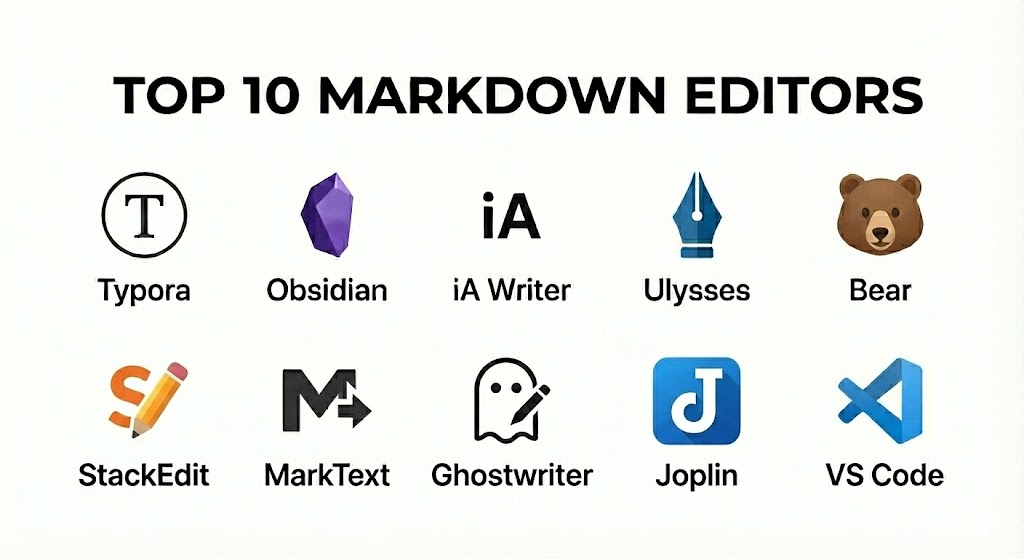
Top 10 Markdown Editors Tools
1 — Obsidian
Obsidian is far more than a simple editor; it is a “Second Brain” designed for personal knowledge management. It uses a local-first approach, meaning your files stay on your hard drive, and connects them through a powerful graph of bi-directional links.
- Key features:
- Graph View: A visual map showing how all your notes and ideas are interconnected.
- Bi-directional Linking: Use
[[links]]to create relationships between disparate files. - Canvas: An infinite whiteboard for spatial note-taking and visual brainstorming.
- Extensive Plugin Ecosystem: Over 1,000 community-developed plugins for everything from Kanban boards to AI assistants.
- Local-first Storage: Your data is stored as plain Markdown files on your device for maximum privacy.
- Daily Notes: Built-in support for journaling and chronological tracking.
- YAML Frontmatter: Advanced metadata support for power users and developers.
- Pros:
- Incredible flexibility; you can turn it into a task manager, a wiki, or a creative writing hub.
- High level of data ownership and privacy since it doesn’t require a cloud login.
- Cons:
- The learning curve is significantly steeper than a standard text editor.
- Cloud syncing across mobile and desktop requires a paid “Obsidian Sync” subscription.
- Security & compliance: Local-only storage by default. Encryption for Sync services; GDPR compliant.
- Support & community: Massive Discord and forum community; high-quality documentation and countless YouTube tutorials.
2 — Typora
Typora is famous for its seamless, minimalist approach. It pioneered the “Live Preview” experience, where the Markdown syntax disappears as soon as you finish typing, turning the text into a beautiful, formatted document instantly.
- Key features:
- Seamless Live Preview: No more split-screen viewing; you see the final result as you write.
- Outline Panel: Quickly navigate through long documents using a sidebar table of contents.
- Math Support: Robust integration with LaTeX for scientific and mathematical writing.
- Diagram Support: Built-in rendering for Mermaid, Flowchart.js, and Sequence diagrams.
- Image Management: Easy drag-and-drop with options to save images to local folders or cloud services.
- Themes: Highly customizable CSS-based themes (Github, Gothic, Newsprint, etc.).
- Pros:
- Offers the most distraction-free and aesthetically pleasing writing experience available.
- Excellent balance between a standard word processor feel and Markdown power.
- Cons:
- It is a paid application (one-time purchase), whereas many rivals are free.
- Lacks the complex library management or “Second Brain” features found in Obsidian.
- Security & compliance: Local storage; data is only as secure as your OS. GDPR compliant.
- Support & community: Comprehensive user manual, email-based support, and a dedicated theme gallery.
3 — Visual Studio Code (VS Code)
While primarily a code editor, VS Code is arguably the most powerful Markdown environment for technical users. With the right extensions, it becomes an unbeatable tool for documentation and technical blogging.
- Key features:
- Markdown All in One: An extension that provides keyboard shortcuts, table of contents generation, and list editing.
- Integrated Terminal: Run scripts or build commands (like Hugo or Jekyll) directly from the editor.
- Git Integration: Version control is built-in, making it the top choice for developers.
- Split-screen Preview: See the source code on the left and a live-rendering on the right.
- Extensions for Everything: Add support for spell-checking, Grammarly, or specific Markdown flavors.
- Snippet Support: Create custom text triggers for frequently used formatting patterns.
- Pros:
- Completely free and works on Windows, macOS, and Linux with perfect parity.
- Unrivaled for technical writing where you need to manage code and text in the same space.
- Cons:
- Can feel “too technical” or cluttered for creative writers who don’t need coding tools.
- High RAM usage compared to lightweight minimalist editors.
- Security & compliance: SSO, enterprise-grade security via Microsoft; SOC 2, ISO, and GDPR compliant.
- Support & community: The largest developer community in the world; endless documentation and extensions.
4 — Ulysses
Ulysses is a premium Markdown-based writing app built exclusively for the Apple ecosystem. It is designed for long-form writers who need a centralized library to manage books, blogs, and articles.
- Key features:
- Unified Library: Organize all your writing in one place without needing to worry about the file system.
- Publishing Integration: Direct export to WordPress, Ghost, Medium, and Micro.blog.
- Writing Goals: Set word count targets for chapters or entire projects.
- Manuscript Proofreading: Built-in grammar and style checker optimized for Markdown.
- iCloud Sync: Flawless transition between Mac, iPad, and iPhone.
- Sheets & Groups: Powerful organizational hierarchy for complex writing projects.
- Pros:
- Provides a highly polished, premium experience that focuses purely on the act of writing.
- The best tool for bloggers who want to write and publish from a single interface.
- Cons:
- Restricted to Apple hardware; Windows and Android users have no access.
- Subscription-only pricing model can be a deterrent for casual users.
- Security & compliance: Protected by Apple’s iCloud security and encryption; GDPR compliant.
- Support & community: High-quality official support, detailed “Style Check” guides, and a loyal writing community.
5 — Bear
Bear is a beautiful, flexible writing app for Mac and iOS that uses a unique nested tagging system to keep notes organized. It is ideal for users who want something more powerful than Apple Notes but simpler than Obsidian.
- Key features:
- Nested Tagging: Use tags like
#work/emailsto create a virtual folder structure. - Panda Editor: A state-of-the-art Markdown engine that supports tables and nested styles.
- High-Quality Themes: Beautifully crafted skins that make the writing experience feel premium.
- Specialized Export: Export notes as HTML, PDF, DOCX, JPG, and ePub.
- Stats & Info: Track word count, reading time, and character counts at a glance.
- Wiki Links: Support for linking between different Bear notes.
- Nested Tagging: Use tags like
- Pros:
- Stunning typography and interface design that makes writing feel like a luxury experience.
- The tagging system is much faster and more intuitive than traditional folder management.
- Cons:
- No Windows, Android, or Web versions available.
- Limited advanced technical features like math rendering or complex diagrams.
- Security & compliance: Uses iCloud for storage; data is encrypted at rest; GDPR compliant.
- Support & community: Active Reddit community, responsive development team, and clear documentation.
6 — MarkText
MarkText is the premier open-source alternative to Typora. It is a completely free, cross-platform WYSIWYG Markdown editor that focuses on speed and a clean writing environment.
- Key features:
- Real-time Preview: Similar to Typora, the Markdown syntax disappears as you type.
- Focus Mode: Dims everything except the current paragraph you are working on.
- Multiple Layouts: Choose from a sidebar view, a minimalist view, or a full-screen mode.
- Mathematical Support: Renders KaTeX for scientific notations.
- Emoji Support: Integrated emoji picker for modern content creation.
- Code Fences: High-quality syntax highlighting for various programming languages.
- Pros:
- Completely free and open-source, making it accessible to everyone.
- Offers a premium, Typora-like experience without the price tag.
- Cons:
- It can occasionally be less stable than paid alternatives during large file edits.
- Development is community-driven, so bug fixes may take longer than professional apps.
- Security & compliance: Varies (Open Source); local file storage. GDPR compliant.
- Support & community: GitHub-based community, open-source contributors, and community-driven guides.
7 — iA Writer
iA Writer is the pioneer of “distraction-free” writing. It is known for its uncompromising minimalist philosophy and its famous “Focus Mode” which highlights only the sentence you are currently writing.
- Key features:
- Syntax Highlighting: Highlight adjectives, nouns, adverbs, or verbs to analyze your writing style.
- Focus Mode: Centers the active line and fades everything else to the background.
- Style Check: Automatically finds and strikes through clichés, filler words, and redundancies.
- Content Blocks: Embed files, images, and CSV data into your Markdown document.
- Custom Fonts: Uses specialized “Duo” and “Quattro” fonts designed specifically for readability.
- Cross-platform Sync: Works across iOS, Android, Mac, and Windows.
- Pros:
- Forces you to focus on your words rather than the formatting or the interface.
- One of the few premium editors with a high-quality Android application.
- Cons:
- Does not offer the “Second Brain” or database-style features of modern note-takers.
- The minimalist design may feel too restrictive for users who like custom themes.
- Security & compliance: Local storage / Cloud sync via iCloud or Dropbox. GDPR compliant.
- Support & community: Highly detailed official blog, responsive support team, and a long-standing reputation.
8 — Ghostwriter
Ghostwriter is an open-source Markdown editor for Windows and Linux that focuses on “distraction-free” aesthetics. It is particularly popular in the Linux community for its clean design and Hemingway mode.
- Key features:
- Hemingway Mode: Disables the backspace and delete keys to force you to keep writing and stop editing.
- Clean Interface: Hides all toolbars and buttons to provide a pure writing canvas.
- Document Statistics: Real-time tracking of words, characters, and sentences.
- Cheat Sheet: A built-in Markdown guide for beginners.
- Dark/Light Themes: High-contrast themes designed to reduce eye strain.
- Drag-and-Drop Images: Simplified image handling within the plain-text file.
- Pros:
- Excellent for creative writers who struggle with the urge to over-edit as they go.
- Very lightweight and fast, even on older hardware.
- Cons:
- Lacks mobile applications or advanced cloud-syncing features.
- Interface can feel a bit basic for users used to Ulysses or Obsidian.
- Security & compliance: Local storage; GDPR compliant.
- Support & community: Active GitHub community and a loyal base of Linux users.
9 — StackEdit
StackEdit is a powerful, browser-based Markdown editor that brings the power of a desktop app to any device with a web browser. It is perfect for users who frequently switch between different computers.
- Key features:
- Cloud Syncing: Synchronize with Google Drive, Dropbox, and GitHub instantly.
- Offline Mode: Works even when you lose internet connection via browser caching.
- WYSIWYG Controls: Toolbar buttons for those who haven’t memorized the Markdown syntax yet.
- Publishing: Direct export to Blogger, WordPress, and Zendesk.
- KaTeX & Mermaid: Full support for mathematical formulas and complex diagrams.
- Comment Support: Add comments to your Markdown for collaborative writing.
- Pros:
- Requires no installation; works on Chromebooks, tablets, and public computers.
- The best tool for people who need to sync their notes across various cloud storage providers.
- Cons:
- Can be slightly slower than a dedicated native desktop application.
- Being browser-based, it is subject to the limitations of your browser’s memory management.
- Security & compliance: Uses cloud provider security (Google/Dropbox). GDPR compliant.
- Support & community: Large community of web developers and educators; open-source core on GitHub.
10 — Joplin
Joplin is an open-source, privacy-focused alternative to Evernote. It uses Markdown as its core format and offers end-to-end encryption for users who want absolute control over their data.
- Key features:
- End-to-End Encryption (E2EE): Only you have the key to your notes; not even the service provider can see them.
- Web Clipper: Save full web pages or screenshots directly into your notes.
- Sync Flexibility: Sync via Joplin Cloud, Dropbox, OneDrive, or Nextcloud.
- Multiple Editors: Switch between a pure Markdown editor and a rich-text WYSIWYG editor.
- Mobile App: One of the most robust Markdown apps for Android and iOS.
- Plugin System: Add extra functionality like calendars or advanced search.
- Pros:
- The best choice for privacy-conscious users who want an Evernote-like organization.
- Completely free and open-source, with no hidden costs for basic features.
- Cons:
- The user interface is functional but lacks the high-end polish of Bear or Ulysses.
- Sync setup can be slightly more technical than a simple cloud login.
- Security & compliance: E2EE by default; GDPR compliant. Open-source transparency.
- Support & community: Active forum-based support and a dedicated developer community.
Comparison Table
| Tool Name | Best For | Platform(s) Supported | Standout Feature | Rating (Gartner/True) |
| Obsidian | Second Brain / PKM | Win, Mac, iOS, Android | Graph View | 4.8 / 5 |
| Typora | Minimalist Writing | Win, Mac, Linux | Live Preview | 4.7 / 5 |
| VS Code | Technical Docs | Win, Mac, Linux | Git Integration | 4.9 / 5 |
| Ulysses | Book/Blog Authors | Mac, iOS | Publishing Suite | 4.6 / 5 |
| Bear | Quick Note-taking | Mac, iOS | Nested Tags | 4.6 / 5 |
| MarkText | Open Source WYSIWYG | Win, Mac, Linux | Real-time Preview | 4.4 / 5 |
| iA Writer | Focus/Creativity | Win, Mac, Android, iOS | Syntax Highlighting | 4.5 / 5 |
| Ghostwriter | No-Distraction Writing | Win, Linux | Hemingway Mode | N/A |
| StackEdit | Web-based Sync | Web Browser | Cloud Provider Sync | 4.3 / 5 |
| Joplin | Privacy/Note-taking | Win, Mac, iOS, Android | E2E Encryption | 4.5 / 5 |
Evaluation & Scoring of Markdown Editors
To determine which tool offers the best value for modern writers, we have used a weighted scoring rubric based on current industry standards.
| Criteria | Weight | Evaluation Rationale |
| Core Features | 25% | Quality of preview, syntax highlighting, and formatting tools. |
| Ease of Use | 15% | The intuitiveness of the interface and the learning curve. |
| Integrations | 15% | Ability to sync with cloud providers, Git, and publishing platforms. |
| Security & Compliance | 10% | Encryption standards, local-first options, and privacy policies. |
| Performance | 10% | App launch speed, file handling, and RAM efficiency. |
| Support & Community | 10% | Availability of documentation, plugins, and active forums. |
| Price / Value | 15% | Cost-to-feature ratio and the presence of a free tier. |
Which Markdown Editors Tool Is Right for You?
Solo Users vs SMB vs Mid-Market vs Enterprise
- Solo Users: If you are a student or individual researcher, Obsidian or Joplin offer the most power for free. For creative writers, iA Writer provides the best focus.
- SMB & Mid-Market: Marketing teams and content agencies should look toward Ulysses or Typora for their balance of ease-of-use and high-quality export options.
- Enterprise: For large-scale technical teams, VS Code is the industry standard due to its high security, compliance, and integration with developer workflows (GitHub/GitLab).
Budget-Conscious vs Premium Solutions
- Budget-Conscious: MarkText, Ghostwriter, and Diagrams.net (for visuals) are completely free. StackEdit is the best zero-cost web option.
- Premium: If you write for a living, the subscriptions for Ulysses or the one-time cost for Typora and iA Writer are investments that pay for themselves in saved time and reduced friction.
Feature Depth vs Ease of Use
- Feature Depth: If you need bi-directional links, graph views, and thousands of notes, Obsidian is the only choice.
- Ease of Use: If you just want to open a file and start typing without seeing any code, Typora and MarkText are the most intuitive.
Frequently Asked Questions (FAQs)
1. Is Markdown hard to learn for non-coders?
Not at all. The basic syntax (like using # for headings or * for italics) can be learned in about 10 minutes. Most editors also include a toolbar for those who prefer clicking buttons.
2. Can I convert my Markdown files into Word documents?
Yes. Most editors on this list, especially Typora and Ulysses, offer high-quality exports to .docx. For more advanced users, a tool called Pandoc can convert Markdown into almost any format imaginable.
3. Why should I use Markdown instead of Google Docs?
Markdown ensures your files are “future-proof.” You can open an .md file in any app decades from now, whereas proprietary formats might change. It also keeps your file sizes incredibly small.
4. Do Markdown editors support tables?
Yes, though tables are traditionally the “hardest” part of Markdown to type manually. Most modern editors like Bear and MarkText provide a visual table builder to make it easy.
5. What is the difference between an Outliner and a Markdown editor?
An outliner (like Logseq) organizes everything into bullet points. A Markdown editor (like iA Writer) treats text as a standard document. Some apps, like Obsidian, can do both.
6. Is my data safe in these apps?
Local-first apps like Obsidian, Joplin, and iA Writer are extremely safe because you control the files. Cloud-based apps like StackEdit depend on the security of your cloud provider (Google/Dropbox).
7. Can I publish directly to my website from these editors?
Ulysses and iA Writer offer the best direct publishing integrations for WordPress, Ghost, and Medium.
8. Which editor is best for academic writing?
Typora and Obsidian are the favorites for academics due to their strong support for LaTeX (math) and citation management plugins (like Zotero integration).
9. Does Markdown support images?
Yes, but Markdown files don’t “contain” the image; they “link” to it. You must keep the image file in the same folder or host it online for it to appear in the document.
10. What is “Frontmatter”?
Frontmatter is a small block of code (usually YAML) at the top of a Markdown file that contains metadata like “Author,” “Date,” and “Tags.” It is used by website builders and apps like Obsidian to organize content.
Conclusion
The right Markdown editor is the one that removes the friction between your thoughts and the screen. For technical power and organizational depth, Obsidian and VS Code are the clear leaders in 2025. For those who simply want to lose themselves in the act of writing, Typora and iA Writer offer an unparalleled minimalist experience.
Markdown is more than just a formatting style; it is a philosophy of simplicity, portability, and focus. By choosing a tool that aligns with your specific workflow—whether that is a local-first privacy setup or a cloud-synced blogging hub—you are ensuring that your writing remains accessible and clear for years to come.