Introduction
Whiteboard collaboration tools are cloud-based software platforms that provide an infinite digital canvas where multiple users can contribute simultaneously. These tools mimic the physical experience of standing in a conference room with a dry-erase marker but enhance it with powerful digital capabilities like sticky notes, automated diagrams, embedded media, and AI-driven brainstorming assistants. In essence, they serve as the “visual headquarters” for a project, allowing teams to move from a chaotic spark of an idea to a structured plan without losing context.
The importance of these tools lies in their ability to bridge the gap between verbal communication and visual execution. They are critical for ensuring that everyone on a team is “seeing” the same thing, which significantly reduces the risk of project misalignment. Key real-world use cases include Agile sprint planning, UX/UI wireframing, strategic mind mapping, educational workshops, and customer journey mapping. When choosing a tool in this category, users should evaluate the responsiveness of the real-time engine, the depth of the template library, integration with existing task managers, and enterprise-grade security features.
Best for: Product managers, UX designers, educators, Agile coaches, and marketing agencies in companies ranging from startups to Fortune 500 enterprises that require high-velocity visual coordination.
Not ideal for: Individual users looking for simple drawing apps without collaboration needs, or legal/finance professionals who require highly structured, text-only documentation where a visual canvas would be distracting.
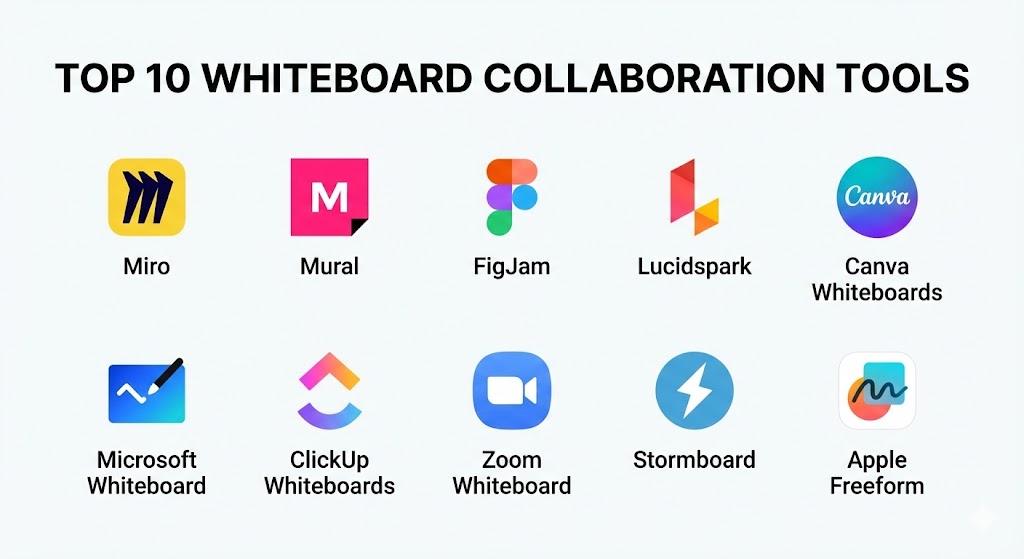
Top 10 Whiteboard Collaboration Tools
1 — Miro
Miro is arguably the most recognized name in the visual collaboration space. It is a robust, feature-rich platform designed to facilitate complex workflows for large, cross-functional teams.
- Key features:
- Infinite Canvas: A workspace that expands as your project grows.
- Miro Assist (AI): Uses artificial intelligence to cluster sticky notes, generate images, and summarize board content.
- Advanced Facilitation Suite: Includes timers, voting tools, and a “bring everyone to me” feature for workshops.
- Developer Ecosystem: Robust API and SDK for building custom integrations.
- Embedded Video Chat: Allows teams to collaborate visually while seeing each other on the same screen.
- Interactive Presentation Mode: Turns board frames into a professional slide deck instantly.
- Smart Diagramming: Advanced shape recognition and auto-alignment for technical flowcharts.
- Pros:
- Unrivaled library of over 1,000+ community and expert-made templates.
- Deep integrations with almost every major enterprise tool, including Jira, Slack, and Salesforce.
- Cons:
- The vast array of features can lead to a steep learning curve for new users.
- Performance can lag on older hardware when boards become extremely high-density.
- Security & compliance: Enterprise-grade security including SSO, SOC 2 Type II, SOC 3, GDPR, HIPAA compliance, and data residency options in the EU and US.
- Support & community: Extensive Miro Academy for training, a massive global user community (Miroverse), 24/7 premium support for enterprise clients, and detailed documentation.
2 — Mural
Mural differentiates itself by focusing heavily on the “human” side of collaboration, emphasizing professional facilitation and guided teamwork frameworks.
- Key features:
- Facilitation Superpowers: Features like “Private Mode” allow users to type ideas without being influenced by others’ thoughts.
- Luma Institute Frameworks: Built-in access to world-class design thinking methods.
- Outline Feature: Allows users to create a guided path through a board for structured meetings.
- Sticky Note Formatting: Advanced options for color-coding and tagging notes for data analysis.
- Custom Templates: Ability to turn successful sessions into reusable company-wide standards.
- Mural AI: Automates the synthesis of brainstormed ideas into actionable summaries.
- Pros:
- Best-in-class tools for meeting facilitators and workshop leaders.
- Clean, focused interface that prioritizes content over cluttered toolbars.
- Cons:
- Lower focus on technical diagramming compared to competitors like Lucidspark.
- The pricing structure can be high for smaller teams.
- Security & compliance: ISO 27001, SOC 2 Type II, GDPR, and HIPAA compliant. Includes advanced administrative controls for file sharing.
- Support & community: High-quality onboarding services, a dedicated help center, and “Mural Community” forums for best-practice sharing.
3 — FigJam
FigJam is the collaborative whiteboard from the creators of Figma. It is designed specifically to bridge the gap between high-level brainstorming and high-fidelity design.
- Key features:
- Washi Tape & Stamps: Adds a fun, tactile feel to the digital experience for high engagement.
- Figma Integration: Seamlessly copy-paste elements between the whiteboard and the design editor.
- Widgets: Interactive plug-ins like polls, dice, and planners directly on the board.
- High-Fidelity Tables: Allows for more structured data organization within the freeform space.
- Sections: Better organization of different project phases on a single canvas.
- Shared Component Libraries: Use your design system’s icons and elements within the board.
- Pros:
- Intuitive and “fun” to use, leading to high adoption rates among creative teams.
- The tightest possible workflow for designers who need to go from ideation to prototype.
- Cons:
- Missing some of the advanced enterprise project management integrations found in Miro.
- Can feel too “designer-centric” for non-creative departments like Finance or HR.
- Security & compliance: SOC 2 Type II, SOC 3, ISO 27001, and GDPR compliant. SSO and SAML support for enterprise tiers.
- Support & community: Leverages Figma’s massive community for templates and widgets; robust documentation and email support.
4 — Lucidspark
Lucidspark is part of the Lucid Visual Collaboration Suite, focusing on the link between ideation and structured documentation.
- Key features:
- Lucidchart Sync: Convert brainstorming sticky notes into professional Lucidchart flowcharts with one click.
- Breakout Boards: Allows small groups to work in separate areas before rejoining the main board.
- Visual Activities: Built-in interactive modules for quick team alignment and prioritization.
- Call to ID: Direct integration with Slack and Teams to pull team members into a session.
- Dynamic Matrix: Automates the organization of ideas into categories like “Ease of Implementation” vs “Impact.”
- Pros:
- The most powerful tool for teams that need to turn a “messy” brainstorm into a “technical” diagram.
- Extremely stable performance even with hundreds of simultaneous users.
- Cons:
- The interface can feel a bit more “corporate” and less playful than FigJam.
- Some of the best features are locked behind the full Lucid Suite subscription.
- Security & compliance: SOC 2 Type II, ISO 27001, GDPR, and HIPAA compliant. FedRAMP In-Process status for government needs.
- Support & community: Lucid Training Labs, extensive template gallery, and dedicated enterprise account management.
5 — Canva Whiteboards
Canva Whiteboards brings the accessibility and aesthetic power of Canva to the infinite canvas, making professional design accessible to everyone.
- Key features:
- Massive Asset Library: Access to Canva’s millions of stock photos, videos, and graphics.
- Magic Media: AI that generates images and graphics based on text descriptions.
- Brand Kit Integration: Ensures all whiteboard content follows company brand guidelines.
- One-Click Formatting: Quickly aligns messy sticky notes into perfect grids.
- Interactive Stickers: Animated elements that help highlight key ideas.
- Pros:
- The easiest tool for non-designers to create high-quality, beautiful visual documents.
- Included in the standard Canva subscription, providing incredible value for existing users.
- Cons:
- Lacks advanced engineering or technical diagramming features (like UML stencils).
- Collaboration tools are simpler and lack “facilitator” powers like private mode or voting.
- Security & compliance: ISO 27001, SOC 2 Type II, and GDPR compliant.
- Support & community: Vast library of design tutorials, email support, and a highly active social community.
6 — Microsoft Whiteboard
As a core part of the Microsoft 365 ecosystem, this tool is the primary choice for organizations heavily invested in the Windows and Office environment.
- Key features:
- Teams Integration: Share and edit whiteboards directly inside a Teams meeting window.
- Loop Components: Real-time data tables that stay synced across Outlook, Word, and Whiteboard.
- Ink-to-Shape: Automatically cleans up hand-drawn circles, squares, and lines into perfect geometry.
- Templates for Education: Specific setups designed for K-12 and Higher Ed classrooms.
- Cross-Device Sync: Seamless transitions between Surface Hub, iPad, and PC.
- Pros:
- Deeply integrated into the workflow of any Microsoft-centric company.
- The “Ink-to-Text” feature is excellent for those using styluses or digital pens.
- Cons:
- The feature set is significantly lighter than Miro or Mural.
- The web version can sometimes feel restricted compared to the desktop app.
- Security & compliance: Covered by the standard Microsoft 365 enterprise security, including HIPAA, GDPR, and SOC 2.
- Support & community: Microsoft Support, M365 documentation, and community forums.
7 — ClickUp Whiteboards
ClickUp Whiteboards bridges the gap between brainstorming and task management by allowing you to turn ideas directly into actionable project items.
- Key features:
- Convert to Task: Turn any sticky note or text block into a ClickUp task with a due date and assignee.
- Dynamic Linking: Shapes and connectors can represent the relationships between actual project tasks.
- Slash Commands: Use keyboard shortcuts to add elements without taking your hands off the keys.
- Everything View: See how whiteboard-originated tasks fit into your broader project timeline.
- Embed Folders: Pull entire project docs and lists directly onto the whiteboard.
- Pros:
- The best tool for project managers who want to eliminate the gap between a “meeting” and “work.”
- Included for free in many ClickUp plans, reducing the need for multiple subscriptions.
- Cons:
- Can feel cluttered if you aren’t already using ClickUp for project management.
- The drawing and creative tools are basic compared to specialized design platforms.
- Security & compliance: SOC 2 Type II, GDPR, and HIPAA compliant.
- Support & community: ClickUp University, 24/7 chat support, and a very active user community.
8 — Zoom Whiteboard
Integrated directly into the Zoom meeting client, this tool focuses on accessibility and immediate collaborative sessions during video calls.
- Key features:
- Persistent Boards: Access boards before, during, and after a meeting ends.
- In-Meeting Launch: One-click sharing that doesn’t require users to open a new tab.
- Collaborative Cursors: See exactly where every participant is looking and clicking.
- Smart Connectors: Lines that stay attached to objects even when you move them.
- Export to PDF: Quickly share a summary of the brainstorm with attendees.
- Pros:
- Zero friction for teams that already spend their day in Zoom meetings.
- Very low learning curve for non-technical users.
- Cons:
- The template library is much smaller than Miro or Mural.
- Limited integrations with third-party project management software.
- Security & compliance: Standard Zoom security including AES 256-bit encryption and SOC 2 compliance.
- Support & community: Zoom Support Center and community forums.
9 — Stormboard
Stormboard takes a more structured, data-centric approach to whiteboarding, focusing on “Storms” (meetings) that generate organized reports.
- Key features:
- Reporting: Automatically turn whiteboard data into professional Word, Excel, or PowerPoint reports.
- Index Cards: A unique way to store deep-level data behind a simple sticky note.
- Sectional Templates: Forces organization by dividing the board into specific logical zones.
- Vote & Stack: Advanced systems for narrowing down hundreds of ideas into a top 5 list.
- Two-Way Data Sync: Connect with Jira or Azure DevOps to pull and push task updates.
- Pros:
- Unrivaled for teams that need to document their sessions for legal or compliance reasons.
- Focuses on productivity and “getting to a decision” rather than just drawing.
- Cons:
- The interface feels a bit more rigid and less “freeform” than other tools.
- The aesthetic is functional rather than beautiful.
- Security & compliance: SOC 2 Type II, HIPAA, and GDPR compliant. Includes high-level data encryption.
- Support & community: Dedicated training sessions for enterprise clients and comprehensive guides.
10 — Apple Freeform
Freeform is the default visual collaboration tool for the Apple ecosystem, built for individual creatives and small teams using Mac, iPad, and iPhone.
- Key features:
- Apple Pencil Optimization: The most responsive “ink” feel on the market for iPad users.
- iCloud Sync: Start a board on your iPhone and finish it on your Mac.
- FaceTime Integration: Start a visual session directly from a FaceTime call.
- File Embedding: Drag and drop PDFs, images, and links that show live previews.
- Collaborative Threads: Use Apple’s “Messages” to coordinate updates.
- Pros:
- Completely free for anyone with an Apple device.
- Extremely lightweight and fast with a minimal, beautiful design.
- Cons:
- Strictly limited to the Apple ecosystem; Windows and Android users cannot participate.
- Lacks professional enterprise features like voting, timers, or task integration.
- Security & compliance: Protected by Apple’s end-to-end encryption and iCloud security standards.
- Support & community: Official Apple Support and a massive global community of Apple enthusiasts.
Comparison Table
| Tool Name | Best For | Platform(s) Supported | Standout Feature | Rating (Gartner) |
| Miro | Enterprise Teams | Web, Win, Mac, iOS, Android | Miro Assist AI | 4.8 / 5 |
| Mural | Design Thinking | Web, Mac, Win, iOS | Facilitation Tools | 4.6 / 5 |
| FigJam | Product Designers | Web, iPad | Figma Integration | 4.7 / 5 |
| Lucidspark | Tech Workflows | Web, iOS, Android | Lucidchart Sync | 4.5 / 5 |
| Canva Whiteboards | Marketing/Design | Web, Win, Mac, Mobile | Brand Kit Support | 4.7 / 5 |
| MS Whiteboard | Microsoft Users | Win, iOS, Web | Teams Integration | 4.2 / 5 |
| ClickUp | Project Managers | Web, Desktop, Mobile | Convert to Task | 4.4 / 5 |
| Zoom Whiteboard | Meeting Collab | Desktop Client, Web | Persistent Boards | 4.3 / 5 |
| Stormboard | Data Reporting | Web, iOS, Android | Excel/Word Reports | 4.4 / 5 |
| Apple Freeform | Apple Users | Mac, iPad, iOS | Apple Pencil Feel | N/A |
Evaluation & Scoring of Whiteboard Collaboration Tools
Choosing the right tool requires weighing different priorities. For an enterprise, security and support are paramount. For a small startup, price and ease of use might take center stage. Below is a weighted evaluation guide to help you score potential candidates.
| Criteria | Weight | What to Look For |
| Core Features | 25% | Presence of sticky notes, infinite canvas, and drawing tools. |
| Ease of Use | 15% | Time to onboard new team members and intuitive interface. |
| Integrations | 15% | Connectivity with Slack, Jira, Teams, and Task Managers. |
| Security & Compliance | 10% | SSO, SOC 2, HIPAA, and GDPR readiness. |
| Performance | 10% | Speed of real-time syncing and handling of large boards. |
| Support & Community | 10% | Quality of documentation and availability of customer help. |
| Price / Value | 15% | Cost-to-benefit ratio and free tier accessibility. |
Which Whiteboard Collaboration Tool Is Right for You?
Selecting a tool from the list above isn’t about finding the “best” software overall, but the best software for your specific environment.
Solo Users vs SMB vs Enterprise
- Solo Users: If you are a freelancer or student on a Mac, Apple Freeform is unbeatable because it’s free. If you’re on Windows, Canva Whiteboards offers the best creative tools for zero cost.
- SMB (Small-Medium Business): ClickUp Whiteboards or FigJam are excellent here because they often come bundled with design or project tools you are likely already using.
- Enterprise: Miro and Mural are the undisputed leaders for large organizations that need strict security, complex permissions, and global data residency.
Budget-Conscious vs Premium
If budget is the primary driver, Google Jamboard’s successors (integrated into Google Workspace) or the free tiers of Lucidspark provide enough functionality for basic brainstorming. However, premium solutions like Miro are worth the cost if your team spends 10+ hours a week in visual meetings.
Feature Depth vs Ease of Use
If you need deep, technical diagramming and AI-generated synthesis, go with Miro or Lucidspark. If you want a tool that your least tech-savvy team member can use within five minutes, Zoom Whiteboard or Canva Whiteboards are the better choices.
Frequently Asked Questions (FAQs)
1. Is digital whiteboarding better than a physical whiteboard?
In a remote or hybrid setting, yes. Digital boards are persistent, infinitely large, and searchable. You never have to worry about someone accidentally erasing your work or having to take a blurry photo of a board.
2. Can I use these tools for free?
Almost all of them have a “Freemium” model. Usually, the free tier allows for a limited number of active boards (often 3) and basic collaboration tools.
3. Do I need a stylus or tablet to use these effectively?
No. While a stylus enhances the experience for drawing, most users interact with these tools using a mouse and keyboard to place sticky notes and type.
4. How secure are digital whiteboards?
Leading tools like Miro and Mural use enterprise-grade encryption. However, for highly sensitive data, ensure the tool is SOC 2 Type II compliant and supports SSO (Single Sign-On).
5. Can I export my board to a different format?
Yes, most tools allow you to export as a high-resolution PDF, PNG, or even an Excel spreadsheet for the data contained within sticky notes.
6. Which tool is best for Agile Sprints?
Miro and Lucidspark are the top choices due to their deep integrations with Jira and their specialized “Agile” template libraries.
7. Can I embed videos directly into the whiteboard?
Yes, tools like Mural and FigJam allow you to embed YouTube or Vimeo links that can be played directly on the canvas without leaving the app.
8. What is “Private Mode” in Mural?
This is a feature that hides what others are typing until the facilitator reveals all notes. It prevents “Groupthink” where team members just copy the most vocal person’s ideas.
9. Can I open a PowerPoint in a whiteboard tool?
Some tools, like Stormboard and Miro, allow you to import PowerPoint slides as individual frames, which you can then annotate and draw on.
10. Do these tools work on mobile phones?
Most have mobile apps, but they are generally “view-only” or for minor edits. The best experience is on a desktop with a large monitor or an iPad with a stylus.
Conclusion
The visual collaboration market in 2025 offers a solution for every possible niche. Whether you are a solo creative using Apple Freeform, a design-heavy team in FigJam, or a global enterprise relying on the power of Miro, the goal remains the same: clarity.
When choosing your tool, don’t just look at the feature list; look at how your team actually works. If you are already in the Microsoft ecosystem, the friction of moving to a different tool might not be worth it compared to using Microsoft Whiteboard. However, if you are looking to push the boundaries of design thinking and remote workshops, investing in a premium platform like Mural will pay dividends in team engagement and project success.