Introduction
Presentation software is a category of digital productivity tools designed to organize, visualize, and display information. While the early days of this software focused on basic text-and-image “slides,” the industry in 2025 has moved toward immersive storytelling, AI-driven automation, and real-time global collaboration. These tools allow users to combine diverse media—videos, live data feeds, 3D models, and interactive widgets—into a cohesive narrative that can be delivered in person or remotely.
The importance of these tools cannot be overstated. In an era of shrinking attention spans, a well-crafted presentation transforms a dry lecture into an engaging experience. Key real-world use cases include investor pitch decks, educational modules, product launches, and internal business reporting. When choosing a tool, users should evaluate criteria such as ease of design, cloud accessibility, integration with external data, and security compliance.
Best for: Marketing teams, sales professionals, educators, and enterprise leaders who need to communicate complex ideas with visual impact and professional polish.
Not ideal for: Technical writers requiring static documentation (where Notion or Markdown editors are better) or data scientists performing deep exploratory analysis (where BI tools like Tableau or Power BI are more appropriate).
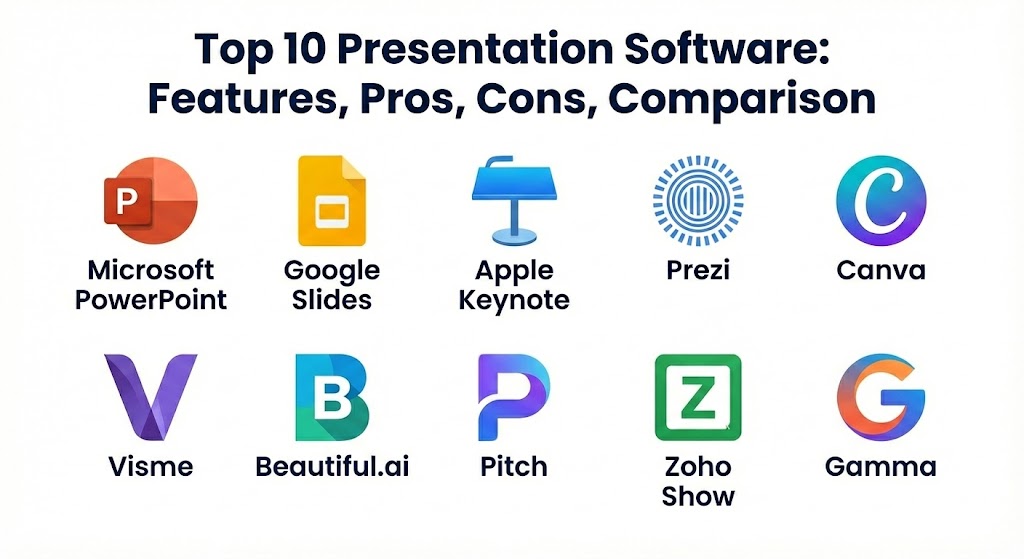
Top 10 Presentation Software Tools
1 — Microsoft PowerPoint
Microsoft PowerPoint remains the undisputed heavyweight of the presentation world. In 2025, it has solidified its position by integrating Microsoft 365 Copilot, an AI assistant that can generate entire decks from a simple Word document or a prompt. It is the go-to for professionals who require a deep, granular level of control over every animation and layout.
- Key features:
- AI Copilot Integration: Instantly creates slide outlines, summaries, and designs based on natural language commands.
- Morph Transition: A sophisticated animation tool that automatically calculates the movement of objects between slides for a cinematic effect.
- Presenter Coach: An AI-powered rehearsal tool that provides feedback on your pacing, use of filler words, and eye contact.
- Live Data Linking: Connects directly with Excel to ensure charts and tables update in real-time as the source data changes.
- Advanced 3D Modeling: Allows users to insert and animate 3D objects with full 360-degree rotation support.
- Dynamic Subtitles: Provides real-time translation and captioning during live presentations.
- Pros:
- Unmatched feature depth and customization options for professional designers.
- The industry-standard file format (.pptx) ensures your files open correctly on almost any corporate machine.
- Cons:
- The sheer volume of features can be overwhelming for casual users.
- Collaboration, while improved, can sometimes feel slower than cloud-native competitors like Google Slides.
- Security & compliance: Highly secure with Enterprise Grade protection, including SSO, Multi-Factor Authentication (MFA), SOC 2, HIPAA, and GDPR compliance.
- Support & community: Robust official support, vast online documentation, and an endless supply of third-party templates and add-ins.
2 — Google Slides
Google Slides is the definitive choice for teams that prioritize seamless, browser-based collaboration. As part of Google Workspace, it offers a simplified but highly effective environment for creating presentations on the fly without ever having to hit “save.”
- Key features:
- Real-Time Co-authoring: Allows dozens of users to edit a single presentation simultaneously with zero lag.
- Seamless Integration: Pulls data from Google Sheets and images from Google Drive with a few clicks.
- Cloud-First Architecture: No installation is required; every edit is saved instantly to the cloud with full version history.
- Q&A Feature: Allows audiences to submit questions via a link that the presenter can display on the screen.
- Chrome Extensions: A massive marketplace of add-ons for icons, diagrams, and stock photography.
- Pros:
- Completely free for individuals and highly cost-effective for businesses already using Google Workspace.
- Extremely low learning curve; most users can be productive within minutes.
- Cons:
- Lacks the advanced animation and “Magic Move” capabilities found in PowerPoint or Keynote.
- Offline editing is possible but requires the Chrome browser and prior setup.
- Security & compliance: Managed through Google Cloud security; includes SSO, SOC 2 Type II, and ISO/IEC 27001 certifications.
- Support & community: Extensive help center, community forums, and a wide array of educational tutorials for Workspace admins.
3 — Canva
Canva has revolutionized presentation design by making it accessible to non-designers. By focusing on a “drag-and-drop” philosophy, Canva allows anyone to create a deck that looks like it was made by a professional agency.
- Key features:
- Magic Design AI: Generates a full presentation based on a text prompt or an uploaded media file.
- Global Asset Library: Millions of free and premium stock photos, videos, and music tracks directly inside the editor.
- Brand Kit: Stores your company’s logos, fonts, and colors to ensure every slide stays “on-brand.”
- Magic Resize: Instantly converts a presentation into a social media post, flyer, or video.
- Interactivity: Support for embedded polls, quizzes, and live social media feeds.
- Pros:
- The fastest way to create a visually stunning presentation from scratch.
- Highly intuitive interface that feels more like a creative playground than a productivity tool.
- Cons:
- Exporting back to PowerPoint can often lead to broken layouts or lost animations.
- Less effective for data-heavy presentations that require complex charting.
- Security & compliance: ISO 27001 certified, SOC 2 Type II, and GDPR compliant.
- Support & community: High-quality “Canva Design School” video courses and a massive global community of creators.
4 — Prezi
Prezi broke the mold of traditional slides by introducing a “zooming” canvas. Instead of moving from Slide A to Slide B, Prezi allows you to zoom in and out of a large map of ideas, making it ideal for showing relationships between complex concepts.
- Key features:
- Prezi Video: A unique tool that allows the presenter to appear “on top” of their presentation content during a video call.
- Smart Zoom: Automatically navigates to specific areas of your canvas to highlight details without getting lost.
- Non-Linear Storytelling: Allows the presenter to jump between topics based on audience questions rather than following a set order.
- Viewer Analytics: Tracks who viewed your presentation and which sections they spent the most time on.
- Pros:
- Perfect for high-impact pitches where you want to stand out from the “same old” slide decks.
- Visually demonstrates the “big picture” better than any other tool on the market.
- Cons:
- The “motion” of the zoom effect can actually cause motion sickness if overused.
- Takes more time to master the layout and flow compared to a standard slide-based tool.
- Security & compliance: SSO, GDPR, and SOC 2 compliance. Enterprise plans offer more granular data control.
- Support & community: Dedicated customer success managers for enterprise clients and an active user forum.
5 — Beautiful.ai
Beautiful.ai uses a proprietary design engine to automatically format slides. As you add content, the software resizes elements, adjusts layouts, and maintains perfect alignment, effectively acting as a digital graphic designer.
- Key features:
- Smart Templates: Layouts that are governed by design rules; you can’t accidentally “break” the aesthetic of the slide.
- DesignerBot: An AI that can turn a rough outline into a fully designed deck in seconds.
- Consistent Branding: Locks down fonts and colors so every employee in a company produces uniform decks.
- Slack & Dropbox Integration: Streamlines the workflow for teams working across different platforms.
- Pros:
- Drastically reduces the “fiddling” time spent on lining up text boxes and images.
- Ensures a high level of professional quality regardless of the user’s design skill.
- Cons:
- Less flexibility for users who want to create custom, “out of the box” layouts.
- The free tier is quite limited compared to Canva or Google Slides.
- Security & compliance: SOC 2 Type II compliant; data is encrypted at rest and in transit.
- Support & community: Email-based support and a library of design-focused webinars and tutorials.
6 — Apple Keynote
Keynote is often cited as the most elegant presentation software available. For Apple users, it provides a sleek, powerful, and free alternative to PowerPoint that excels in high-resolution visuals and cinematic animations.
- Key features:
- Magic Move: Perhaps the best animation tool in the industry, allowing for effortless, high-end transitions.
- Apple Pencil Support: Allows iPad users to draw diagrams or hand-write notes directly onto slides.
- Handoff: Start a presentation on an iPhone, edit it on a Mac, and present it from an Apple Watch.
- Precision Design Tools: Advanced typography and image masking tools that rival professional design software.
- Pros:
- Produces the most visually “expensive-looking” presentations with minimal effort.
- Completely free for anyone with an Apple device.
- Cons:
- Restricted to the Apple ecosystem; while a web version exists on iCloud, it is less powerful.
- Smaller library of third-party plugins compared to PowerPoint or Canva.
- Security & compliance: Protected by Apple’s standard iCloud security and encryption; GDPR compliant.
- Support & community: Extensive support through Apple’s retail “Genius Bar” and official online support pages.
7 — Visme
Visme is an all-in-one visual content creator that specializes in turning data into engaging stories. It is particularly popular among marketing and research teams who need to build infographics and reports alongside their presentations.
- Key features:
- Interactive Data Widgets: Turn static numbers into animated charts that react when a viewer hovers over them.
- Huge Icon Library: Over 10,000 professional icons and graphics categorized by industry.
- Privacy Controls: Secure your presentations with passwords or make them private to your organization.
- Lead Generation: Embed a form at the end of a presentation to collect contact information from viewers.
- Pros:
- Unrivaled for creating presentations that are heavy on statistics and data visualization.
- Allows for the creation of multi-format content (infographics, social posts, decks) in one workspace.
- Cons:
- The interface can feel “busy” due to the large number of design options.
- Exporting to HTML5 for full interactivity requires a paid plan.
- Security & compliance: SSO for teams, GDPR compliant, and secure cloud hosting.
- Support & community: Visme Academy offers extensive video courses on visual communication and design strategy.
8 — Zoho Show
Zoho Show is a sleek, web-based tool that integrates perfectly with the Zoho productivity suite. It is designed for the modern workplace where teams are distributed across different locations and devices.
- Key features:
- Contextual UI: The toolbar changes based on the element you select, keeping the screen clutter-free.
- Import/Export Accuracy: One of the best tools for importing .pptx files without losing formatting.
- Android/Apple TV Apps: Allows you to stream your presentation directly to a smart TV without a laptop.
- Check-out System: Prevents multiple users from editing the same slide at once to avoid version conflicts.
- Pros:
- A very clean, focused writing and design experience.
- Excellent value for money, especially for teams already in the Zoho ecosystem.
- Cons:
- Fewer “AI” features compared to Microsoft or Beautiful.ai.
- The template library is professional but not as creatively diverse as Canva’s.
- Security & compliance: SOC 2, HIPAA, and GDPR compliant; uses robust data encryption.
- Support & community: 24/5 support for paid users and a helpful online user guide.
9 — Pitch
Pitch is a modern platform built specifically for the needs of high-growth startups. It treats presentations as collaborative projects rather than just static files, emphasizing workflow and speed.
- Key features:
- Workflow Status: Label slides as “In Progress,” “To Do,” or “Done” to manage team progress.
- Live Video Collaboration: Start a video chat with teammates directly inside the presentation editor.
- Library of “Blocks”: Premade slide components that you can drag and drop to build decks instantly.
- Integration Hub: Connects to Slack, Google Analytics, and HubSpot to pull live metrics.
- Pros:
- The best interface for teams who build decks together in high-pressure environments.
- Clean, modern aesthetics that appeal to the “tech startup” world.
- Cons:
- Limited offline functionality; primarily designed for browser use.
- Can be expensive for very large teams compared to standard office suites.
- Security & compliance: GDPR compliant, SSO for enterprise, and SOC 2 Type II certification.
- Support & community: Active community on Slack and a comprehensive help center with design tips.
10 — Gamma
Gamma represents the “new wave” of presentation tools. It moves away from the traditional 16:9 slide format toward a flexible “card” system that functions more like a professional website or an interactive document.
- Key features:
- One-Click Transformation: Turn a text document or a web link into a full presentation in under a minute using AI.
- Fluid Layouts: The content “reflows” to look perfect on mobile phones, tablets, or large screens.
- Nested Content: Embed live apps, interactive forms, and videos that viewers can interact with.
- Theme Switching: Change the entire aesthetic of a deck (fonts, colors, styles) with a single click.
- Pros:
- The absolute fastest way to generate a “presentation-ready” draft from raw notes.
- Creates highly interactive content that feels more modern than a traditional slideshow.
- Cons:
- Too non-traditional for some formal corporate environments.
- Limited ability to manually fine-tune individual element placements.
- Security & compliance: Standard cloud security and data encryption; GDPR compliant.
- Support & community: Growing user documentation and a responsive email support team.
Comparison Table
| Tool Name | Best For | Platform(s) Supported | Standout Feature | Rating (Gartner) |
| Microsoft PowerPoint | Enterprise/Designers | Win, Mac, iOS, Web | Morph & AI Copilot | 4.7/5 |
| Google Slides | Real-time Teams | Web, iOS, Android | Free Collaboration | 4.5/5 |
| Canva | Non-Designers | Web, Win, Mac, iOS | Magic AI Design | 4.8/5 |
| Prezi | Narrative Storytelling | Web, Win, Mac, iOS | Zooming Canvas | 4.3/5 |
| Beautiful.ai | Fast Pro Layouts | Web, Win, Mac | Design Engine | 4.6/5 |
| Apple Keynote | Apple Ecosystem | Mac, iOS, Web | Magic Move | 4.6/5 |
| Visme | Data Visualization | Web, Win, Mac | Interactive Data | 4.5/5 |
| Zoho Show | Integrated Business | Web, iOS, Android, TV | Contextual UI | 4.4/5 |
| Pitch | Startups/Workflows | Web, Win, Mac, iOS | Team Workflows | 4.7/5 |
| Gamma | AI-First Content | Web | Responsive Cards | N/A |
Evaluation & Scoring of Presentation Software
To provide a clear picture of how these tools perform, we have scored them based on seven critical factors. These weights reflect what modern buyers prioritize: ease of use and features are vital, but security and value are the foundations of a long-term software investment.
| Criteria | Weight | Evaluation Rationale |
| Core Features | 25% | Variety of animations, AI capabilities, and layout tools. |
| Ease of Use | 15% | Intuitiveness and speed of the learning curve for new users. |
| Integrations | 15% | Ability to connect with CRM, Cloud Storage, and Data BI tools. |
| Security & Compliance | 10% | Enterprise readiness (SSO, GDPR, SOC 2, Encryption). |
| Performance | 10% | Stability during large presentations and offline reliability. |
| Support & Community | 10% | Quality of documentation and customer service response times. |
| Price / Value | 15% | Cost relative to the feature set and free version limitations. |
Which Presentation Software Tool Is Right for You?
Choosing the “best” tool is less about the software itself and more about the user’s specific context.
Solo Users vs. SMBs vs. Enterprise
For Solo Users (students or freelancers), Google Slides or the free tier of Canva are usually sufficient. They offer a great balance of features without the high monthly cost. SMBs often find the most value in Canva for Teams or Pitch, which offer better brand control. Enterprise users almost exclusively stick to Microsoft PowerPoint due to its deep integration with IT infrastructure and security standards.
Budget-Conscious vs. Premium Solutions
If budget is your primary concern, Google Slides, Zoho Show, and Apple Keynote are the winners, as they are essentially free with their respective ecosystems. If you are willing to pay for a “premium” experience that saves time, Beautiful.ai and Canva Pro are worth the investment because they replace the need for a professional designer in many cases.
Feature Depth vs. Ease of Use
If you need to build a complex, 100-slide technical deck with 3D models and dozens of data links, do not use a “simple” tool like Canva; you will need the power of PowerPoint. Conversely, if you just need to make a 10-slide update for a weekly meeting, Gamma or Beautiful.ai will get the job done in half the time.
Integration and Scalability Needs
Consider where your data lives. If your company runs on Salesforce and Slack, a tool like Pitch or Visme that integrates with those platforms will make your life much easier. If you are in a highly regulated industry (like Finance or Healthcare), prioritize PowerPoint or Zoho Show, which have the most robust compliance certifications.
Frequently Asked Questions (FAQs)
1. Can I use these tools for free?
Most of the tools mentioned, including Google Slides, Canva, and Apple Keynote, have excellent free versions. However, “Enterprise” features like SSO or advanced analytics usually require a paid subscription.
2. Is AI-generated presentation software worth it?
Yes, but with a caveat. AI is excellent for overcoming “blank page syndrome” and building initial drafts. However, you should always review the content for accuracy and brand tone before presenting.
3. Which tool is best for offline presenting?
Microsoft PowerPoint and Apple Keynote are the most reliable for offline use. While web-based tools like Google Slides have “offline modes,” they are more prone to syncing issues without a stable connection.
4. Can I convert a PDF into a presentation?
Tools like Canva and Beautiful.ai have excellent “PDF to Presentation” importers that attempt to turn static pages back into editable slides.
5. How do I protect my presentation data?
Look for tools that offer SOC 2 Type II compliance and end-to-end encryption. Always use a tool that supports SSO (Single Sign-On) if you are working within a corporate environment.
6. Can I add videos to my slides?
Almost all modern presentation software supports video embedding (YouTube/Vimeo) or direct uploads. Cloud-native tools like Pitch and Google Slides handle this most smoothly.
7. Which tool is best for data-heavy presentations?
Visme and PowerPoint are the leaders here. Visme is better for making the data look beautiful and interactive, while PowerPoint is better for linking to live, complex Excel spreadsheets.
8. What is the most common mistake in presentation design?
Overloading slides with text. A presentation should support the speaker, not replace them. Use the “One Idea Per Slide” rule whenever possible.
9. Is Prezi still popular in 2025?
Yes, especially for sales pitches and “TED-style” talks where the goal is high engagement and emotional storytelling rather than just displaying data.
10. Do I need a Mac to use Keynote?
To get the full feature set, yes. However, anyone can view or make basic edits to a Keynote file through a web browser on the iCloud website.
Conclusion
The landscape of presentation software in 2025 is more diverse than ever. We have moved past the era where “slides” were the only option. Today, you can choose between the cinematic power of Keynote, the collaborative ease of Google Slides, the AI-driven speed of Gamma, and the data-rich interactivity of Visme.
The “best” tool is the one that removes the friction between your thoughts and your audience’s understanding. If you are in doubt, start with a tool that matches your current ecosystem—PowerPoint for Windows users, Keynote for Mac users, and Google Slides for the web-first crowd. From there, explore specialized tools like Canva or Prezi to add that extra “wow” factor to your next big pitch.
Presentation software has evolved far beyond simple slides, now offering immersive storytelling and AI-driven automation. This guide explores everything from the industry-standard power of Microsoft PowerPoint to the seamless collaboration of Google Slides and the design-first approach of Canva. It’s a great resource for anyone looking to turn complex ideas into engaging, professional narratives.