Introduction
Remote Desktop Tools, also known as remote access or remote control software, allow a user to connect to and interact with a computer in another location as if they were sitting directly in front of it. By transmitting keyboard and mouse inputs to the host machine and receiving a high-speed video stream of its display in return, these tools enable seamless control across different networks and operating systems.
The importance of these solutions has skyrocketed with the rise of hybrid work models. They provide a secure way to access sensitive corporate data without physically moving hardware, thereby reducing the risk of data loss. Key real-world use cases include remote system administration, high-end resource sharing (like video rendering or CAD work), and on-demand customer support. When evaluating tools, users should look for low-latency performance, strong encryption standards, multi-monitor support, and ease of deployment behind firewalls.
Best for: IT departments, managed service providers (MSPs), remote-first companies, and customer support teams across all industries (finance, healthcare, tech, etc.) that need to maintain productivity and provide technical assistance regardless of geography.
Not ideal for: Organizations with extremely limited internet bandwidth where high latency makes visual interaction impossible, or businesses with ultra-strict air-gapped security protocols that forbid any external network traffic to internal machines.
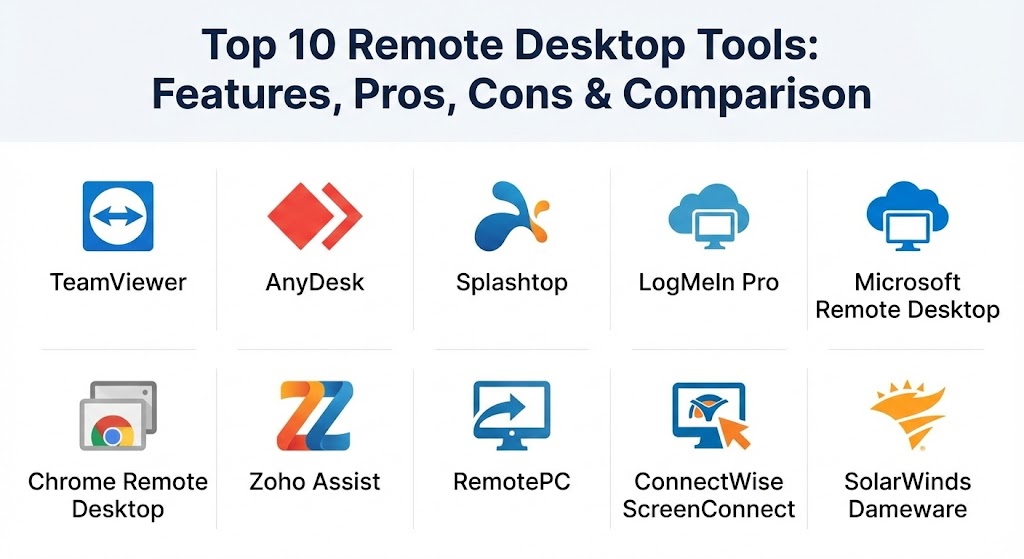
Top 10 Remote Desktop Tools
1 — TeamViewer
TeamViewer is arguably the most recognized name in the remote access industry. It is an all-in-one solution designed for everything from simple file transfers to complex enterprise-level IT infrastructure management.
- Key features:
- Cross-platform access (Windows, macOS, Linux, Android, iOS).
- Integrated Augmented Reality (AR) support for physical hardware troubleshooting.
- Unattended access for servers and remote workstations.
- High-speed file transfer and clipboard synchronization.
- Session recording for auditing and training purposes.
- Comprehensive device management and grouping.
- Wake-on-LAN functionality.
- Pros:
- Extremely stable performance even on moderate connections.
- Feature-rich environment that handles meetings and support in one app.
- Cons:
- Higher pricing tiers compared to budget-friendly competitors.
- Frequent prompts and restrictions for users on the free personal tier.
- Security & compliance: 256-bit AES encryption, Two-Factor Authentication (2FA), SOC 2, HIPAA, and GDPR compliant.
- Support & community: Extensive documentation, a global community forum, and 24/7 enterprise phone support.
2 — AnyDesk
AnyDesk built its reputation on speed. Using a proprietary codec called DeskRT, it offers a nearly lag-free experience, making it a favorite for users who need to perform visually intensive tasks remotely.
- Key features:
- Extremely lightweight client with minimal installation overhead.
- High frame rates (60 fps) and low latency.
- On-premises deployment options for maximum privacy.
- Customizable client branding for corporate identity.
- Integrated whiteboard and chat tools for collaboration.
- Address book for managing multiple remote connections.
- Remote printing support.
- Pros:
- Feels the most like a local machine due to the efficient video codec.
- Very affordable for small teams and individual professionals.
- Cons:
- The interface can be slightly less intuitive for beginners compared to TeamViewer.
- Limited advanced IT management features in the entry-level plans.
- Security & compliance: TLS 1.2 technology, RSA 2048 asymmetric key exchange, 2FA, and GDPR compliant.
- Support & community: Responsive email support, detailed help center, and active community-driven assistance.
3 — Splashtop
Splashtop is frequently cited as the best value-for-money solution in the market. It offers professional-grade features with high-performance streaming at a fraction of the cost of legacy enterprise tools.
- Key features:
- High-definition 4K streaming at 60fps.
- Specialized “SOS” mode for on-demand support without pre-installation.
- Multi-monitor to multi-monitor mapping.
- Remote mic and audio passthrough.
- Integration with major RMM (Remote Monitoring and Management) platforms.
- Scheduled access for hybrid workforces.
- USB device redirection.
- Pros:
- Excellent performance for creative professionals using CAD or video editing.
- Very straightforward and transparent pricing structure.
- Cons:
- The product lineup is slightly fragmented (Business Access vs. Support vs. Personal).
- Some advanced features are locked behind higher-tier “Performance” plans.
- Security & compliance: 256-bit AES, TLS, 2FA, HIPAA, GDPR, SOC 2, and PCI compliance.
- Support & community: High-quality phone and chat support, extensive knowledge base, and webinars.
4 — LogMeIn Pro
LogMeIn Pro (now under the GoTo family) is a premium business tool focused on providing reliable access and a wealth of administrative tools for small to mid-sized businesses.
- Key features:
- Unlimited users for every licensed computer.
- Multi-monitor display support.
- Remote printing and 1TB of cloud file storage included.
- Remote deployment of antivirus software.
- Centralized dashboard for managing a fleet of PCs.
- LastPass Premium license often bundled with the subscription.
- Desktop shortcut “One-Click” access.
- Pros:
- Exceptionally reliable and easy to set up for non-technical users.
- The bundled storage and password management add significant value.
- Cons:
- One of the more expensive options on a per-computer basis.
- No free version for personal use.
- Security & compliance: 256-bit AES encryption, 2FA, SSL/TLS, HIPAA, and SOC 2 Type II.
- Support & community: 24/7 phone support and a professional ticketing system for enterprise clients.
5 — Microsoft Remote Desktop
Included natively in many versions of Windows, Microsoft Remote Desktop (RDP) is the go-to solution for internal network management and cost-conscious Windows-centric businesses.
- Key features:
- Native integration with Windows Pro and Enterprise editions.
- Support for multi-touch gestures on mobile clients.
- Secure access through Remote Desktop Gateways.
- High-quality audio and video streaming.
- Clipboard and local drive redirection.
- Dynamic resolution and scaling.
- Management via Active Directory and Group Policy.
- Pros:
- Completely free if you already own a Windows Pro/Enterprise license.
- Deeply integrated into the OS for the best possible system-level stability.
- Cons:
- Difficult to set up for access over the open internet without technical networking knowledge.
- Not available as a “host” on Windows Home editions.
- Security & compliance: Network Level Authentication (NLA), FIPS 140-2, and GDPR compliant via standard Windows settings.
- Support & community: Massive online community and official Microsoft documentation.
6 — Chrome Remote Desktop
Chrome Remote Desktop is a free, web-based tool provided by Google. It is prized for its absolute simplicity and its ability to work across almost any device that can run the Chrome browser.
- Key features:
- Browser-based access with no heavy software installation.
- Support for spontaneous support and unattended access.
- Cross-platform compatibility (Windows, Mac, Linux, Android, iOS).
- PIN-based authentication.
- Google Account integration for easy login.
- Screen sharing for collaborative troubleshooting.
- Support for multiple monitors.
- Pros:
- Completely free for both personal and commercial use.
- The easiest tool for non-technical family members or micro-businesses to use.
- Cons:
- Lacks advanced IT features like session recording or remote command line.
- File transfer functionality is minimal and less robust than dedicated apps.
- Security & compliance: Built on Google’s secure infrastructure using AES encryption; GDPR and ISO 27001 compliant.
- Support & community: Documentation and community-driven help through Google Support forums.
7 — Zoho Assist
Zoho Assist is a cloud-based remote support and access software designed particularly for small to mid-sized businesses and help desk technicians.
- Key features:
- Browser-based support (no installation required for the technician).
- Unattended access with bulk deployment options.
- Voice and video chat during support sessions.
- Service desk integrations (Zoho Desk, Zendesk, Salesforce).
- File transfer and clipboard sharing.
- Custom branding and domain mapping.
- Multi-monitor navigation.
- Pros:
- Highly competitive pricing with a very generous free tier.
- Seamlessly integrates with the entire Zoho business ecosystem.
- Cons:
- Performance can sometimes lag slightly behind AnyDesk or Splashtop.
- The mobile technician app is less feature-rich than the desktop version.
- Security & compliance: 256-bit AES, TLS 1.2, 2FA, GDPR, HIPAA, and SOC 2.
- Support & community: 24/5 email and phone support, along with user guides and video tutorials.
8 — RemotePC
RemotePC is a highly rated tool known for its simplicity and “work from home” focus. It is designed to be accessible to everyone while maintaining enterprise-grade security.
- Key features:
- One-time license for unlimited user access to configured PCs.
- Performance viewer with 60 fps support.
- Web-based access (Viewer Lite) for no-download connections.
- Integrated “HelpDesk” for on-demand customer support.
- Whiteboard and text chat for collaboration.
- Drag-and-drop file transfer.
- Remote printing from anywhere.
- Pros:
- Excellent balance of speed, features, and price.
- Allows multiple users to access a single computer simultaneously (if configured).
- Cons:
- No free tier for personal use (subscription only).
- The UI feels a bit more traditional compared to the modern look of AnyDesk.
- Security & compliance: TLS v1.2 / AES 256-bit encryption, personal key authentication, and GDPR compliant.
- Support & community: 24/7 phone and chat support for all paid customers.
9 — ConnectWise ScreenConnect
ConnectWise ScreenConnect (formerly ScreenConnect) is the industry standard for Managed Service Providers (MSPs). It is built for technicians who need to manage thousands of endpoints efficiently.
- Key features:
- Unrivaled customization and extension library.
- Backstage mode for running commands without disturbing the end-user.
- Robust remote meeting and presentation tools.
- Granular role-based permissions and user management.
- Advanced diagnostic toolset.
- Video auditing and session recording.
- Multi-session handling in a single dashboard.
- Pros:
- The most powerful tool for professional IT support teams.
- Extremely fast and reliable “one-click” connection.
- Cons:
- The pricing is complex and can be expensive for very small teams.
- The learning curve is significantly steeper for non-IT professionals.
- Security & compliance: 256-bit AES, 2FA, SSO integration, SOC 2, and HIPAA.
- Support & community: Professional documentation, certified training courses, and an elite support team.
10 — SolarWinds Dameware
Dameware is an enterprise-grade remote support tool that focuses on internal network administration. It is designed to integrate deeply with Active Directory to manage large internal fleets.
- Key features:
- Deep integration with Active Directory for user and group management.
- Remote management of sleeping or powered-down machines (Intel vPro/AMT).
- Mobile app for remote access from Android and iOS.
- In-session chat and screenshot tools.
- Built-in ticketing system integration.
- Support for Windows, macOS, and Linux from a single console.
- MSI builder for custom agent deployment.
- Pros:
- Powerful for system admins who need to perform administrative tasks (reboots, registry edits) remotely.
- One-time purchase (perpetual license) options are sometimes available, unlike many SaaS rivals.
- Cons:
- The interface looks and feels like a legacy enterprise application.
- Setup is complex and typically requires a dedicated server infrastructure.
- Security & compliance: FIPS 140-2 validated, 256-bit AES, Smart Card authentication, and GDPR.
- Support & community: Professional enterprise-level support and a robust technical knowledge base.
Comparison Table
| Tool Name | Best For | Platform(s) Supported | Standout Feature | Rating (Gartner Peer Insights) |
| TeamViewer | All-in-one Support | Win, Mac, Lin, Mob | AR Support Assist | 4.5 / 5 |
| AnyDesk | Speed / Performance | Win, Mac, Lin, Mob | DeskRT Codec | 4.6 / 5 |
| Splashtop | Creative Pros / Value | Win, Mac, Lin, Mob | 4K 60fps Streaming | 4.7 / 5 |
| LogMeIn Pro | Small Business | Win, Mac, Mob | Bundled Password/Storage | 4.3 / 5 |
| MS Remote Desktop | Windows Networks | Win (Pro/Ent), Mob | Native OS Integration | 4.4 / 5 |
| Chrome Remote Desktop | Casual / Free | Win, Mac, Lin, Mob | Browser-Only Access | 4.3 / 5 |
| Zoho Assist | Cloud Help Desks | Win, Mac, Lin, Mob | Service Desk Integration | 4.6 / 5 |
| RemotePC | Work-from-Home | Win, Mac, Lin, Mob | 60fps High-Speed Video | 4.5 / 5 |
| ConnectWise ScreenConnect | MSPs / IT Pros | Win, Mac, Lin, Mob | Backstage Command Mode | 4.8 / 5 |
| SolarWinds Dameware | SysAdmin / Internal | Win, Mac, Lin, Mob | Active Directory Integration | 4.2 / 5 |
Evaluation & Scoring of Remote Desktop Tools
The following rubric represents the weighted scoring we used to evaluate these tools, reflecting what matters most to modern business users.
| Category | Weight | Evaluation Notes |
| Core Features | 25% | Assesses file transfer, multi-monitor support, and unattended access capabilities. |
| Ease of Use | 15% | Measures the onboarding process and the intuitiveness of the user interface. |
| Integrations | 15% | Evaluates how well the tool works with RMM, help desk, and identity providers (SSO). |
| Security & Compliance | 10% | Reviews encryption standards, 2FA, and industry certifications like HIPAA. |
| Performance & Reliability | 10% | Tests frame rates, latency over long distances, and connection stability. |
| Support & Community | 10% | Analyzes the quality of documentation and availability of technical support. |
| Price / Value | 15% | Compares the feature set against the total cost of ownership. |
Which Remote Desktop Tools Tool Is Right for You?
Choosing the right tool is a strategic decision that depends on your specific operational requirements.
- Solo Users & Freelancers: If you are on a tight budget, Chrome Remote Desktop is unbeatable because it is free and reliable. If you need high performance for design work, AnyDesk or the personal tier of Splashtop offer the best visual experience for a low cost.
- Small to Medium Businesses (SMBs): RemotePC or Zoho Assist are ideal here. They offer clear, scalable pricing and all the essential features like file transfer and remote printing without the “enterprise tax.”
- Mid-Market to Enterprise: Organizations requiring deep administrative control and high security should look at LogMeIn Pro or TeamViewer. These tools offer the reporting and audit logs that compliance officers demand.
- Technical Teams & MSPs: If you are managing thousands of computers, ConnectWise ScreenConnect is the gold standard for efficiency. For internal IT teams managing a Windows domain, Dameware or Microsoft RDP offer the tightest system-level integration.
- Security-First Industries: Organizations in healthcare or finance must prioritize tools like AnyDesk or Globalscape, which offer on-premises hosting options, ensuring data never leaves the internal network.
Frequently Asked Questions (FAQs)
1. Is remote desktop software safe to use?
Yes, provided you use enterprise-grade tools. Modern tools use AES 256-bit encryption and Multi-Factor Authentication (MFA) to ensure that only authorized users can connect. Always avoid sharing your access credentials and use unique, strong passwords.
2. Can I access my office computer if it is turned off?
Typically, no. The computer must be powered on and connected to the internet. However, tools like TeamViewer and Splashtop support “Wake-on-LAN,” which can remotely power on a sleeping or hibernating computer if the network hardware supports it.
3. What is the difference between Remote Desktop and a VPN?
A VPN (Virtual Private Network) puts your local device “inside” the remote network so you can access files. A Remote Desktop Tool allows you to actually control and see the screen of another physical machine. Remote desktop is generally faster for running heavy applications.
4. Do I need a fast internet connection for a remote desktop?
While you don’t need a fiber-optic line, a stable connection is vital. For standard office work, 5-10 Mbps is sufficient. For high-speed tasks like video editing, 25+ Mbps is recommended to avoid visual lag.
5. Why is my remote desktop session lagging?
Lag is usually caused by network latency or bandwidth congestion. High latency (ping) causes a delay between your mouse click and the screen moving. Reducing the visual quality settings in the tool can often help alleviate this.
6. Can I use these tools to access my computer from a phone?
Yes. Almost all modern tools (AnyDesk, TeamViewer, Splashtop) have official apps for Android and iOS that allow you to control your PC or Mac using touch gestures.
7. Is there a difference between Remote Access and Remote Support?
Remote Access usually refers to a user accessing their own computer (Unattended Access). Remote Support involves a technician connecting to a client’s computer with their permission (Attended Access) to fix a specific problem.
8. Can I transfer files between computers using these tools?
Yes. Most professional tools have a dedicated file transfer window or support simple “drag-and-drop” functionality to move documents between the local and remote machines.
9. Do I need to install software on both computers?
In most cases, yes. One computer acts as the “Host” (the one being accessed) and the other as the “Client” (the one doing the accessing). Some tools like Zoho Assist offer a “no-install” option for the client side via the browser.
10. Can I print documents from a remote computer to my local printer?
Yes. This is a common feature called “Remote Printing.” The software “maps” your local printer to the remote computer, allowing you to hit “Print” in the remote app and have the paper come out next to you.
Conclusion
Selecting the “best” remote desktop tool is a subjective process. For a small team, Splashtop might be the winner due to its balance of price and speed. For a massive IT department, ConnectWise ScreenConnect’s sheer power makes it the only choice.
What matters most is choosing a tool that aligns with your technical proficiency, your budget, and—most importantly—your security requirements. In 2026, the physical location of your office is becoming less relevant; the quality of your remote connection is what truly defines your workspace.