Introduction
Remote Access Software is a technology that allows a user to connect to and control a computer or a network from a remote location via the internet or an internal network. Unlike simple cloud storage, which only gives you access to files, remote access software gives you complete control over the host machine’s desktop, applications, and hardware resources. It effectively “teleports” your keyboard, mouse, and monitor to the target device, providing a near-native experience regardless of the physical distance.
Why It Is Important
The importance of these tools has skyrocketed as organizations prioritize business continuity and employee flexibility. Without reliable remote access, a localized hardware failure or a sudden inability to reach a physical office could paralyze an entire department. In 2026, these solutions also serve as a front-line defense in cybersecurity, allowing IT teams to push patches and monitor systems without needing physical access to devices.
Key Real-World Use Cases
- IT Support & Helpdesks: Providing on-demand assistance to employees by taking over their screens to fix bugs or install software.
- Remote Work & Telecommuting: Allowing staff to use powerful office workstations (which may have expensive licenses or high-end GPUs) from home laptops.
- Server Administration: Managing headless servers in data centers without needing to be physically present.
- Remote Collaboration: Multiple users viewing the same screen to walk through a presentation or co-edit a project.
Evaluation Criteria
When choosing a remote access solution, users should look for the following:
- Security: Multi-factor authentication (MFA), end-to-end encryption (AES-256), and session logging.
- Performance: Low-latency streaming (DeskRT or similar codecs) to ensure the mouse movement doesn’t lag.
- Platform Support: Compatibility with Windows, macOS, Linux, Android, and iOS.
- Scalability: The ability to manage a handful of computers or a fleet of thousands from a centralized dashboard.
Best for: IT departments, managed service providers (MSPs), hybrid companies, and freelance professionals who need to maintain a “desktop-anywhere” workflow. It is vital for sectors like finance, healthcare, and software development where system uptime is non-negotiable.
Not ideal for: Purely cloud-native startups that operate entirely through browser-based SaaS tools (like Slack, Figma, and Google Workspace) where there is no “host computer” to remote into. In these cases, standard VPNs or Zero Trust Network Access (ZTNA) solutions are often more appropriate.
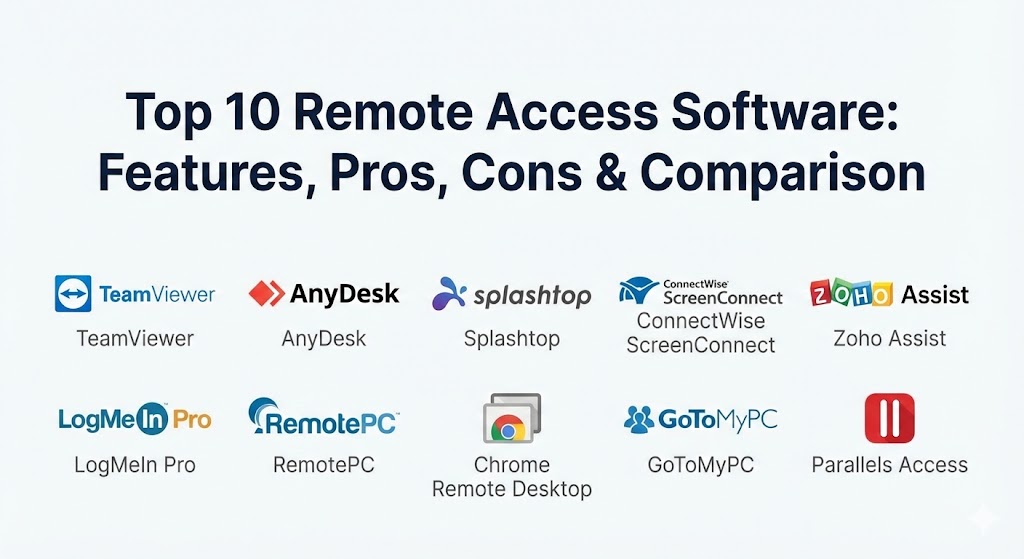
Top 10 Remote Access Software Tools
1 — TeamViewer
TeamViewer remains the undisputed heavyweight of the remote access world. Known for its “magic” ability to bypass complex firewalls without configuration, it has evolved into a massive enterprise platform that includes AR-based support and IoT monitoring.
- Key features:
- Cross-Platform Access: Connect from PC to mobile, mobile to PC, or even between specialized IoT devices.
- Unattended Access: Set up permanent access to servers or home computers without a user being present to accept the connection.
- Augmented Reality (Assist AR): Use a smartphone camera to guide a person through physical hardware repairs.
- Conditional Access: Fine-grained security rules that allow IT to restrict who can connect to what, and from where.
- Mass Deployment: Roll out the software to thousands of endpoints silently using MSI packages.
- Integrated Meeting Tools: Built-in video, audio, and chat for collaborative sessions.
- Pros:
- Industry-leading reliability and connection stability even on low-bandwidth networks.
- Extremely easy for non-technical users to set up for a quick “one-off” support session.
- Cons:
- Among the most expensive options on the market, especially for small businesses.
- The “free for personal use” version has aggressive AI detection that may falsely flag commercial activity.
- Security & compliance: SOC 2, HIPAA, GDPR, ISO 27001, and 256-bit AES end-to-end encryption. Supports SSO and MFA.
- Support & community: Extensive knowledge base, 24/7 phone and ticket support for business users, and a very active community forum.
2 — AnyDesk
Built by former TeamViewer engineers, AnyDesk was designed with one goal: speed. It utilizes a proprietary codec called DeskRT that ensures low latency and high frame rates, making it a favorite for graphics-heavy work.
- Key features:
- DeskRT Codec: Provides near-zero latency, enabling smooth video playback and responsive mouse control.
- Lightweight Client: The executable is remarkably small (~5MB), allowing it to be run without a full installation.
- On-Premise Option: For maximum security, companies can host AnyDesk on their own internal network.
- Custom Branding: Businesses can create a custom version of AnyDesk with their own logo and namespace.
- Interactive Whiteboard: Draw on the remote screen to guide users through complex tasks.
- Session Recording: Record every session for training, quality assurance, or security audits.
- Pros:
- Unbeatable performance for latency-sensitive tasks like video editing or CAD work.
- Clean, modern interface that is less cluttered than enterprise-heavy competitors.
- Cons:
- The file transfer interface is less intuitive than the “split-pane” style of some rivals.
- Customer support can be slower for users on lower-tier subscription plans.
- Security & compliance: TLS 1.2, 256-bit AES encryption, Two-Factor Authentication, and “Constant Verification” of access permissions.
- Support & community: Solid documentation, email support, and a growing repository of video tutorials.
3 — Splashtop
Splashtop has carved out a niche as the “best value” enterprise-grade alternative. It offers high-performance remote access that rivals the giants but at a price point that is significantly more attractive to SMBs.
- Key features:
- 4K Streaming: Supports high-definition remote sessions with up to 60 frames per second.
- USB Redirection: Use local devices like printers, smart cards, or security keys as if they were plugged into the remote PC.
- Remote Stylus & Mic Passthrough: Essential for artists and designers using tablets or needing audio input.
- Active Directory Integration: Sync user accounts directly from your corporate directory.
- Multi-Monitor Support: View multiple remote monitors on a single screen or spread them across your local displays.
- Remote Reboot: Restart a machine and automatically reconnect without losing the session.
- Pros:
- Exceptional “bang for your buck” with high-end features included in standard plans.
- Very low overhead on the host computer, ensuring it doesn’t slow down the remote machine.
- Cons:
- The web-based management console can feel slightly less polished than TeamViewer’s.
- The split between “Business Access” and “Remote Support” plans can be confusing for buyers.
- Security & compliance: SOC 2, HIPAA, GDPR, PCI, and ISO compliant. End-to-end encryption via TLS and 256-bit AES.
- Support & community: Award-winning real-time support, extensive self-help articles, and proactive customer success managers.
4 — ConnectWise ScreenConnect (Control)
If you are an IT professional or a Managed Service Provider (MSP), ScreenConnect is likely already on your radar. It is a highly customizable, powerful support tool designed for technicians who manage vast, diverse environments.
- Key features:
- Custom Branding & Styling: Modify every aspect of the user interface to match your corporate identity.
- Granular Permissions: Define exactly what a technician can do, from “view only” to “full control with file transfer.”
- Session Groups: Organize thousands of endpoints into logical groups based on client, location, or OS.
- Toolbox: Keep a library of scripts and executable files ready to run on any remote machine with one click.
- Extensions Marketplace: Add third-party functionality like password management or advanced reporting.
- Wake-on-LAN: Boot up computers remotely to perform maintenance during off-hours.
- Pros:
- The most powerful tool for “technician workflows” like mass scripting and grouping.
- Very stable connection that handles high-latency links better than many “visual-first” tools.
- Cons:
- Steep learning curve; the interface is dense and geared toward power users.
- The pricing can be expensive for very small teams needing only a few connections.
- Security & compliance: AES-256 encryption, 2FA, granular audit logs, and SOC 2 Type II compliance.
- Support & community: Excellent technical documentation, community “Slack” groups, and responsive expert support.
5 — Zoho Assist
Zoho Assist is a cloud-based remote support and access software that integrates beautifully with the wider Zoho ecosystem. It is an excellent choice for support teams that need a browser-based, lightweight solution.
- Key features:
- Browser-Based Access: Connect to remote devices directly from your web browser—no client installation needed on the technician’s side.
- File Transfer: Securely send and receive files up to 2GB in size during a session.
- Voice and Video Chat: Communicate with the end-user in real-time without needing a separate app.
- Unattended Access: Manage machines that don’t have a user present; includes bulk deployment.
- Customizable Email Invites: Tailor the session invitation emails with your company’s branding.
- Diagnostic Tools: View hardware info, processes, and services of the remote machine without taking over the screen.
- Pros:
- Seamless integration with Zoho Desk and other CRM/ticketing platforms.
- Extremely affordable plans, including a competent free tier for basic support.
- Cons:
- Performance (frame rate) is generally lower than AnyDesk or Splashtop.
- Advanced features like session recording are locked behind the most expensive tiers.
- Security & compliance: HIPAA, GDPR, ISO 27001, and SOC 2. Supports MFA and session idle timeouts.
- Support & community: 24/5 support, active forums, and a huge library of “How-To” videos.
6 — LogMeIn Pro
LogMeIn Pro is one of the oldest names in the industry, now focused strictly on the “power user” and SMB segment. It positions itself as a premium “access-anywhere” tool that includes extra perks like file storage and antivirus.
- Key features:
- Remote Printing: Print documents from your remote office computer to your local home printer.
- Multi-Monitor Display: See all remote monitors at once or toggle between them easily.
- 1TB File Storage: Includes 1TB of cloud storage via LogMeIn’s “Cubby” for sharing files.
- LastPass Premium: Subscription includes a free license for LastPass to manage your passwords.
- Desktop App & Mobile Apps: Native experience on Windows, Mac, iOS, and Android.
- LogMeIn Antivirus: Built-in protection powered by Bitdefender to secure your endpoints.
- Pros:
- Bundled features (Antivirus, LastPass, Storage) provide a lot of extra value for small businesses.
- Very high reliability and consistent performance across different operating systems.
- Cons:
- Known for frequent and significant price increases that can alienate long-term customers.
- The interface hasn’t seen a major overhaul in years and feels slightly dated.
- Security & compliance: 256-bit AES encryption, SSL/TLS, MFA, and SOC 2 compliance.
- Support & community: 24/7 phone support and a professional knowledge base.
7 — RemotePC
RemotePC is often cited as the “best overall value” for individuals and small businesses. It offers a clean, straightforward feature set without the enterprise bloat or the enterprise price tag.
- Key features:
- Always-On Remote Access: Set up computers for permanent access via a simple web ID.
- One-Time Access: Use a temporary code for ad-hoc support sessions.
- Performance Viewer: Optimized for high-speed sessions (up to 60 FPS) on Windows and Mac.
- Whiteboard: Collaborate on-screen during a session.
- Drag-and-Drop File Transfer: Move files between machines as easily as moving them between folders.
- RemotePC Meeting: Built-in video conferencing for team collaboration included in the plans.
- Pros:
- Extremely competitive pricing, often significantly cheaper than TeamViewer or LogMeIn.
- Intuitive, modern interface that requires zero training to navigate.
- Cons:
- Lacks the advanced “Technician” tools (like mass scripting) found in ConnectWise.
- The free trial is shorter than some competitors (usually 7 days).
- Security & compliance: TLS 1.2 and 256-bit AES encryption. HIPAA, GDPR, and SOC 2 compliant.
- Support & community: 24/7 phone and chat support, which is rare for a budget-friendly option.
8 — Chrome Remote Desktop
For those who need a no-cost, simple way to access their home PC or help a friend, Google’s offering is the gold standard. It runs as an extension in the Chrome browser (or as a standalone app).
- Key features:
- Web-Based Interface: No heavy software to install; manage everything from the Chrome browser.
- Google Account Integration: Use your existing Google credentials for secure access.
- Cross-Platform: Works on any device that can run a Chrome browser (Windows, Mac, Linux, Chromebook).
- Unattended Access: Set a PIN to access your own devices at any time.
- Remote Support: Generate a “support code” to give a friend temporary access to your screen.
- Android/iOS Apps: Robust mobile apps for controlling your PC from a phone.
- Pros:
- Completely free for both personal and commercial use (though features are basic).
- Zero-configuration; if you can use a browser, you can use this.
- Cons:
- Lacks essential business features like file transfer, remote printing, or chat.
- Requires a Google account, which may be a privacy deal-breaker for some.
- Security & compliance: Uses Google’s secure infrastructure and AES encryption. Lacks enterprise-level audit logs.
- Support & community: Basic Google support pages and community forums; no dedicated phone support.
9 — GoToMyPC
GoToMyPC, now owned by GoTo (formerly LogMeIn), is designed specifically for individuals and small businesses who want the absolute simplest remote desktop experience possible.
- Key features:
- One-Click Access: A simplified dashboard that allows you to connect to your remote PC in one click.
- Remote Printing: Seamless printing from the host computer to your local printer.
- File Transfer: Move files between computers using a simple drag-and-drop or cut-and-paste.
- Multi-Monitor Support: Optimized to display multiple monitors correctly without distortion.
- Desktop Shortcut: Create a physical icon on your home desktop that immediately launches the remote session.
- Real-Time Diagnostics: View the connection health and system performance of the remote machine.
- Pros:
- Widely considered the most “user-friendly” tool for people who aren’t tech-savvy.
- Very stable connection with high-quality screen rendering.
- Cons:
- The “Personal” and “Pro” plans get very expensive if you need to access more than 2-3 computers.
- Lacks the collaboration tools (like whiteboard or chat) found in modern competitors.
- Security & compliance: 256-bit AES encryption, MFA, and SOC 2 Type II compliance.
- Support & community: 24/7 phone support and a long-standing user base.
10 — Parallels Access
Parallels Access takes a unique approach: it is optimized for accessing your desktop apps from a mobile device. Instead of just showing a tiny desktop screen, it makes desktop apps “feel” like native mobile apps.
- Key features:
- Applification: Translates desktop menus and buttons into mobile-friendly gestures and controls.
- Universal File Manager: A single interface to access files on your remote computer and in the cloud (Dropbox/Drive).
- Lock-to-App: Focus on one specific application rather than the entire desktop.
- Wake-on-LAN: Boot up your Mac or PC from your phone.
- Mobile-Friendly Zoom: Pinch-to-zoom on specific areas of the screen is much smoother than competitors.
- Full Resolution Support: Automatically adjusts the remote desktop’s resolution to fit your tablet or phone perfectly.
- Pros:
- The best experience for using a PC or Mac from an iPad or iPhone.
- Very low-latency audio and video streaming.
- Cons:
- Lacks many of the “Support” features (like ticketing or remote diagnostics) needed by IT teams.
- Subscription-based with no perpetual license option.
- Security & compliance: SSL and 256-bit AES encryption. SOC 2 compliant features.
- Support & community: Knowledge base, email support, and a helpful user forum.
Comparison Table
| Tool Name | Best For | Platform(s) Supported | Standout Feature | Rating (Gartner / Peer) |
| TeamViewer | Enterprise & Support | All (inc. IoT) | AR-based Remote Support | 4.6 / 5.0 |
| AnyDesk | High-Performance | All + On-Prem | DeskRT Low-Latency Codec | 4.8 / 5.0 |
| Splashtop | Value for Teams | All | 4K 60FPS Streaming | 4.8 / 5.0 |
| ScreenConnect | IT & MSPs | All | Deep Customization & Scripts | 4.5 / 5.0 |
| Zoho Assist | Helpdesk Teams | All (Web-based) | Native CRM Integration | 4.5 / 5.0 |
| LogMeIn Pro | Premium Power Users | Win, Mac, Mobile | 1TB Storage & Antivirus Bundle | 4.4 / 5.0 |
| RemotePC | Budget-Conscious | All | Built-in Video Conferencing | 4.7 / 5.0 |
| Chrome R.D. | Free / Personal | Any (via Chrome) | Zero-Cost & Zero-Config | 4.4 / 5.0 |
| GoToMyPC | Simple UX | Win, Mac, Mobile | One-Click Connection | 4.8 / 5.0 |
| Parallels Access | Mobile-to-Desktop | Win, Mac, iOS, Android | Mobile-Native “Applification” | 4.5 / 5.0 |
Evaluation & Scoring of Remote Access Software
To help you objectively compare these solutions, we have evaluated them across a weighted scoring rubric based on the current 2026 industry standards.
| Criteria | Weight | Evaluation Points |
| Core Features | 25% | File transfer, remote printing, unattended access, and multi-monitor support. |
| Ease of Use | 15% | Installation time, dashboard clarity, and learning curve for non-technical users. |
| Integrations | 15% | Connectivity with CRM, PSA, ticketing systems, and SSO providers. |
| Security & Compliance | 10% | Encryption standards, MFA, audit logging, and industry certifications. |
| Performance | 10% | Latency, frame rate (FPS), and stability on low-speed connections. |
| Support & Community | 10% | Availability of 24/7 phone support, documentation, and user forums. |
| Price / Value | 15% | Transparency of pricing, free tiers, and cost per endpoint managed. |
Which Remote Access Software Tool Is Right for You?
Choosing the right tool is a balance between your technical needs, your budget, and the size of your team.
Solo Users vs SMB vs Mid-Market vs Enterprise
If you are a Solo User or a freelancer, Chrome Remote Desktop is perfect for basic tasks, while RemotePC offers a professional-grade set of features for a low annual fee. Small to Mid-Market (SMB) companies should look toward Splashtop or Zoho Assist for a balance of cost and helpdesk features. For Global Enterprises, TeamViewer and AnyDesk (On-Premise) are the only solutions with the scalability and advanced administrative controls required for massive fleets.
Budget-conscious vs Premium Solutions
If you are on a tight budget, Chrome Remote Desktop is the king of free, while RemotePC often runs aggressive promotions that make it the cheapest paid option. If you are willing to pay for a Premium Solution, TeamViewer and LogMeIn Pro provide extensive bundles (like storage and AR support) that justify their higher price tags for certain industries.
Feature Depth vs Ease of Use
If you need deep technical control, ConnectWise ScreenConnect is the developer’s choice. If you prioritize ease of use so your employees don’t have to call IT just to use the software, GoToMyPC and Splashtop are designed to be “invisible” tools that just work.
Security and Compliance Requirements
For industries like finance and healthcare, security is paramount. AnyDesk stands out because it offers a fully on-premise version where no data ever leaves your building. Rubrik and Veeam (for backups) often pair well with secure remote access tools like Splashtop, which has high compliance ratings.
Frequently Asked Questions (FAQs)
1. Is remote access software the same as a VPN?
No. A VPN (Virtual Private Network) puts your computer on the same network as the office, but you still use your local computer’s processing power. Remote access software allows you to control the office computer itself, utilizing its software, licenses, and hardware.
2. Can I use remote access software without an internet connection?
Technically, no. These tools require a network connection to stream the screen data. However, some tools like AnyDesk and ScreenConnect can work over a Local Area Network (LAN) without needing the external internet if configured correctly.
3. Is it safe to leave my computer on all the time for unattended access?
Yes, provided you use strong passwords and Multi-Factor Authentication (MFA). Most remote access tools allow you to “blank” the remote screen so nobody in the physical office can see what you are doing.
4. Will remote access software slow down my computer?
The “host” computer (the one being controlled) might see a small CPU increase (5-10%) due to screen encoding. The “client” computer (the one you are sitting at) needs very little power—it’s essentially just watching a video.
5. Can I remote into a Mac from a Windows PC?
Yes. All the major players like TeamViewer, AnyDesk, and Splashtop are cross-platform, meaning you can control a Mac from a PC, or a PC from an iPad.
6. Do I need to be tech-savvy to set this up?
Not anymore. Tools like GoToMyPC and Chrome Remote Desktop are designed to be “plug and play.” You simply install a small file, create a password, and you are ready to connect.
7. Can I hear sound from the remote computer?
Yes, most premium tools include audio redirection, allowing you to hear music, notifications, or system sounds from the remote machine through your local speakers.
8. What happens if my internet disconnects during a session?
The session will pause. Once your internet is restored, most modern tools will automatically attempt to reconnect you exactly where you left off.
9. Can I transfer files between the two computers?
Yes, almost all paid remote access tools include a “File Transfer” mode. You can drag and drop documents back and forth between the two machines as if they were on the same computer.
10. Why is my remote session blurry or lagging?
This is usually caused by low upload speed at the host computer’s location. You can usually go into the settings and change the quality to “Optimize for Speed” to reduce lag at the cost of some image clarity.
Conclusion
Selecting the “best” remote access software is not about finding the tool with the most features, but about finding the one that fits your specific workflow. In 2026, the market is highly competitive, meaning you have excellent options at every price point.
If you are an IT administrator managing a complex environment, the scripting power of ConnectWise ScreenConnect is hard to beat. If you are a creative professional who can’t tolerate even a millisecond of mouse lag, AnyDesk and its DeskRT codec are your best friends. And if you are a business traveler who just needs a reliable way to check office emails from a hotel, Splashtop and GoToMyPC offer the perfect balance of simplicity and performance. Ultimately, the “best” tool is the one that allows you to forget it’s even there, enabling you to work with the same focus and speed as if you were sitting right in front of your desk.