Introduction
In the world of software development, Git has become the universal language for version control. While many developers take pride in mastering the Command Line Interface (CLI), the rise of Git Clients has transformed how teams interact with their codebases. A Git Client is a graphical user interface (GUI) that sits on top of Git, providing a visual representation of complex branching structures, commit histories, and merge conflicts. Instead of typing long strings of commands, these tools allow you to stage, commit, push, and pull with a few clicks, offering a layer of clarity that raw text simply cannot provide.
The importance of a high-quality Git Client lies in its ability to reduce human error and boost productivity. Visualizing a “merge mess” before it happens can save hours of troubleshooting. Key real-world use cases include managing large-scale microservices where multiple branches are active simultaneously, performing surgical “cherry-picks” of specific features, and conducting thorough code reviews through visual diffs. When choosing a client, you should evaluate performance (especially with large repos), UI clarity, integration with platforms like GitHub or GitLab, and the robustness of the merge tool.
Best for: Software engineers, front-end developers, and UI/UX designers who need to manage code without memorizing every Git flag. It is ideal for teams working in fast-paced environments where visualizing the “tree” of development is crucial for avoiding collisions.
Not ideal for: Command line purists who prefer the raw speed and scriptability of the terminal. It may also be overkill for solo developers working on tiny, single-branch projects where a simple git commit -am "update" is faster than launching a separate application.
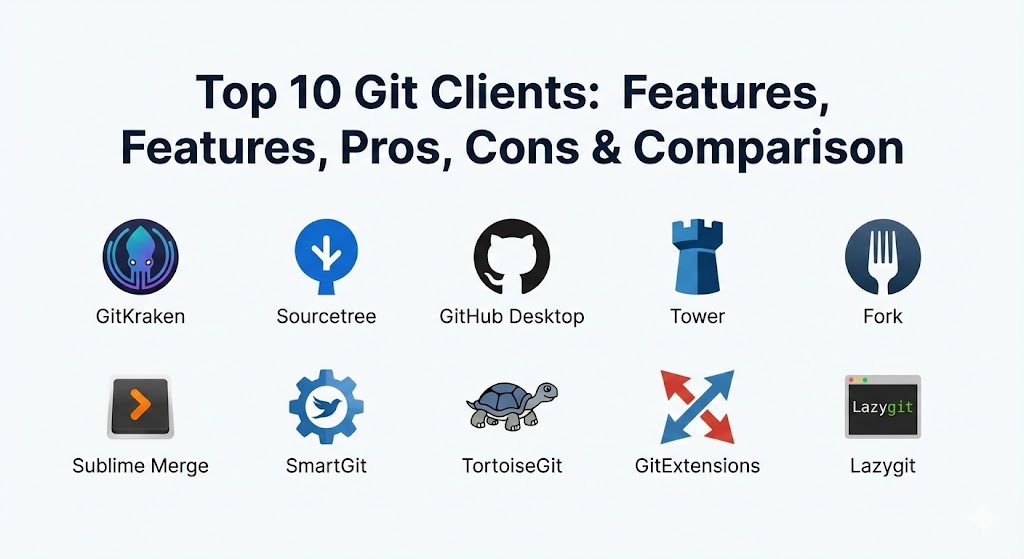
Top 10 Git Clients Tools
1 — GitKraken
GitKraken is widely considered the most visually stunning Git client on the market. Designed with a focus on aesthetics and efficiency, it provides a cross-platform experience that makes complex Git operations feel intuitive through its unique, colorful commit graph.
- Key Features:
- Visual Commit Graph: A legendary, color-coded interactive graph that makes branch management easy.
- Built-in Merge Tool: A sophisticated collision-detection system that simplifies complex merges.
- Glow Boards: Integrated task tracking that connects your code to your to-do list.
- Workspaces: Group multiple repositories to perform actions across all of them at once.
- Terminal Integration: A built-in terminal for those moments when you still need to type a command.
- Cloud Patches: Share code changes with teammates without needing to create a formal branch.
- SSO & Team Management: Advanced features for managing large developer organizations.
- Pros:
- The UI is incredibly polished and significantly reduces the learning curve for Git.
- Cross-platform consistency across Windows, Mac, and Linux is perfect for diverse teams.
- Cons:
- It is built on Electron, which can be heavy on system resources (RAM).
- The free version is restricted to public repositories only.
- Security & compliance: SOC 2 Type II compliant; features SSO (SAML), local encryption for credentials, and GDPR readiness.
- Support & community: High-tier professional support for paid users, an extensive documentation library (“GitKraken Academy”), and a very active community of power users.
2 — Sourcetree
Developed by Atlassian, Sourcetree is a free, powerful Git client that bridges the gap between beginners and experts. It is a staple in the industry, particularly for those already working within the Bitbucket and Jira ecosystem.
- Key Features:
- Simple Interface: Provides a clean look for staging and committing changes.
- Git Large File Support (LFS): Excellent handling of massive assets and binary files.
- Submodule Management: Easily manage repositories nested within other repositories.
- Visual Branching: See where branches diverge and where they are about to merge.
- Custom Actions: Define your own scripts that can be triggered from the Sourcetree UI.
- Stash Management: Quickly save and retrieve uncommitted work.
- Interactive Rebase: A user-friendly way to clean up your commit history.
- Pros:
- It is completely free for both personal and professional use.
- Deep integration with Atlassian products makes it a “no-brainer” for Jira users.
- Cons:
- The Windows and Mac versions have different feature sets and UI designs.
- Performance can degrade noticeably when dealing with extremely large repositories.
- Security & compliance: Inherits Atlassian’s enterprise security standards; features secure credential storage and 2FA support.
- Support & community: Backed by Atlassian’s massive help center; large community forums and extensive documentation available.
3 — GitHub Desktop
GitHub Desktop is the official client from GitHub, designed to provide the simplest possible path for developers to contribute to their projects. It strips away the complexity of Git to focus on the core workflow of “branch, change, and PR.”
- Key Features:
- Seamless PR Integration: Create, review, and merge Pull Requests without leaving the app.
- Attribute Commits: Easily add co-authors to your commits for shared credit.
- Syntax Highlighted Diffs: See exactly what changed in your code with clear color coding.
- Simplified Branching: A focused view that prevents users from getting lost in “branch hell.”
- Automatic Updates: Stays current with the latest GitHub features and security patches.
- Dark Mode Support: A first-class aesthetic experience for late-night coding sessions.
- Community Actions: Supports various community-built integrations.
- Pros:
- The easiest client for absolute beginners to pick up and use immediately.
- Deeply optimized for the GitHub.com workflow, making it very fast for PR-heavy teams.
- Cons:
- Lacks advanced Git features like interactive rebasing or complex cherry-picking.
- Highly opinionated; it forces you into a specific workflow that might not suit everyone.
- Security & compliance: Backed by Microsoft/GitHub security; supports modern SSO and 2FA natively.
- Support & community: Primarily community-driven via GitHub issues; extensive documentation provided by GitHub’s help site.
4 — Tower
Tower is a premium Git client that prides itself on “Git with Confidence.” It is known for its high-end performance, sophisticated drag-and-drop features, and an interface that feels at home on high-resolution displays.
- Key Features:
- Drag and Drop: Perform merges, rebases, and pulls by simply dragging one branch onto another.
- Undo Support: The “Ctrl+Z” for Git; undo complex actions like deletes or merges with ease.
- Quick Open: Rapidly jump to any repository or file with a powerful search bar.
- Image Diffing: Visually compare changes in image files side-by-side.
- External Tool Support: Seamlessly opens your favorite merge and diff tools (like Kaleidoscope).
- User Profiles: Easily switch between different Git identities (work vs. personal).
- Reflog Access: A safety net that allows you to recover “lost” commits.
- Pros:
- One of the most stable and performant clients, especially on macOS.
- The “Undo” feature provides a massive sense of security for junior developers.
- Cons:
- It is a paid subscription with no permanent free tier.
- The UI can feel slightly dense for users who prefer extreme minimalism.
- Security & compliance: SOC 2 readiness; features local credential encryption and support for 2FA/SSO.
- Support & community: High-quality direct email support for subscribers and a library of “Git for Professionals” ebooks.
5 — Fork
Fork is a fast, lightweight Git client that has gained a cult following for its “no-nonsense” approach. It manages to pack an incredible amount of power into a clean, modern interface that is remarkably responsive.
- Key Features:
- Instant Diffs: View changes in your code without any lag or flickering.
- Interactive Rebase: A powerful visual editor for cleaning up commit histories.
- Merge Conflict Resolver: A dedicated view for manually fixing conflicts line-by-line.
- Image Diff: Supports visual comparison for multiple image formats.
- Submodule Support: Easy management of complex repository structures.
- Dark/Light Themes: High-quality themes that respect system-level preferences.
- Side-by-side Diffs: Clearly see original vs. changed code in two columns.
- Pros:
- Remarkably fast; it feels significantly snappier than Electron-based clients.
- The developer is very responsive to community feedback and feature requests.
- Cons:
- Currently only available for Windows and Mac (no Linux version).
- It transitioned from a free model to a “pay-once” model, which might deter budget-conscious users.
- Security & compliance: GDPR compliant; features secure storage of SSH keys and tokens.
- Support & community: Primarily supported via a public GitHub issue tracker and direct email; strong word-of-mouth community.
6 — Sublime Merge
From the creators of Sublime Text, Sublime Merge is built for speed. It uses the same high-performance custom UI toolkit as the editor, resulting in a Git client that is lightweight, powerful, and blazing fast.
- Key Features:
- Blazing Fast Search: Search through thousands of commits in milliseconds.
- Powerful Diffing: Uses a world-class diff engine to show changes clearly.
- Sublime Text Integration: Works hand-in-hand with the editor for a unified workflow.
- Command Palette: Access any Git command with a quick keyboard shortcut.
- Side-by-side Diffs: High-performance code comparison.
- Syntax Highlighting: Uses the same engine as Sublime Text for perfect code rendering.
- Git Flow Support: Built-in support for the Git Flow branching model.
- Pros:
- Unmatched performance; it handles massive repositories better than almost any other GUI.
- Extensible via the same logic that makes Sublime Text so powerful.
- Cons:
- The interface is very minimalist and might feel “bare bones” to some.
- Lacks some of the “hand-holding” visual aids found in GitKraken.
- Security & compliance: Compliant with standard local security practices; credentials managed by the OS keychain.
- Support & community: Excellent documentation; active forums and direct support for license holders.
7 — SmartGit
SmartGit is a Java-based, professional Git client that excels in complex environments. It is designed for developers who need a cross-platform tool that behaves identically on every operating system.
- Key Features:
- Unified UI: The same interface on Windows, Mac, and Linux.
- Log Window: A powerful view for searching and filtering project history.
- Conflict Solver: A three-way merge tool that is highly reliable.
- SSH Client: Built-in SSH client to avoid external configuration headaches.
- Support for SVN: One of the few modern tools that can still interact with SVN repositories.
- Distributed Reviews: Support for Git-Notes based reviews.
- Advanced Staging: Stage specific lines or hunks of code with ease.
- Pros:
- Extremely reliable for “power users” who need to perform advanced Git surgery.
- Its platform-agnostic nature is great for teams with mixed OS environments.
- Cons:
- The interface feels a bit dated and “Java-esque” compared to modern competitors.
- Can be resource-heavy due to the Java Virtual Machine (JVM).
- Security & compliance: GDPR compliant; supports 2FA, SSH keys, and encrypted credential storage.
- Support & community: Strong professional support; detailed manual and a community of enterprise developers.
8 — TortoiseGit
TortoiseGit is a legendary Windows-only client that integrates directly into the Windows File Explorer. It is the spiritual successor to TortoiseSVN and is perfect for users who want to manage Git without opening a separate app.
- Key Features:
- Shell Integration: Manage Git via the right-click context menu in Windows folders.
- Icon Overlays: See the status of your files (modified, synced, ignored) directly on their icons.
- TortoiseMerge: A powerful, standalone diff and merge tool.
- Commit Dialog: A simple, functional window for writing commit messages and staging files.
- Spell Checker: Integrated spell check for your commit messages.
- Log View: A classic, tabular view of project history.
- GPO Support: Easy to deploy and configure across a corporate Windows network.
- Pros:
- No need to learn a new application interface; it works where you already work.
- Completely free and open-source.
- Cons:
- Windows only; zero cross-platform capability.
- The “Explorer integration” approach can occasionally feel cluttered.
- Security & compliance: Open-source transparency; uses Windows security for credential management.
- Support & community: Massive legacy community; extensive documentation and a long history of stability.
9 — GitExtensions
GitExtensions is an open-source, feature-rich Git client for Windows. It is designed to be a “middle ground” for those who want a dedicated app but prefer the classic Windows application style.
- Key Features:
- Visual Graph: A functional, straightforward commit graph.
- Visual Studio Plugin: Integrates directly into the VS development environment.
- Commit Builder: A robust interface for staging files and hunks.
- Shell Extension: Includes basic context menu integration similar to TortoiseGit.
- Scripting Support: Build custom scripts to automate your specific Git workflows.
- Maintenance Tools: Built-in tools for cleaning and optimizing your Git repositories.
- Comprehensive History: Excellent tools for searching and filtering through old commits.
- Pros:
- One of the best free options for Windows-based developers.
- Extremely lightweight and doesn’t require a lot of system resources.
- Cons:
- Linux and Mac support is experimental or non-existent.
- The UI lacks the polish and modern flair of paid alternatives.
- Security & compliance: Open-source; standard security protocols for SSH and token management.
- Support & community: Community-driven via GitHub; active developer base that keeps the tool updated.
10 — Lazygit
Lazygit is a Terminal User Interface (TUI) for Git. While it runs in the command line, it provides a powerful, keyboard-driven interface that offers many of the benefits of a GUI without requiring a mouse.
- Key Features:
- Keyboard Shortcuts: Perform any Git action with a single keystroke.
- Interactive Rebase: A remarkably fast way to squash and fixup commits.
- Visual Staging: Easily select hunks of code to stage for a commit.
- Merge Conflict HUD: A clear, text-based view for resolving conflicts quickly.
- Custom Commands: Highly configurable to add your own shortcuts and logic.
- Minimalist Design: No menus or icons, just pure data and speed.
- Log Viewing: A fast, scrolling view of your branch history.
- Pros:
- The fastest client on this list for developers who live in the terminal.
- Completely free and extremely lightweight.
- Cons:
- Not a “GUI” in the traditional sense; requires comfort with terminal environments.
- Steep learning curve to memorize the keyboard shortcuts.
- Security & compliance: Transparent open-source code; uses your existing system Git security.
- Support & community: Rapidly growing community on GitHub; very active development cycle.
Comparison Table
| Tool Name | Best For | Platform(s) Supported | Standout Feature | Rating |
| GitKraken | Visual Branching | Win, Mac, Linux | Cross-platform Graph | 4.8 / 5 |
| Sourcetree | Atlassian Users | Win, Mac | Jira Integration | 4.4 / 5 |
| GitHub Desktop | Beginners | Win, Mac | PR Workflow Ease | 4.5 / 5 |
| Tower | Premium Experience | Win, Mac | Undo / Drag-and-Drop | 4.7 / 5 |
| Fork | Performance | Win, Mac | Fast & Reliable Diffs | 4.8 / 5 |
| Sublime Merge | Speed Purists | Win, Mac, Linux | Blazing Fast Search | 4.6 / 5 |
| SmartGit | Java/Cross-Platform | Win, Mac, Linux | Built-in SSH Client | 4.2 / 5 |
| TortoiseGit | Windows Explorer | Windows Only | Shell Integration | 4.1 / 5 |
| GitExtensions | Windows Devs | Windows Only | VS Plugin / Lightweight | 4.0 / 5 |
| Lazygit | Terminal Power Users | CLI (Cross-platform) | Keyboard-driven Speed | 4.5 / 5 |
Evaluation & Scoring of Git Clients
We have evaluated these Git Clients based on a weighted scoring rubric that reflects the priorities of modern development teams.
| Criteria | Weight | Evaluation Basis |
| Core Features | 25% | Diff quality, branching visuals, and merge tools. |
| Ease of Use | 15% | UI intuitiveness and onboarding speed. |
| Integrations | 15% | Support for GitHub, GitLab, Bitbucket, and IDEs. |
| Security & Compliance | 10% | Encryption, 2FA support, and SSO readiness. |
| Performance | 10% | Speed of opening large repos and lag-free diffs. |
| Support & Community | 10% | Documentation quality and user forum activity. |
| Price / Value | 15% | Feature set vs. cost (Free vs. Paid tiers). |
Which Git Clients Tool Is Right for You?
Choosing the right client is a personal decision that depends on your workflow and technical comfort.
Solo Users vs SMB vs Mid-market vs Enterprise
- Solo Users: GitHub Desktop or the free tier of Fork are usually sufficient.
- SMBs: Fork or Sourcetree provide enough power without requiring a large budget.
- Enterprises: GitKraken or Tower are the standard choices for their robust security features and centralized team management.
Budget-conscious vs Premium Solutions
If you are on a budget, GitHub Desktop, Sourcetree, and TortoiseGit are completely free. If you are willing to pay for a premium experience that saves time, GitKraken and Tower are well worth the investment.
Feature Depth vs Ease of Use
If you prioritize Ease of Use, GitHub Desktop is the winner. If you need Feature Depth for complex history rewriting and repository maintenance, Sublime Merge or SmartGit are the better choices.
Frequently Asked Questions (FAQs)
1. Is a Git GUI better than the Command Line?
It’s not necessarily “better,” but it is different. GUIs are superior for visualizing branch history and resolving merge conflicts. The CLI is superior for automation and raw speed on small tasks.
2. Can I use a Git GUI and the CLI at the same time?
Yes. You can use a GUI for complex merges and the CLI for quick commits. They both interact with the same .git folder in your project.
3. Do Git clients work with GitLab and Bitbucket?
Most do. While GitHub Desktop is optimized for GitHub, tools like GitKraken and Sourcetree have first-class support for all major hosting providers.
4. Are these tools safe to use with private company code?
Yes. Git clients are local interfaces. Your code stays on your machine and your server; the client simply helps you manage the transactions between them.
5. Which client is best for large repositories?
Sublime Merge and Fork are generally regarded as the fastest clients for handling massive codebases with thousands of commits.
6. Do I need to pay for GitKraken?
GitKraken is free for public repositories. If you need to work on private repositories for a company, you will need a paid license.
7. Can I undo a commit in a Git GUI?
Yes. Most clients have a simple “Undo” or “Revert” button that handles the underlying Git commands for you safely.
8. What is a “Merge Conflict Resolver”?
It is a visual tool that shows the “Their” version, “Your” version, and the “Final” version side-by-side, allowing you to pick which code to keep with a single click.
9. Why is GitKraken so popular?
It popularized the “interactive graph” which turned Git history from a confusing list into a beautiful, easy-to-read map.
10. Is TortoiseGit still relevant?
Absolutely. For Windows users who manage files primarily through Explorer, it remains one of the fastest and most integrated ways to handle version control.
Conclusion
The “best” Git Client is ultimately the one that removes the friction from your daily workflow. If you find yourself dreading a merge or getting lost in your project history, it’s a clear sign that your current tool—whether it’s the CLI or a basic GUI—isn’t working for you.
For the visual learner, GitKraken provides a map that makes sense. For the speed purist, Sublime Merge or Lazygit offer the performance needed to stay in the zone. And for the developer who just wants things to work, GitHub Desktop or Fork are reliable companions. Git doesn’t have to be a source of stress; with the right client, it becomes a powerful safety net that allows you to innovate with confidence.