Introduction
Email client software consists of desktop or mobile applications that allow users to access, manage, and send emails from multiple accounts in a single, unified interface. Unlike webmail (accessing Gmail or Outlook through a browser), a dedicated client stores data locally, enables powerful offline capabilities, and integrates more deeply with your operating system’s notification and file systems. These tools use protocols like POP3, IMAP, and SMTP to synchronize messages across various service providers.
In 2026, the importance of a robust email client lies in its ability to handle “information overload.” High-performing tools now incorporate Artificial Intelligence (AI) to summarize long threads, prioritize urgent messages, and even draft responses. Key real-world use cases include managing high-volume customer support queues, coordinating multi-timezone project communication, and maintaining “Inbox Zero” through advanced filtering and snoozing. When evaluating these tools, users should look for cross-platform availability, the speed of global search, native calendar integration, and the level of end-to-end security provided.
Best for: Professional power users, corporate executives, freelancers managing multiple client accounts, and enterprises requiring centralized security and compliance management.
Not ideal for: Casual users who only check email once or twice a week, or individuals who prefer the simplicity of a single-provider web interface without the need for advanced productivity features.
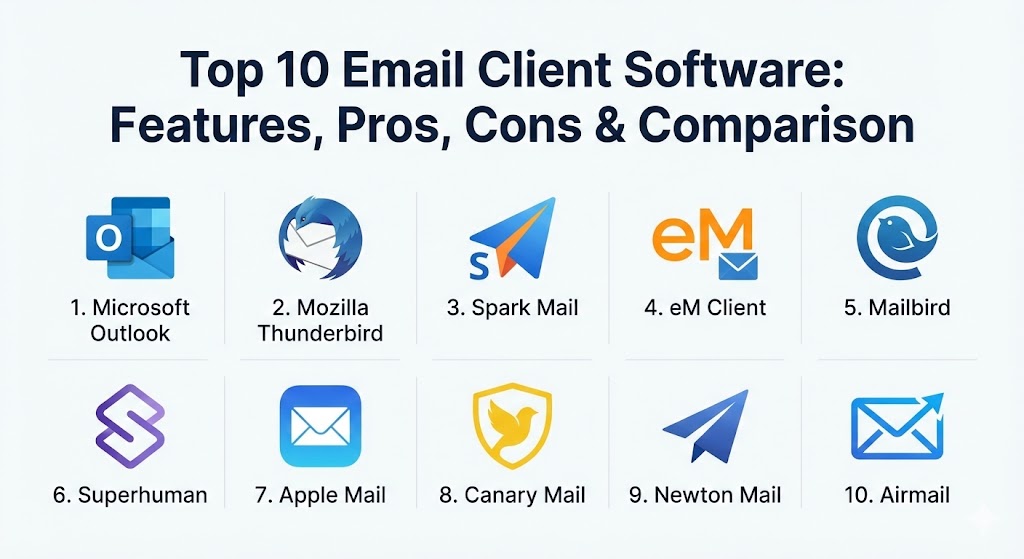
Top 10 Email Client Software Tools
1 — Microsoft Outlook
As the cornerstone of the Microsoft 365 ecosystem, Outlook remains the industry standard for corporate communication. It is a comprehensive Personal Information Manager (PIM) that combines email, calendaring, task management, and contact organization.
- Key features:
- Deep integration with Microsoft 365 apps (Teams, Word, Excel).
- “Focused Inbox” which uses AI to separate important mail from clutter.
- Advanced scheduling assistant for coordinating meetings across large teams.
- Built-in task management with “To Do” synchronization.
- Sophisticated rule-based automation for filing and sorting.
- Comprehensive search with natural language processing support.
- Native support for enterprise-grade security protocols.
- Pros:
- The most powerful feature set for administrative and professional coordination.
- Unmatched integration with enterprise infrastructure (Active Directory).
- Cons:
- The interface can feel cluttered and overwhelming for new users.
- Significant system resource consumption, especially with large PST files.
- Security & compliance: SOC 2, HIPAA, GDPR, ISO 27001, S/MIME, and SSO.
- Support & community: Extensive documentation, global 24/7 enterprise support, and a massive community of IT professionals.
2 — Mozilla Thunderbird
Thunderbird is a free, open-source email client developed by the community. It is widely respected for its focus on privacy, customization, and its ability to handle complex, multi-account setups without subscription fees.
- Key features:
- Tabbed email browsing, allowing users to keep multiple messages open.
- “Large File” linking instead of traditional attachments to save bandwidth.
- Robust add-on manager for extending functionality (themes, productivity).
- Smart Folders for managing multiple accounts in one view.
- Phishing protection and automated tracking-cookie blocking.
- One-click address book and attachment reminders.
- Built-in RSS reader and chat (Matrix/IRC) integration.
- Pros:
- Completely free with no hidden costs or data mining.
- Highly flexible; users can change almost every aspect of the UI.
- Cons:
- The user interface can feel dated compared to modern SaaS alternatives.
- Occasional stability issues when running a high number of third-party plugins.
- Security & compliance: PGP encryption support, S/MIME, and strong community-driven privacy audits.
- Support & community: Extensive wiki-based documentation and a very active volunteer-led support forum.
3 — Spark Mail
Spark is a productivity-first email client designed to help teams and individuals reach “Inbox Zero” faster. It is particularly popular for its “Smart Inbox” which categorizes mail by type (Personal, Notifications, Newsletters).
- Key features:
- Shared inboxes and private comments on threads for team collaboration.
- AI-powered email drafting and summarization tools.
- “Home Screen” feature to see a daily overview before entering the inbox.
- Ability to mute non-urgent senders and “Snooze” emails for later.
- Send Later scheduling and follow-up reminders.
- Unified search across all connected accounts.
- Integration with tools like Trello, Slack, and Todoist.
- Pros:
- Exceptional, modern user interface that prioritizes focus.
- Excellent team features that reduce the need for internal forwarding.
- Cons:
- The advanced “Premium” features require a monthly subscription.
- Some users may have privacy concerns regarding the server-side sync for AI features.
- Security & compliance: SOC 2, GDPR, and OAuth authentication for major providers.
- Support & community: Quality onboarding guides and responsive email support for paid users.
4 — eM Client
eM Client is a feature-rich client for Windows and Mac that offers a direct alternative to Outlook. It is known for its “all-in-one” approach, including calendar, tasks, contacts, and even an integrated chat.
- Key features:
- Seamless PGP encryption setup for secure communication.
- Integrated translation tool for incoming and outgoing messages.
- Sidebars for communication history and attachment history per contact.
- Support for nearly all email services (Google, iCloud, Exchange).
- Sophisticated backup tool that runs without interrupting work.
- Integrated Notes section with cross-device syncing.
- “Watch for Reply” feature to ensure you don’t miss important follow-ups.
- Pros:
- Excellent performance on Windows with a very “native” feel.
- Simplifies complex encryption (PGP) for non-technical users.
- Cons:
- The free version is limited to only two email accounts.
- Licensing is per-device, which can be expensive for multi-device users.
- Security & compliance: FIPS 140-2, S/MIME, PGP, and GDPR compliant.
- Support & community: Professional VIP support for Pro users and a comprehensive FAQ.
5 — Mailbird
Mailbird is a Windows-optimized client that focuses on “The Unified Dashboard.” It allows users to integrate their favorite productivity apps directly into the email interface.
- Key features:
- Unified inbox with color-coded account indicators.
- Integrated apps for WhatsApp, Slack, Dropbox, and Google Calendar.
- “Speed Reader” to help you process long emails faster.
- Custom sounds and notification settings for different accounts.
- LinkedIn lookup to see contact profiles directly from the inbox.
- Dark mode and extensive theme customization.
- Multi-language support for international teams.
- Pros:
- Turns your email client into a central workstation for all communication.
- Very lightweight and fast on Windows 10/11 machines.
- Cons:
- No native version for macOS or mobile (currently Windows-focused).
- The search function is occasionally slower than its competitors.
- Security & compliance: GDPR compliant; uses standard OAuth 2.0 for account connections.
- Support & community: Friendly customer support and a helpful “knowledge base” for troubleshooting.
6 — Superhuman
Superhuman is a premium, high-speed email client designed for “the top 1% of productivity seekers.” It claims to save users hours every week through its keyboard-centric design.
- Key features:
- Ultra-fast UI with “blazing fast” search and interaction speeds.
- Split Inboxes to separate high-priority work from automated mail.
- Built-in “Read Receipts” to see when your emails are opened.
- Social insights and profile photos for all recipients.
- AI-driven “Instant Reply” that learns your writing style.
- Keyboard shortcuts for every single action (no mouse required).
- Offline mode that syncs changes as soon as you are back online.
- Pros:
- Dramatically increases email processing speed for power users.
- The most polished and “exclusive” user experience in the market.
- Cons:
- Extremely expensive ($30/month) with no free tier.
- Requires a personalized onboarding session, which may be too slow for some.
- Security & compliance: SOC 2, GDPR, and rigorous internal security audits.
- Support & community: High-touch VIP support and personalized productivity coaching.
7 — Apple Mail
For users deep within the Apple ecosystem, Apple Mail (or simply “Mail”) is the default choice. It is clean, integrated, and completely free for Mac, iPhone, and iPad users.
- Key features:
- “Mail Drop” for sending massive attachments via iCloud.
- Smart Mailboxes based on complex search criteria.
- Integration with “Hide My Email” for privacy-conscious signups.
- Deep integration with macOS Spotlight and Siri.
- Markup tool for annotating PDFs and images directly in the thread.
- VIP list for prioritizing messages from specific contacts.
- Handoff support to switch between Mac and iPhone seamlessly.
- Pros:
- Completely free and pre-installed on all Apple devices.
- Zero configuration required for iCloud users; very battery-efficient.
- Cons:
- Lacks the advanced automation and “snooze” features found in rivals.
- Formatting options are somewhat limited compared to Outlook or Spark.
- Security & compliance: ISO 27001, HIPAA (via Business iCloud), and GDPR.
- Support & community: Direct support via Apple Care and a global network of Apple Retail stores.
8 — Canary Mail
Canary Mail is a security-focused client that has successfully pivoted to become an AI leader. It offers end-to-end encryption alongside a powerful AI Copilot.
- Key features:
- End-to-end encryption (PGP) that works automatically.
- AI Copilot for drafting, summarizing, and cleaning your inbox.
- Read receipts with real-time push notifications.
- “Secure Send” for revoking access to sent emails or setting expiry dates.
- Built-in Unsubscribe tool for bulk newsletters.
- One-click cleanup of old and redundant emails.
- Cross-platform support for macOS, iOS, Android, and Windows.
- Pros:
- The best choice for users who want “Security + AI” in one package.
- Privacy-first approach; encryption keys are stored locally.
- Cons:
- AI features can occasionally produce generic-sounding drafts.
- The mobile app can be slightly slower than the desktop version.
- Security & compliance: Zero-knowledge encryption, GDPR, and HIPAA compliant.
- Support & community: Responsive technical support and detailed privacy documentation.
9 — Newton Mail
Newton Mail is known for its minimalist “Zen” interface and its ability to work seamlessly across every device. It focuses on a clean, distraction-free writing environment.
- Key features:
- “Recap” feature that resurfaces emails waiting for a reply.
- Tidy Inbox which automatically hides newsletters and social mail.
- Sender Profile to see professional details about the person emailing you.
- Cross-platform syncing of settings and account details.
- Ability to “Snooze” emails to specific devices.
- Connected Apps to send emails to Todoist, Evernote, or OneNote.
- Read receipts and “Send Later” functionality.
- Pros:
- One of the most beautiful and calming interfaces available.
- Excellent for people who work across multiple operating systems.
- Cons:
- Relies on a subscription model which may feel high for a minimalist tool.
- Lacks the deep analytical features found in corporate clients like Outlook.
- Security & compliance: GDPR compliant; standard TLS/SSL encryption for data in transit.
- Support & community: Email-based support with a focus on quick resolution for subscribers.
10 — Airmail
Airmail is an award-winning client for macOS and iOS designed specifically for power users who want total control over their workflow and customization.
- Key features:
- Massive library of “Custom Actions” and automation scripts.
- Integration with almost every third-party productivity app (Drafts, Things, OmniFocus).
- Unified Inbox with sophisticated filtering by account or category.
- Support for Apple Script and URL schemes.
- Per-account notification settings with custom sounds.
- Smart Folders and advanced attachment management.
- Native support for Gmail, Exchange, and IMAP.
- Pros:
- The highest level of “tweakability” for Apple users.
- Beautiful design that follows the latest macOS design languages.
- Cons:
- Can be overly complex for someone who just wants to “read and reply.”
- Advanced features are locked behind an “Airmail Pro” subscription.
- Security & compliance: GDPR, S/MIME, and PGP encryption support.
- Support & community: Active community of power users and detailed technical documentation.
Comparison Table
| Tool Name | Best For | Platform(s) Supported | Standout Feature | Rating (Gartner / TrueReview) |
| Microsoft Outlook | Enterprise/Teams | Win, Mac, iOS, Android | M365 Ecosystem Sync | 4.6 / 5 |
| Mozilla Thunderbird | Privacy/Free | Win, Mac, Linux | Open Source/Add-ons | 4.4 / 5 |
| Spark Mail | Team Collaboration | Win, Mac, iOS, Android | Smart Inbox / AI | 4.7 / 5 |
| eM Client | All-in-One Power | Win, Mac | Built-in PGP Setup | 4.5 / 5 |
| Mailbird | Unified Workstation | Windows | Integrated Work Apps | 4.3 / 5 |
| Superhuman | Speed/VIP Users | Web, Mac, iOS | Keyboard Shortcuts | 4.8 / 5 |
| Apple Mail | Mac Ecosystem | Mac, iOS, iPadOS | Mail Drop / Privacy | N/A (Default) |
| Canary Mail | AI & Security | Multi-platform | AI Copilot + PGP | 4.6 / 5 |
| Newton Mail | Minimalism | Multi-platform | Recap Feature | 4.2 / 5 |
| Airmail | Apple Power Users | Mac, iOS | Custom Automation | 4.5 / 5 |
Evaluation & Scoring of Email Client Software
Selecting the right email client involves balancing aesthetic preferences with technical requirements. We use the following rubric to score tools for different organizational needs.
| Category | Weight | Evaluation Criteria |
| Core Features | 25% | Multi-account support, unified inbox, search speed, and offline access. |
| Ease of Use | 15% | Onboarding experience, UI clarity, and navigation logic. |
| Integrations | 15% | Connection to calendars, task managers, and cloud storage providers. |
| Security & Compliance | 10% | PGP/S/MIME support, SSO, audit trails, and data residency policies. |
| Performance | 10% | App launch speed, RAM usage, and synchronization reliability. |
| Support & Community | 10% | Quality of documentation and accessibility of live support. |
| Price / Value | 15% | TCO (Total Cost of Ownership) relative to productivity gains. |
Which Email Client Software Tool Is Right for You?
The “perfect” client is highly subjective, but your decision can be guided by your primary goal.
- Solo Users & Freelancers: If you are on a budget, Mozilla Thunderbird offers massive power for zero cost. If you manage many clients and want to look professional, Spark Mail’s smart categorization will save you hours of sorting.
- SMBs (Small to Medium Businesses): For Windows-based teams, Mailbird provides a great balance of email and team-chat integration. If your team uses Apple hardware, Airmail or Spark for Teams are the gold standards.
- Mid-market & Enterprises: Microsoft Outlook is almost always the required choice for these organizations due to its compliance features and centralized management through Microsoft Endpoint Manager.
- The “Inbox Zero” Enthusiast: If you consider email a “sport” and want the fastest possible throughput, Superhuman is the premium choice. For a more affordable alternative that still focuses on speed, Canary Mail with its AI assistance is a strong contender.
- The Privacy Conscious: If security is your non-negotiable, Canary Mail and eM Client stand out for their native PGP implementations that don’t require external plugins.
Frequently Asked Questions (FAQs)
1. Is an email client better than using Gmail in a browser?
Yes, for power users. Clients offer offline access, unified inboxes for multiple providers, better desktop notifications, and deeper integrations with local software like Excel or PDF editors.
2. Can I use Outlook for my Gmail account?
Absolutely. All modern email clients, including Outlook, support IMAP and Gmail-specific OAuth, allowing you to manage Gmail, Yahoo, and iCloud accounts in one place.
3. What is a “Unified Inbox”?
A unified inbox aggregates all incoming messages from every connected account (e.g., work, personal, side-project) into a single chronological view, so you don’t have to switch accounts.
4. Do these tools store my passwords?
Most modern clients use OAuth 2.0. This means you log in via the provider (like Google) and give the client a “token” to access mail, so the software never actually sees your password.
5. How does AI help with email management?
AI can now summarize long threads into three bullet points, draft professional replies based on your past tone, and automatically “archive” emails it predicts you don’t need to read.
6. Is Mozilla Thunderbird safe to use since it’s free?
Yes. Thunderbird is open-source, meaning its code is publicly available for security audits. It is actually one of the most privacy-respecting tools on this list.
7. Why is Superhuman so expensive?
Superhuman targets high-earning professionals whose time is worth hundreds of dollars an hour. The $30/month price reflects the extreme speed, concierge onboarding, and “elite” productivity features.
8. What happens to my emails if I uninstall the client?
Nothing. Your emails are stored on the provider’s server (Gmail, Exchange). The client is just a “window” to see them. Uninstalling it simply removes the local copies from your computer.
9. Can I schedule emails to be sent later?
Most professional clients (Spark, Outlook, Newton) offer “Send Later” functionality. However, some require the app to be open, while others handle it on their own servers.
10. What is the biggest mistake people make when choosing a client?
Choosing a client that doesn’t support their specific workflow (e.g., choosing a mobile-only app for heavy desktop work) or ignoring the system resource usage of a heavy app on an older computer.
Conclusion
The evolution of email client software has moved beyond simple message delivery. Today, the best tools act as personal assistants, security guards, and productivity coaches. Whether you choose the enterprise dominance of Microsoft Outlook, the privacy of Mozilla Thunderbird, or the AI-driven speed of Superhuman, the goal remains the same: reclaiming your time from the chaos of the digital inbox. The “best” tool is ultimately the one that feels invisible—allowing you to communicate clearly and get back to the work that truly matters.