Introduction
Data recovery tools are specialized software applications designed to salvage inaccessible, lost, corrupted, or deleted data from secondary storage, removable media, or files, when the data stored in them cannot be accessed in a normal way. These tools work by scanning the storage medium (such as HDDs, SSDs, USB drives, or SD cards) and reconstructing the file structure or finding “signatures” of files that have been marked as deleted but have not yet been overwritten by new data.
The importance of these tools lies in their ability to provide a last line of defense against permanent information loss. In a real-world context, a freelance photographer might use a recovery tool to retrieve a client’s wedding photos from a corrupted SD card, while an IT administrator might use one to restore a mission-critical server partition after a failed update. When choosing a tool, users should evaluate it based on its success rate, scanning speed, file system support (NTFS, APFS, EXT4, etc.), and ease of use.
Best for: IT professionals, digital forensic experts, small business owners, and home users who need a reliable way to undo accidental data loss or handle minor hardware malfunctions without the multi-thousand-dollar cost of a laboratory service.
Not ideal for: Situations involving extreme physical hardware damage (e.g., a shattered drive platter or a burnt controller chip), where only a specialized cleanroom recovery lab can help. It is also not a substitute for a robust, proactive backup strategy.
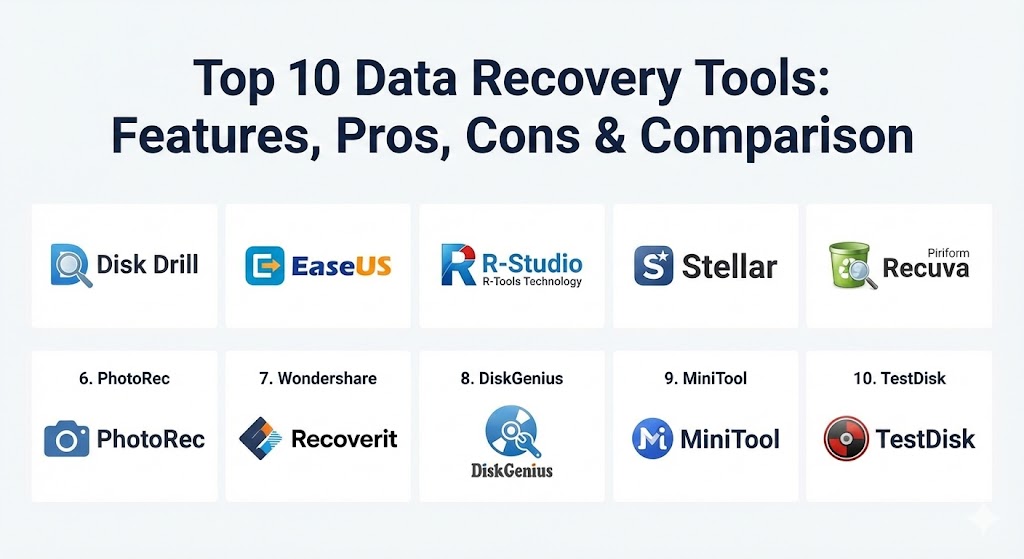
Top 10 Data Recovery Tools
1 — Disk Drill (CleverFiles)
Disk Drill is widely regarded as one of the most balanced data recovery solutions on the market. It combines a highly polished user interface with sophisticated scanning algorithms that can reconstruct over 400 different file types.
- Key features:
- “Recovery Vault” technology that tracks deleted files for instant restoration.
- S.M.A.R.T. disk health monitoring to warn of impending hardware failure.
- One-click “Search for lost data” that automates the deep-scanning process.
- Ability to mount scan results as a virtual drive for easy browsing.
- Byte-to-byte disk imaging to protect failing drives during the scan.
- Support for nearly every file system, including APFS and Linux EXT4.
- Pros:
- Exceptionally intuitive interface that requires zero technical training.
- High success rates for both deleted files and formatted partitions.
- Cons:
- Scanning very large drives (4TB+) can be significantly slower than rivals.
- The free version only allows for a limited amount of recovery (500MB).
- Security & compliance: GDPR compliant, supports encrypted drives (BitLocker/FileVault).
- Support & community: Extensive online knowledge base, video tutorials, and email-based technical support.
2 — EaseUS Data Recovery Wizard
EaseUS has spent decades refining its recovery algorithm, resulting in a tool that is frequently cited for its incredible speed and reliability in “common” data loss scenarios like accidental formatting or Recycle Bin emptying.
- Key features:
- Three-step recovery process: Select, Scan, and Recover.
- Advanced video repair tool that fixes corrupted videos during the recovery process.
- Specialized recovery for NAS (Network Attached Storage) and Linux systems.
- Remote technical assistance for difficult enterprise recovery cases.
- Targeted scanning for specific folders like the Desktop or Recycle Bin.
- Bootable media creator for systems that will no longer start up.
- Pros:
- One of the fastest scanning engines in the industry for NTFS and FAT32.
- Excellent file previewer that shows exactly what can be recovered before you pay.
- Cons:
- Some advanced features are locked behind an expensive monthly subscription.
- High-end enterprise pricing is significantly higher than some competitors.
- Security & compliance: ISO 27001 certified, SOC 2 (Enterprise tier), and GDPR compliant.
- Support & community: 24/7 live chat support, active social media presence, and a massive library of “how-to” guides.
3 — R-Studio (R-Tools Technology)
R-Studio is not a tool for the faint of heart; it is a heavy-duty, professional-grade suite built for data recovery technicians, system administrators, and digital forensic investigators.
- Key features:
- Advanced RAID reconstruction including custom configurations and RAID 6.
- Network recovery allows you to recover data from a machine across the LAN or Internet.
- Built-in Hex Editor to manually inspect and edit file headers.
- Support for virtually all modern and legacy file systems (HFS, UFS, ReFS).
- Integration with hardware imaging tools like DeepSpar.
- Object copying and disk-to-disk imaging for forensic preservation.
- Pros:
- The most powerful tool for complex, multi-disk, or server-level data loss.
- Highly cost-effective for professionals (no recurring monthly fees).
- Cons:
- The interface is cluttered and extremely intimidating for non-technical users.
- Requires a deep understanding of file systems to use effectively.
- Security & compliance: Trusted by government forensic labs; supports end-to-end encrypted transfers.
- Support & community: Professional-level technical forum, detailed manual, and email support.
4 — Stellar Data Recovery
Stellar is a global leader in the data care industry. Their recovery software is particularly well-known for its ability to handle “messy” data loss on heavily used or partially failing consumer drives.
- Key features:
- BitLocker drive recovery support for encrypted Windows volumes.
- “Deep Scan” mode that can find files on raw or unrecognized partitions.
- Support for 4K sector drives and multi-monitor setups.
- Dedicated photo and video repair modules in the Premium/Technician editions.
- Optical media recovery for scratched CDs, DVDs, and Blu-rays.
- Automated email recovery for Outlook (PST/OST) and other clients.
- Pros:
- Reliable “Beginner mode” that makes it very safe for home users.
- Strong global brand with physical labs if the software isn’t enough.
- Cons:
- Multiple confusing versions/tiers make it hard to choose the right one.
- The software can be quite resource-heavy, slowing down other applications.
- Security & compliance: ISO 9001 and ISO 27001 certified; HIPAA and GDPR ready.
- Support & community: Global phone support (a rarity in this niche), chat, and web tickets.
5 — Recuva (Piriform)
From the creators of CCleaner, Recuva is the go-to tool for users who need a quick, lightweight, and completely free solution for simple data loss on Windows machines.
- Key features:
- Simple “Wizard” mode that walks you through file types and locations.
- Portable version that can run from a USB stick (prevents overwriting data).
- Deep scan mode for more thorough searching of formatted drives.
- Secure overwrite feature that permanently shreds files for privacy.
- Support for virtual hard drives (VHD) in the Professional version.
- Multi-language support for international users.
- Pros:
- Completely free for basic use with no file size recovery limits.
- Small footprint that works even on very old or low-spec computers.
- Cons:
- Significantly lower success rate on severely corrupted or “raw” drives.
- Has not received a major interface or feature update in several years.
- Security & compliance: Varies / N/A (Standard commercial EULA).
- Support & community: Extensive community forums and basic web-based documentation.
6 — PhotoRec (CGSecurity)
PhotoRec is the “industry secret” of the open-source world. Despite its name, it recovers far more than just photos—it is a powerful data-carving tool that ignores the file system and looks at the underlying data.
- Key features:
- Open-source (GPL) and completely free for any use case.
- “Data carving” technique that can recover files from drives with no file system.
- Support for over 480 file families (Office docs, ZIP, HTML, PDF).
- Non-destructive scanning that ensures no data is written to the source drive.
- Multi-platform support (Windows, macOS, Linux, SunOS, FreeBSD).
- Scriptable via command line for automated enterprise workflows.
- Pros:
- Can find data that every other “GUI-based” tool misses.
- Completely free of telemetry or data collection; 100% private.
- Cons:
- Text-based (Command Line) interface is very difficult for average users.
- It does not recover original file names or folder structures.
- Security & compliance: High security (open-source transparency); no installation required.
- Support & community: Massive Wiki, developer-led forums, and GitHub community.
7 — Wondershare Recoverit
Recoverit positions itself as the “videographer’s best friend.” It features a unique technology designed to solve the problem of fragmented high-resolution video files (4K/8K) that other tools often fail to “stitch” back together.
- Key features:
- “Enhanced Video Recovery” that merges fragments of large video files.
- Bootable media support to recover data from crashed operating systems.
- Advanced filtering based on file size, date, and file type.
- Scan result saving allows you to pause and resume recovery later.
- Support for unusual storage media like drones, GoPros, and dashcams.
- Integrated video and photo “Advanced Repair” toolkit.
- Pros:
- The best success rate for recovering modern, fragmented video formats.
- Very clean, modern interface that is easy for creative professionals.
- Cons:
- The free version is extremely limited (scan and preview only).
- Aggressive marketing and frequent “upsell” notifications within the app.
- Security & compliance: ISO 27001; GDPR and HIPAA compliant.
- Support & community: 24/7 technical support, YouTube tutorial channel, and FAQ.
8 — DiskGenius
DiskGenius is a versatile utility that combines data recovery, partition management, and disk backup into a single application. It is popular among IT enthusiasts who want an “all-in-one” toolkit.
- Key features:
- Powerful partition recovery that can restore entire deleted volumes.
- Support for virtual disk files (VMWare, VirtualBox, Hyper-V).
- Built-in file hex editor and sector editor.
- “Bad sector” repair and drive verification utilities.
- Intelligent RAID reconstruction with automatic parameter detection.
- File-shredding and disk-cleaning features for secure disposal.
- Pros:
- Incredible value for money considering it replaces three separate tools.
- Deep, technical features for power users that rival expensive forensic suites.
- Cons:
- The interface is cluttered and looks like Windows XP-era software.
- Some English translations in the documentation are slightly unclear.
- Security & compliance: Varies / N/A (Supports encrypted partitions).
- Support & community: Online manuals, email support, and a detailed technical blog.
9 — MiniTool Power Data Recovery
MiniTool is a highly focused Windows utility that prioritizes safety and simplicity. It is designed to ensure that the recovery process never causes further damage to the user’s storage device.
- Key features:
- Targeted scanning for “Specific Locations” (Desktop, Recycle Bin, Folder).
- Support for dynamic disks and various RAID configurations.
- Automatic “filtering” that hides system files and junk data.
- Ability to export and import scan results for long-term recovery projects.
- Previewer for text files, images, and basic documents.
- Support for exFAT, FAT12, FAT16, and FAT32 file systems.
- Pros:
- One of the most stable and reliable tools for basic Windows file recovery.
- Very clear “Life” of the software updates; consistent bug fixes.
- Cons:
- The macOS version is significantly less feature-rich than the Windows version.
- Free version only allows 1GB of recovery, which is quickly used up.
- Security & compliance: GDPR compliant; data is processed locally.
- Support & community: Extensive library of documentation and email technical support.
10 — TestDisk (CGSecurity)
TestDisk is the sibling to PhotoRec. While PhotoRec focuses on files, TestDisk focuses on the “foundation”—the partitions and boot sectors. It is the first tool a pro uses when a drive shows as “Raw” or “Not Initialized.”
- Key features:
- Fixes partition tables and recovers deleted partitions.
- Rebuilds NTFS and FAT boot sectors.
- Locates Ext2/Ext3/Ext4 backup Superblocks.
- Un-deletes files from FAT, exFAT, NTFS, and ext2 file systems.
- Copies files from deleted partitions to safe locations.
- Operates on physical disks as well as virtual disk images.
- Pros:
- The most effective tool for “Drive not recognized” or “Partition lost” errors.
- Completely free, open-source, and incredibly lightweight.
- Cons:
- No Graphical User Interface (GUI); it is purely command-line based.
- A single wrong command can potentially make data loss worse.
- Security & compliance: Open-source; highly secure; no internet access required.
- Support & community: Extremely strong developer-led support and a global community.
Comparison Table
| Tool Name | Best For | Platform(s) Supported | Standout Feature | Rating (TrueReview/Gartner) |
| Disk Drill | Best All-Rounder | Windows, macOS | Recovery Vault / UX | 4.8 / 5 |
| EaseUS | Speed & Speed | Windows, Mac, Linux | Integrated Video Repair | 4.7 / 5 |
| R-Studio | Technicians | Win, Mac, Linux | Network Recovery | 4.6 / 5 |
| Stellar | Businesses | Windows, macOS | BitLocker Recovery | 4.5 / 5 |
| Recuva | Free Quick Undelete | Windows | Portable Version | 4.3 / 5 |
| PhotoRec | Raw Data Carving | Multi-platform | Open-Source Engine | 4.4 / 5 |
| Recoverit | Videographers | Windows, macOS | Video Fragment Merge | 4.6 / 5 |
| DiskGenius | IT Power Users | Windows | Partition + Backup + Rec | 4.5 / 5 |
| MiniTool | Safe Local Recovery | Windows | Targeted Location Scan | 4.4 / 5 |
| TestDisk | Fixing Partitions | Multi-platform | Boot Sector Rebuilding | 4.5 / 5 |
Evaluation & Scoring of Data Recovery Tools
To help you understand how these tools are objectively measured, we have evaluated the general market leaders against our weighted scoring rubric.
| Category | Weight | Evaluation Criteria |
| Core Features | 25% | File type support, partition recovery, RAID support, and RAW scanning. |
| Ease of Use | 15% | UI design, wizard-based workflows, and quality of file previewing. |
| Integrations | 15% | Support for cloud storage, virtual machines, and forensic hardware. |
| Security | 10% | Encryption support, local processing (privacy), and compliance. |
| Performance | 10% | Scanning speed and stability on high-capacity (10TB+) drives. |
| Support | 10% | Availability of phone/chat support and quality of technical manuals. |
| Price / Value | 15% | Free recovery limits vs. lifetime license costs. |
Which Data Recovery Tool Is Right for You?
Choosing a data recovery tool is a high-stakes decision. The wrong choice can result in overwriting the very data you are trying to save. Use this guide to narrow your search:
- Solo Users & Families: If you accidentally deleted your vacation photos or a school project, Disk Drill or EaseUS are your best options. They take the stress out of the process with a “one-button” approach.
- Budget-Conscious Users: If you are on Windows and the data loss happened recently, try Recuva first. If that fails, and you are comfortable with technical interfaces, PhotoRec is your most powerful free alternative.
- Creative Professionals: If you work with 4K video, drones, or high-end cameras, Wondershare Recoverit is the only tool that specifically addresses the fragmentation issues common in these large file types.
- IT Departments & Enterprises: For managing a fleet of computers or recovering data from encrypted executive laptops, Stellar or EaseUS (Technician Edition) are the industry standards.
- Complex Data Loss (Server/RAID): If a server partition has vanished or a RAID 5 array has collapsed, do not use consumer tools. Go straight to R-Studio or DiskGenius. These provide the granularity needed to reconstruct the data manually if the automation fails.
Frequently Asked Questions (FAQs)
1. Is data recovery software safe to use on a failing drive?
Software recovery is safe for logical issues, but if a drive is making clicking sounds or not spinning, software can cause further damage. In those cases, use a tool like Disk Drill to create a byte-to-byte image first, then scan the image instead of the physical drive.
2. Can I recover data that was deleted months ago?
It depends on how much you have used the computer since then. Data is only truly “gone” when it is overwritten. If the drive has been sitting in a drawer, the chances are high. If you’ve been downloading movies on that same drive, the chances are low.
3. Why do some tools cost $20 and others cost $500?
The price difference usually reflects the level of technical depth. A $20 tool might only handle simple file undeletion, while a $500 professional suite can reconstruct RAID arrays, edit hex code, and recover data over a network.
4. Can I recover data from a formatted drive?
Yes. A “Quick Format” only deletes the index of files, not the data itself. Most tools in our Top 10 list can easily reconstruct the file structure of a formatted volume as long as no new data has been written to it.
5. Does data recovery work on SSDs?
Recovery on SSDs is much harder than on HDDs due to a feature called “TRIM.” When you delete a file on a TRIM-enabled SSD, the drive wipes the data blocks almost immediately. However, if the drive was disconnected quickly, recovery is still possible.
6. Is there a 100% guarantee for data recovery?
No software can offer a 100% guarantee. Success depends on the file system, the cause of the loss, and whether the data has been overwritten. Always try a free trial to see if the files are “previewable” before purchasing.
7. Can I recover data from an iPhone or Android?
Standard disk recovery tools generally cannot scan mobile phones because phones do not present themselves as “mass storage” devices. You will need specialized mobile recovery tools, though many vendors like EaseUS and Stellar offer these separately.
8. What is “RAW” recovery?
RAW recovery occurs when the file system is so badly damaged that the software can’t find the original folder structure or filenames. It instead looks for specific file “signatures” (like the header of a JPEG) to pull the files out.
9. Can I recover data over a Wi-Fi network?
Generally, no. You should always connect the drive directly via SATA or USB for the best stability and speed. Only high-end professional tools like R-Studio support specialized remote network recovery.
10. What is the biggest mistake people make during recovery?
The biggest mistake is installing the recovery software onto the same drive where the lost data is located. This can overwrite the very files you are trying to save. Always install the software on a separate drive or use a portable version.
Conclusion
The landscape of data recovery in 2026 is more advanced than ever, with AI-driven “stitching” for videos and automated RAID reconstruction becoming standard features. While there is no single tool that is perfect for every situation, the “best” tool is the one that matches your technical comfort level and the specific nature of your data loss. For most users, Disk Drill offers the most seamless experience, while R-Studio remains the benchmark for professional results. Remember: the only thing more reliable than a good recovery tool is a verified, off-site backup.