Introduction
Code Editors are specialized software programs designed specifically for editing the source code of computer programs. Unlike standard word processors, they do not add hidden formatting to text; instead, they provide powerful tools like syntax highlighting, auto-completion, and version control integration to help developers write clean, functional code. In the modern era, the distinction between a “lightweight editor” and a full-scale “Integrated Development Environment” (IDE) has blurred, with many editors now supporting complex debugging and terminal integration through extensive plugin ecosystems.
The importance of a high-quality code editor cannot be overstated. It serves as the bridge between human thought and machine execution. Real-world use cases range from frontend developers tweaking CSS in real-time to backend engineers refactoring massive microservices architectures. When evaluating an editor, users typically look for performance (startup speed and memory usage), extensibility (the library of available plugins), AI integration (native or via extensions), and community support.
Best for: Software engineers, web developers, data scientists, and DevOps professionals. These tools are indispensable for technical teams in startups, mid-sized firms, and large-scale enterprises across every industry from Fintech to Creative Arts.
Not ideal for: Non-technical project managers, content writers (who are better served by Markdown or Word processors), or developers working on extremely niche legacy systems that require proprietary, vendor-locked IDEs.
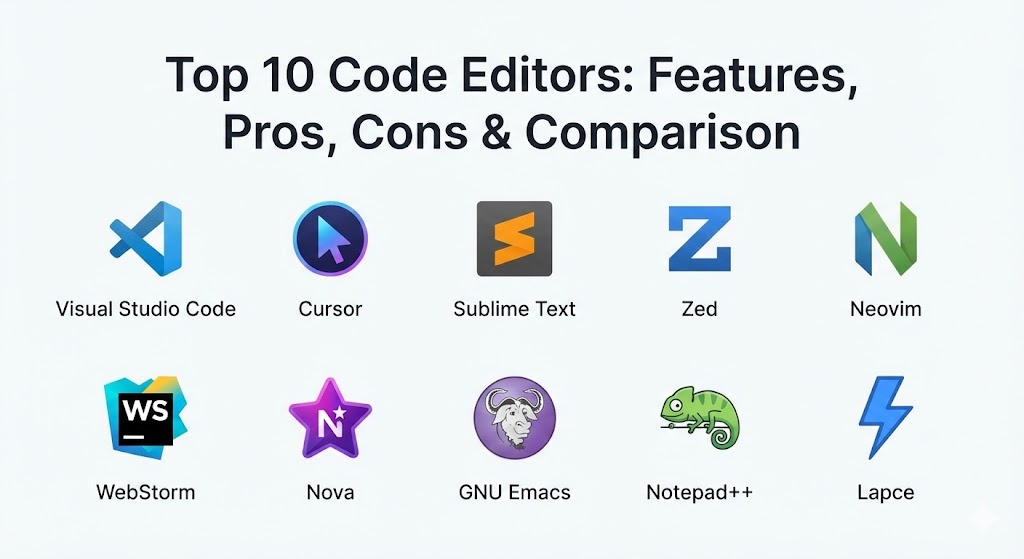
Top 10 Code Editors Tools
1 — Visual Studio Code (VS Code)
Visual Studio Code remains the undisputed titan of the industry. Developed by Microsoft, it has achieved a level of ubiquity that few tools ever reach, thanks to its perfect balance of lightweight performance and heavyweight features.
- Key Features:
- IntelliSense: Provides smart completions based on variable types, function definitions, and imported modules.
- Built-in Git: View diffs, stage files, and make commits directly from the editor.
- Extensive Marketplace: Access to tens of thousands of extensions for every language and framework imaginable.
- Remote Development: Allows you to use a container or remote machine as a full-featured development environment.
- Integrated Terminal: Run scripts and CLI tools without ever leaving the window.
- Live Share: Real-time collaborative editing and debugging for distributed teams.
- Native AI: Deep integration with GitHub Copilot for automated code generation.
- Pros:
- Completely free and open-source core with massive industry backing.
- An extension ecosystem so large that there is a solution for almost any workflow hurdle.
- Cons:
- Can become “bloated” and slow if too many extensions are installed simultaneously.
- High memory usage compared to purely native editors like Sublime Text or Zed.
- Security & Compliance: Supports SSO, encrypted settings sync, and private extension galleries. Generally considered compliant with GDPR and SOC 2 when used in enterprise configurations.
- Support & Community: World-class documentation, a massive user community on every major platform, and professional enterprise support available through Microsoft.
2 — Cursor
Cursor is the breakout star of the mid-2020s. Built as a fork of VS Code, it is an “AI-native” editor that treats Large Language Models (LLMs) as a core feature rather than a tacked-on plugin.
- Key Features:
- AI Command (Cmd+K): Edit sections of code by simply describing the change in plain English.
- Composer: A multi-file AI agent that can write entire features across different files simultaneously.
- Codebase Indexing: The AI “knows” your entire project structure, providing context-aware answers.
- Chat Sidebar: Ask questions about your code without switching to a browser.
- VS Code Compatibility: Supports all existing VS Code extensions and themes out of the box.
- Predictive Edits: Ghost text that anticipates your next several lines of code based on intent.
- Pros:
- Unrivaled developer velocity for those who embrace AI-assisted coding.
- Eliminates the “blank page” problem by scaffolding complex boilerplate code instantly.
- Cons:
- Requires a paid subscription for the most powerful “Pro” AI models.
- Can lead to “lazy coding” if developers stop verifying the AI’s output.
- Security & Compliance: Offers a “Privacy Mode” where code is never stored on their servers. Enterprise tiers include SOC 2 and GDPR compliance.
- Support & Community: Growing community, active Discord server, and excellent onboarding documentation for VS Code migrants.
3 — Sublime Text
Sublime Text is the gold standard for speed. It is a native, highly optimized editor that appeals to developers who want a distraction-free environment that opens large files instantly.
- Key Features:
- GPU Rendering: Uses the graphics card to render the interface, resulting in a buttery-smooth 120fps UI.
- Multiple Selections: Change ten lines at once, not one line ten times.
- Goto Anything: Lightning-fast navigation to files, symbols, or specific lines.
- Split Editing: Support for multiple side-by-side views of the same or different files.
- Command Palette: Access any functionality with a few keystrokes, keeping your hands on the keyboard.
- Python API: A robust backend that allows for powerful third-party package development.
- Pros:
- Incredibly lightweight; it feels fast on a 10-year-old laptop and a modern workstation alike.
- Stability is legendary—crashes are exceptionally rare even with large projects.
- Cons:
- Not free; requires a license for continued use (though it has a generous evaluation period).
- Setup for complex debugging is more difficult than in VS Code or Cursor.
- Security & Compliance: N/A for standard versions; however, as a local-only tool, it is inherently private.
- Support & Community: Dedicated forum, extensive community-driven “Package Control” library, and high-quality official documentation.
4 — Zed
Zed is a high-performance, collaborative code editor from the creators of Atom and Tree-sitter. Written in Rust, it is designed to leverage modern multi-core processors and GPU acceleration.
- Key Features:
- Rust Engine: Built for speed and memory safety, making it one of the fastest editors ever created.
- Built-in Collaboration: “Channels” allow teams to code together in a shared space with low latency.
- Tree-sitter Integration: Provides deep, accurate code understanding for highlighting and navigation.
- Language Server Protocol (LSP): Native support for high-quality auto-completion and refactoring.
- Vim Mode: High-fidelity Vim emulation for power users who prefer modal editing.
- GPU Accelerated: Like Sublime, it offloads UI rendering to the hardware for maximum responsiveness.
- Pros:
- The “feel” of the editor is incredibly crisp; there is zero perceptible input lag.
- Native collaboration features are superior to the plugin-based versions found elsewhere.
- Cons:
- The extension ecosystem is still in its infancy compared to VS Code.
- Primarily focused on macOS and Linux (Windows support is still maturing).
- Security & Compliance: Open-source core; privacy-focused with end-to-end encryption for collaborative sessions.
- Support & Community: Active GitHub community, transparent roadmap, and rapidly improving documentation.
5 — Neovim
Neovim is a hyperextensible, Vim-based text editor. It is designed for developers who want to build their own bespoke editor from scratch using Lua as a configuration language.
- Key Features:
- Modal Editing: The legendary Vim workflow that minimizes hand movement.
- Lua Scripting: High-performance configuration and plugin development using a modern language.
- Embedded Terminal: Run shells and other interactive processes within the editor buffer.
- Extensive Plugin Ecosystem: Tools like “Telescope” and “Treesitter” provide IDE-level power in the terminal.
- Remote Execution: Edit files over SSH as if they were local.
- LSP Support: Native client for the Language Server Protocol for smart code intelligence.
- Pros:
- The ultimate tool for keyboard-centric developers; you never have to touch a mouse.
- Extremely portable—runs in any terminal on any server.
- Cons:
- The steepest learning curve of any tool on this list; it takes weeks or months to master.
- You are responsible for your own configuration (“distro” management).
- Security & Compliance: Open-source and highly auditable. As a local tool, compliance is managed at the system level.
- Support & Community: A fanatical and incredibly helpful community; vast resources on YouTube and Reddit.
6 — JetBrains WebStorm
WebStorm is the premier editor for JavaScript and TypeScript development. While technically an IDE, it is used by many as a specialized code editor for the modern web stack.
- Key Features:
- Deep Code Understanding: Industry-leading refactoring tools that “understand” the relationship between files.
- Built-in Debugger: Professional-grade debugging for Node.js and client-side applications.
- Testing Integration: Run and debug Jest, Mocha, and Karma tests from a visual interface.
- Version Control: A powerful, visual Git client that handles complex merges with ease.
- Live Edit: See changes in the browser instantly without a manual page refresh.
- AI Assistant: JetBrains’ proprietary AI that assists with context-specific code generation.
- Pros:
- “It just works”—unlike VS Code, you don’t need to hunt for plugins to get a complete setup.
- The most reliable refactoring tools available; it rarely makes a mistake when moving code.
- Cons:
- Subscription-based pricing can be expensive for individual developers.
- Heavier on system resources than almost any other editor on this list.
- Security & Compliance: Enterprise-grade security, SSO support, and full compliance with GDPR/SOC 2 standards.
- Support & Community: Professional 24/7 customer support, a massive knowledge base, and regular software updates.
7 — Nova
Nova is a native macOS code editor from Panic. It is designed specifically for the Mac, focusing on aesthetics, speed, and a high-quality integrated experience.
- Key Features:
- Native Mac UI: Looks and feels like a first-party Apple application.
- Extension API: Modern JavaScript-based API for building custom plugins.
- Built-in FTP/SSH: Seamlessly manage remote files and servers without a third-party app.
- Customizable Sidebars: Tailor your workspace with a highly flexible layout.
- Integrated Debugging: Support for Node.js, Python, and Chrome debugging out of the box.
- Task System: Define and run build scripts or deploy tasks with a single click.
- Pros:
- Arguably the most beautiful and user-friendly interface in the category.
- Optimized for Apple Silicon, providing excellent battery life for mobile developers.
- Cons:
- Only available on macOS.
- The plugin library is much smaller than that of VS Code.
- Security & Compliance: N/A for the local version; standard macOS sandboxing applies.
- Support & community: High-quality developer support from Panic; small but passionate community of Mac-first developers.
8 — GNU Emacs
Emacs is more than an editor; it is a programmable environment. For users who live in the “Lisp” ecosystem, Emacs is a way of life that handles everything from coding to email and task management.
- Key Features:
- Org-mode: A world-class system for note-taking, project planning, and document authoring.
- Self-Documenting: Every function and variable is discoverable within the editor.
- Elisp Engine: The entire editor is written in Emacs Lisp and can be modified at runtime.
- Magit: Widely considered the best Git interface ever created for any platform.
- Terminal Emulation: Multiple terminal versions available within the editor.
- Tramp: Transparently edit files on remote servers via SSH, sudo, or even Docker.
- Pros:
- Infinite customizability—if you can imagine it, you can program it in Emacs.
- Longevity; Emacs has existed for decades and will likely exist for decades more.
- Cons:
- Extremely high learning curve; requires knowledge of Lisp for deep customization.
- Default keybindings can lead to “Emacs Pinky” (repetitive strain) without customization.
- Security & Compliance: Open-source and highly auditable. Privacy depends on the user’s specific configuration.
- Support & Community: A deeply academic and technical community; extensive wikis and mailing lists.
9 — Notepad++
Notepad++ is a staple of the Windows ecosystem. It is a free, lightweight, “no-nonsense” editor that has been a reliable companion for developers and sysadmins for over 20 years.
- Key Features:
- Scintilla-based: Solid performance and support for hundreds of programming languages.
- Tabbed Interface: Manage dozens of files with a very small memory footprint.
- Macro Recording: Record a series of keystrokes to automate repetitive text editing tasks.
- Plugin Manager: Access a variety of community-built tools for hex editing, XML linting, and more.
- Regular Expression Support: Powerful search and replace functionality.
- Minimalist Design: No splash screens, no forced updates, just the editor.
- Pros:
- Starts up instantly even on very low-end hardware.
- Completely free and maintained as a labor of love by the community.
- Cons:
- Only available on Windows.
- UI feels outdated compared to modern tools like Nova or VS Code.
- Security & Compliance: Varies / N/A. As a local tool, it is as secure as the host OS.
- Support & Community: Large community forum, extensive user-generated documentation, and a huge library of plugins.
10 — Lapce
Lapce is an ultra-fast, Rust-based code editor that takes heavy inspiration from modern editors like VS Code but focuses on a native, high-performance experience.
- Key Features:
- Wgpu Rendering: Uses the GPU for a lightning-fast UI and text rendering.
- Remote Development: Native support for connecting to remote servers without a slow SSH overhead.
- Built-in Terminal: Highly responsive terminal integration.
- Plugin System: Uses WASI (WebAssembly System Interface) for plugins, allowing them to be written in any language.
- Vim Support: Includes a native Vim mode for modal editing fans.
- Intelligent Highlighting: Uses Tree-sitter for fast and accurate syntax highlighting.
- Pros:
- Extremely fast; startup and file searching are nearly instantaneous.
- The use of WebAssembly for plugins is a forward-thinking approach to extensibility.
- Cons:
- Still in “alpha/beta” development; users may encounter occasional bugs.
- Small extension library compared to the giants in the field.
- Security & Compliance: Open-source core; privacy-focused as a native local application.
- Support & Community: Growing community on Discord and GitHub; documentation is improving rapidly.
Comparison Table
| Tool Name | Best For | Platform(s) Supported | Standout Feature | Rating (Gartner/True) |
| VS Code | General Purpose / Web | Win, Mac, Linux | Unrivaled Extension Library | 4.8 / 5 |
| Cursor | AI-Assisted Coding | Win, Mac, Linux | Native LLM Integration | 4.9 / 5 |
| Sublime Text | Speed & Large Files | Win, Mac, Linux | GPU UI Rendering | 4.6 / 5 |
| Zed | Performance / Teams | Mac, Linux (Win Beta) | Ultra-low Input Latency | 4.5 / 5 |
| Neovim | Terminal Power Users | Terminal (Cross-plat) | Infinite Scriptability | 4.7 / 5 |
| WebStorm | JS / TS Pro Devs | Win, Mac, Linux | Deep Refactoring Engine | 4.6 / 5 |
| Nova | macOS Enthusiasts | macOS | Native Mac Aesthetics | 4.4 / 5 |
| Emacs | Programmable Env | Win, Mac, Linux | Org-mode / Elisp | 4.3 / 5 |
| Notepad++ | Windows Sysadmins | Windows | Lightweight / No-frills | 4.5 / 5 |
| Lapce | Native Speed Fans | Win, Mac, Linux | Rust Core / WASI Plugins | 4.1 / 5 |
Evaluation & Scoring of Code Editors
To provide an objective overview, we have evaluated these tools using a weighted scoring rubric based on the needs of modern 2026 development workflows.
| Category | Weight | Evaluation Criteria |
| Core Features | 25% | Syntax highlighting, terminal, debugging, and file management. |
| Ease of Use | 15% | Onboarding experience, UI intuitiveness, and default setup. |
| Integrations | 15% | Extension marketplace, Git support, and cloud connectivity. |
| Security & Compliance | 10% | Encryption, SSO, and enterprise-grade privacy features. |
| Performance | 10% | Startup speed, memory footprint, and UI responsiveness. |
| Support & Community | 10% | Quality of documentation and vibrancy of the user base. |
| Price / Value | 15% | Cost vs. features for individuals and enterprise teams. |
Which Code Editor Tool Is Right for You?
Solo Users vs SMB vs Mid-Market vs Enterprise
If you are a solo user or a student, VS Code or Cursor are the best choices; they are free (or have free tiers) and provide everything you need to start immediately. Small and Medium Businesses (SMBs) often benefit from WebStorm because it reduces the time spent configuring plugins. For Enterprise organizations, VS Code is the gold standard due to its administrative controls and massive community of developers who already know how to use it.
Budget-conscious vs Premium Solutions
If you are budget-conscious, VS Code, Neovim, and Notepad++ are world-class tools that cost zero dollars. For those willing to invest in Premium Solutions, Cursor’s AI capabilities or WebStorm’s integrated refactoring engine can pay for themselves many times over in saved time and reduced bugs.
Feature Depth vs Ease of Use
For Ease of Use, VS Code, Nova, and Sublime Text lead the pack with intuitive interfaces. If you require Feature Depth and are willing to put in the time to learn, Neovim and Emacs offer a level of power that no GUI-based editor can ever truly match.
Frequently Asked Questions (FAQs)
1. What is the difference between a Code Editor and an IDE?
A code editor is generally lightweight and focuses on text manipulation. An Integrated Development Environment (IDE) is a heavier suite that includes build tools, advanced debuggers, and project management features. However, editors like VS Code can become pseudo-IDEs via extensions.
2. Is VS Code really free?
Yes, the core of VS Code is free and open-source. Microsoft also provides a proprietary build of it for free.
3. Why would I use Cursor instead of VS Code?
While both use the same foundation, Cursor has AI features “baked into” the core. This allows the AI to understand your entire project context more deeply than a standard VS Code extension can.
4. Can I use these editors for languages other than web dev?
Absolutely. All editors on this list support hundreds of languages including Python, Java, Rust, C++, and Go through various plugins or native support.
5. Why are Rust-based editors like Zed and Lapce becoming popular?
Rust provides the memory safety of high-level languages with the performance of low-level languages like C++. This allows developers to build editors that are significantly faster and more stable than those built on older technologies.
6. Do I need a powerful computer to run these?
For editors like VS Code and WebStorm, 16GB of RAM is recommended. For lightweight editors like Sublime Text or Notepad++, even a low-end laptop will work perfectly.
7. Can I sync my settings across different computers?
Yes, most modern editors (VS Code, Cursor, Nova) have built-in cloud sync for settings, themes, and extensions.
8. Which editor is best for Python?
VS Code with the Python extension is the most popular, but Cursor is rapidly becoming a favorite for data scientists due to its AI data-analysis assistance.
9. Is Vim really worth learning?
For most developers, the modal editing workflow in Vim/Neovim increases speed and reduces wrist strain, but it requires a dedicated commitment to learn.
10. What is “GPU Rendering” in an editor?
Most software uses the CPU to draw the text and windows. GPU-rendered editors (Sublime, Zed, Lapce) use the graphics card, which makes scrolling and typing feel much smoother, especially on high-refresh-rate monitors.
Conclusion
The “best” code editor for 2026 is the one that stays out of your way and helps you translate your ideas into code with the least amount of friction. If you want the industry standard, VS Code is the safe and powerful bet. If you want to experience the future of AI-driven development, Cursor is the clear choice. For the speed-obsessed, Sublime Text or Zed will feel like a breath of fresh air.
Ultimately, code editors are personal tools. Many professional developers keep two or three in their dock—perhaps Neovim for quick terminal edits, WebStorm for massive refactoring jobs, and Cursor for new feature development. The key is to find the tool that aligns with your specific workflow and makes you feel more capable as an engineer.