Introduction
Calendar software refers to digital applications designed to help individuals and teams organize their time, schedule events, and manage commitments. Unlike the paper planners of the past, modern calendar tools are cloud-synced, multi-device platforms that offer features such as automated scheduling links, AI-driven time blocking, and seamless integration with communication tools like Slack and Zoom. These tools are critical because they solve the “coordination tax”—the lost productivity spent on back-and-forth emails just to find a meeting time.
Key real-world use cases include cross-time-zone coordination for distributed teams, automated lead routing for sales departments, and personal productivity management through “time boxing” (scheduling specific blocks for focused work). When evaluating calendar software, users should look for Ease of Syncing (how well it handles multiple accounts), Natural Language Processing (typing “Lunch with Sarah at 1 PM” to create an event), Customizability, and Privacy Controls.
Best for: Freelancers, project managers, executive assistants, and enterprise teams who need to synchronize multiple life facets. It is essential for anyone managing a high volume of meetings or seeking to optimize their daily output through visual time management.
Not ideal for: Individuals with very static routines who do not use digital devices frequently, or small businesses with zero external meeting requirements where a physical wall calendar or a simple spreadsheet might suffice without the overhead of a subscription.
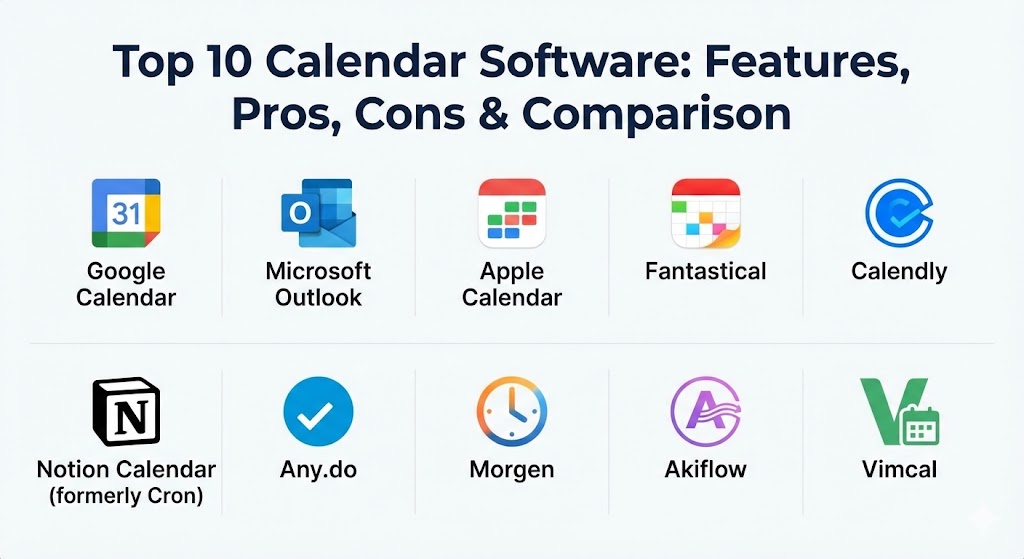
Top 10 Calendar Software Tools
1 — Google Calendar
Google Calendar remains the gold standard for collaborative scheduling. Deeply embedded in the Google Workspace ecosystem, it is the default choice for millions of teams due to its ubiquity and zero-friction sharing capabilities.
- Key features:
- Seamless Integration: Works natively with Gmail, Drive, and Meet.
- Appointment Slots: Allows users to create bookable time blocks for others.
- Multiple Calendars: Layer personal, work, and team schedules in one view.
- Find a Time: Intelligent suggestions for meeting times based on guest availability.
- Smart Suggestions: Autocompletes event titles, people, and places.
- Offline Access: View and edit your schedule without an internet connection.
- Pros:
- Completely free for personal use and highly cost-effective for businesses.
- The most integrated calendar app on the web; almost every other productivity tool connects to it.
- Cons:
- No native desktop app for macOS or Windows (must use a browser or third-party wrapper).
- Privacy-conscious users may have concerns regarding Google’s data handling.
- Security & compliance: SOC 2, SOC 3, ISO/IEC 27001, HIPAA (with BAA), GDPR compliant. Features SSO and encrypted data at rest/transit.
- Support & community: Vast documentation; massive global user community; 24/7 support for Workspace administrators.
2 — Microsoft Outlook Calendar
The backbone of the corporate world, Outlook Calendar is designed for deep enterprise functionality. It excels in environments where security, directory integration, and complex resource scheduling (like booking conference rooms) are paramount.
- Key features:
- Scheduling Assistant: Deep visibility into organizational availability.
- Resource Booking: Manage rooms, projectors, and shared equipment.
- Overlay View: Stack multiple calendars to see conflicts at a glance.
- Weather Integration: View local forecasts directly in the calendar header.
- Task Integration: Unified view with Microsoft To Do and Planner.
- Delegate Access: Allows assistants to manage schedules on behalf of executives.
- Pros:
- Powerful offline capabilities through the robust desktop application.
- Unmatched for large-scale enterprise directory management.
- Cons:
- The interface can feel heavy and cluttered compared to modern “minimalist” apps.
- Can be overkill for freelancers or very small teams.
- Security & compliance: Tier C compliance, ISO 27001, HIPAA, GDPR, SOC 1/2. Enterprise-grade SSO and advanced threat protection.
- Support & community: Extensive enterprise support plans; massive library of professional training resources.
3 — Apple Calendar
Apple Calendar (formerly iCal) is the default choice for the Apple ecosystem. It focuses on simplicity, speed, and clean aesthetics, making it a favorite for personal use and “prosumer” Apple fans.
- Key features:
- Ecosystem Sync: Instant syncing across iPhone, iPad, Mac, and Apple Watch.
- Travel Time: Automatically calculates transit time based on location and traffic.
- Siri Integration: Create events entirely via voice commands.
- Map Integration: Quick-click addresses that open directly in Apple Maps.
- Family Sharing: Easily share a central “Family” calendar with up to six people.
- Pros:
- Zero cost for Apple users; no hidden subscriptions.
- One of the most privacy-focused calendars, using end-to-end encryption for iCloud data.
- Cons:
- Very limited functionality for Windows or Android users.
- Lacks advanced scheduling links or AI time-blocking features.
- Security & compliance: End-to-end encryption for iCloud; GDPR compliant.
- Support & community: Standard Apple Support (Genius Bar, phone, chat); massive community of Apple users.
4 — Fantastical
Fantastical has earned its reputation as the most beautiful and “thoughtful” calendar app on the market. It is famous for its natural language parsing, which allows users to type complex events in plain English.
- Key features:
- Natural Language Input: Type “Lunch with Tim at 1pm next Friday” to create the event.
- Calendar Sets: Toggle groups of calendars (e.g., “Work” vs. “Home”) with a click.
- DaySet: A unique mini-window that lets you view your day from the menu bar.
- Interesting Calendars: Subscribe to sports schedules, moon phases, or TV show airings.
- Openings: A built-in scheduling tool that rivals standalone services like Calendly.
- Pros:
- The best user experience (UX) design in the category.
- Highly cross-functional, supporting Google, iCloud, Outlook, and more.
- Cons:
- Shifted to a subscription model, which some users find expensive for a calendar.
- Some features are redundant if you already have a separate scheduling tool.
- Security & compliance: GDPR compliant; uses native sync protocols for security.
- Support & community: High-quality direct support; active user base of productivity enthusiasts.
5 — Calendly
While often categorized as a “scheduler,” Calendly has evolved into a full-fledged calendar management platform. It is designed to eliminate the “when are you free?” email chain once and for all.
- Key features:
- Booking Links: Personalized URLs for others to book time with you.
- Round Robin: Automatically assigns meetings to available team members.
- Workflow Automation: Send automatic reminders, thank-you notes, and follow-ups.
- Payment Integration: Collect fees at the time of booking via Stripe or PayPal.
- Buffer Times: Automatically add breaks before and after meetings.
- Pros:
- Saves hours of administrative work every week.
- Extremely easy for the invitee to use, reducing friction in sales and hiring.
- Cons:
- Not a standalone calendar; it requires a base (like Google or Outlook) to function.
- The free version is quite limited for multi-user teams.
- Security & compliance: SOC 2 Type II, GDPR, CCPA, ISO 27001. Features SSO and SCIM for enterprise.
- Support & community: 24/7 chat/email support for premium tiers; extensive help center.
6 — Notion Calendar (formerly Cron)
Notion Calendar is a relatively new player that took the world by storm with its hyper-fast, keyboard-driven interface. After being acquired by Notion, it now integrates deeply with the popular workspace tool.
- Key features:
- Keyboard Shortcuts: Operate the entire calendar without touching a mouse.
- Notion Integration: Link calendar events directly to Notion pages or databases.
- Availability Sharing: Quickly mark available slots and send them as a snippet.
- Multiple Time Zones: Seamlessly view and switch between global zones.
- Command Menu: A “Superhuman-style” command bar for quick actions.
- Pros:
- Incredibly fast and lightweight; feels modern and “snappy.”
- The best choice for power users who already live in the Notion ecosystem.
- Cons:
- Currently only supports Google Calendar accounts natively.
- Still missing some legacy enterprise features like complex room booking.
- Security & compliance: SOC 2 compliant; adheres to Notion’s high security standards.
- Support & community: Responsive team; very vocal and active community of “Notion-heads.”
7 — Any.do
Any.do is the ultimate tool for those who believe a calendar and a to-do list should be the same thing. It focuses on “closing the loop” between what you need to do and when you have time to do it.
- Key features:
- Daily Planner: A morning “moment” that helps you plan your day’s tasks.
- WhatsApp Integration: Add tasks and reminders via WhatsApp messages.
- Unified View: Your tasks appear directly on your calendar grid.
- Location Reminders: Get alerted when you arrive at a specific place.
- Grocery Lists: Shared family lists with smart categorization.
- Pros:
- Excellent for personal and family organization.
- Simple, vertical “scroll” view that works perfectly on mobile devices.
- Cons:
- Not as powerful for complex corporate scheduling or resource management.
- Some of the best features (like recurring tasks) are behind a paywall.
- Security & compliance: GDPR compliant; SSL/TLS encryption for data.
- Support & community: Solid documentation; active mobile user community.
8 — Morgen
Morgen is an AI-powered calendar aggregator designed for the modern “multi-hyphenate” professional who manages multiple email accounts, clients, and projects simultaneously.
- Key features:
- Multi-Account Aggregation: Sync Google, Outlook, iCloud, and Exchange in one place.
- Task Time Blocking: Drag tasks from your to-do list directly onto the calendar.
- AI Scheduling: Automatically find “focus time” blocks based on your energy levels.
- Unified Search: Search across all your calendars and task lists instantly.
- Cross-Platform Desktop Apps: Native apps for Linux, Mac, and Windows.
- Pros:
- The most versatile tool for users with “calendar sprawl.”
- Supports a wide range of task managers like Todoist, ClickUp, and Linear.
- Cons:
- The AI features require a premium subscription.
- Can feel complex to set up initially with multiple integrations.
- Security & compliance: Privacy-first architecture; GDPR compliant.
- Support & community: Direct access to founders/developers; helpful user guides.
9 — Akiflow
Akiflow is built for the “Power User” who wants to centralize their entire digital life. It pulls in tasks from Slack, Gmail, Trello, and Jira and helps you time-block them on your calendar.
- Key features:
- Universal Inbox: Collect tasks from every app you use.
- Command Bar: Quickly capture thoughts or tasks from anywhere on your OS.
- Share Availability: Integrated scheduling links without needing Calendly.
- Rituals: Guided “morning planning” and “evening shutdown” workflows.
- Smart Labels: Categorize events and tasks for better analytics.
- Pros:
- Drastically reduces “context switching” between apps.
- Highly customizable for complex productivity workflows.
- Cons:
- Relatively high monthly price compared to basic calendar apps.
- No native Apple Calendar sync for new users (requires Google/Outlook bridge).
- Security & compliance: SOC 2 compliant; uses OAuth for secure third-party connections.
- Support & community: Very active “Akiflow Insiders” community; high-touch support.
10 — Vimcal
Marketed as the “World’s Fastest Calendar,” Vimcal is designed for people who spend their entire day in meetings—think founders, investors, and sales leads.
- Key features:
- Superhuman-Speed: Built for speed with a focus on keyboard-only use.
- Time Zone Master: Visual tools to coordinate with people across 5+ zones.
- Slots: A unique way to send “bookable” times via copy-paste snippets.
- Company Dossier: Automatically pulls social profiles of people you’re meeting.
- Social Sync: Connect LinkedIn to see context on your meeting guests.
- Pros:
- Saves incredible amounts of time for high-volume schedulers.
- The “Launchpad” feature makes starting Zoom/Teams calls effortless.
- Cons:
- Currently iOS and Desktop only; no Android app.
- Premium price point reflects its status as an “Executive” tool.
- Security & compliance: GDPR compliant; SOC 2 Type II audit in progress.
- Support & community: Concierge-style onboarding for new users; high-quality support.
Comparison Table
| Tool Name | Best For | Platform(s) Supported | Standout Feature | Rating (Gartner/TrueReview) |
| Google Calendar | Teams & Free Users | Web, iOS, Android | Workspace Integration | 4.6 / 5.0 |
| Microsoft Outlook | Enterprise/Corporate | Windows, Mac, iOS, Android | Resource Management | 4.5 / 5.0 |
| Apple Calendar | Apple Ecosystem | Mac, iOS, Apple Watch | Siri & Travel Time | N/A |
| Fantastical | Design & NLP | Mac, iOS, Windows | Natural Language Parsing | 4.7 / 5.0 |
| Calendly | External Scheduling | Web, iOS, Android | Automated Booking Links | 4.6 / 5.0 |
| Notion Calendar | Notion Users | Mac, Windows, iOS | Notion Database Sync | 4.5 / 5.0 |
| Any.do | Tasks + Family | Web, iOS, Android | WhatsApp Reminders | 4.4 / 5.0 |
| Morgen | Multi-Calendar Mgmt | Windows, Mac, Linux | Task Time-Blocking | 4.6 / 5.0 |
| Akiflow | Productivity Power Users | Mac, Windows | Universal Task Inbox | 4.7 / 5.0 |
| Vimcal | Speed & Executives | Mac, Windows, iOS | Meeting Dossiers | 4.8 / 5.0 |
Evaluation & Scoring of Calendar Software
To help you decide, we have evaluated these tools using a weighted scoring rubric based on industry standards for 2026.
| Category | Weight | Description |
| Core Features | 25% | Scheduling, recurring events, time zones, and notifications. |
| Ease of Use | 15% | UI/UX design, natural language support, and mobile experience. |
| Integrations | 15% | Syncing with external accounts and third-party productivity apps. |
| Security & Compliance | 10% | Data encryption, SSO, and regulatory adherence (GDPR/HIPAA). |
| Performance & Reliability | 10% | Sync speed, offline access, and uptime history. |
| Support & Community | 10% | Quality of documentation and responsiveness of customer service. |
| Price / Value | 15% | Free tier availability vs. premium feature ROI. |
Which Calendar Software Tool Is Right for You?
Solo Users vs SMB vs Mid-Market vs Enterprise
If you are a Solo User or freelancer, Fantastical or Notion Calendar offer the best balance of speed and aesthetics. For Small to Mid-sized Businesses (SMBs), Google Calendar is the most practical choice due to its low cost and high compatibility. Enterprises should almost always default to Microsoft Outlook for its directory security and administrative controls.
Budget-Conscious vs Premium Solutions
If you want to spend $0, Google Calendar, Apple Calendar, and the basic tier of Any.do are your best bets. If you are willing to invest in your productivity ($10-$30/month), Akiflow and Vimcal provide a measurable return on investment by saving hours of administrative work.
Feature Depth vs Ease of Use
If you want something that “just works” with zero setup, Apple Calendar is the winner. If you want a “Second Brain” for your schedule that requires a learning curve but offers immense power, Akiflow is the tool for you.
Frequently Asked Questions (FAQs)
1. Can I use multiple calendar accounts (e.g., Work and Personal) in one app?
Yes. Almost all modern tools (Google, Outlook, Fantastical, Morgen) allow you to sync multiple accounts and view them in a single “unified” grid to prevent double-booking.
2. What is “Time Blocking” and why is it popular?
Time blocking is the practice of scheduling specific tasks as “events” on your calendar. This prevents your day from being filled with low-value meetings and ensures you have dedicated blocks for “Deep Work.”
3. Is my data safe in a cloud calendar?
Most reputable providers use 256-bit encryption. However, for maximum privacy, Apple Calendar and Morgen offer localized data handling options that are superior to the ad-supported models of free providers.
4. Does Calendly replace my current calendar?
No. Calendly sits “on top” of your existing calendar (Google/Outlook). It checks your availability and adds new meetings to that calendar automatically.
5. How do I handle time zone confusion?
Tools like Vimcal and Morgen are specifically designed with time zone “visualizers” that show you exactly what time it is for your participants, eliminating math errors during scheduling.
6. Can I share my calendar with someone who uses a different app?
Yes, via “Public URLs” or “iCal feeds.” However, for real-time collaborative editing, it is usually easiest if both parties are within the same ecosystem (e.g., both using Google Workspace).
7. Do I need a native desktop app, or is the web version enough?
If you travel frequently or have unreliable internet, a native app (like Outlook or Morgen) is essential for offline access. For most office workers, the web version of Google Calendar is perfectly sufficient.
8. What is Natural Language Input?
It is the ability to type “Doctor appt Friday at 9am” and have the software automatically recognize the title, date, and time without you clicking through menus.
9. Are these apps accessible for those with disabilities?
Microsoft Outlook and Google Calendar have the most robust accessibility features, including screen reader compatibility and high-contrast modes.
10. Why should I pay for a calendar when so many are free?
Paid calendars usually offer advanced “automation” features—like AI scheduling, better integrations, and advanced meeting dossiers—that free versions lack.
Conclusion
The “best” calendar software in 2026 isn’t a single universal winner; it is the tool that matches your personal workflow. If you are deeply integrated into an ecosystem, Google or Outlook are logical foundations. If you are a productivity enthusiast seeking to master your time, Akiflow or Fantastical provide the edge you need. Ultimately, the best calendar is the one you will actually use—the one that stops being a list of obligations and starts being a roadmap for your goals.