Introduction
Classroom management software is a category of educational technology (EdTech) that allows teachers to monitor, control, and interact with student devices in real-time. These tools provide a “digital bird’s-eye view” of the classroom, enabling educators to see student screens, push specific URLs to all devices simultaneously, lock screens to gain attention, and filter content to ensure a safe browsing experience. Beyond mere surveillance, high-quality solutions facilitate better communication, digital citizenship, and streamlined assignment workflows.
The importance of these tools cannot be overstated. In an unmanaged digital environment, “on-task” time can plummet as students drift toward games, social media, or inappropriate content. Classroom management tools mitigate these risks while empowering teachers to provide immediate, personalized feedback. Key real-world use cases include synchronized lesson delivery (where everyone is on the same web page), proctoring digital exams to prevent cheating, and identifying students who may be struggling in silence by observing their digital progress. When evaluating these tools, users should prioritize cross-platform compatibility, ease of deployment (especially for district-wide rollouts), real-time responsiveness, and robust student data privacy protections.
Best for: K-12 teachers, school IT administrators, and district leaders who manage 1:1 (one device per student) or BYOD (Bring Your Own Device) environments. It is particularly beneficial for schools emphasizing STEM, digital literacy, and remote or hybrid learning models where visibility into student work is geographically limited.
Not ideal for: Classrooms that rely primarily on traditional paper-and-pen instruction or physical textbooks. Similarly, university environments where adult learners are expected to manage their own distractions may find these tools overly restrictive, though they are still occasionally used in specialized higher-education computer labs.
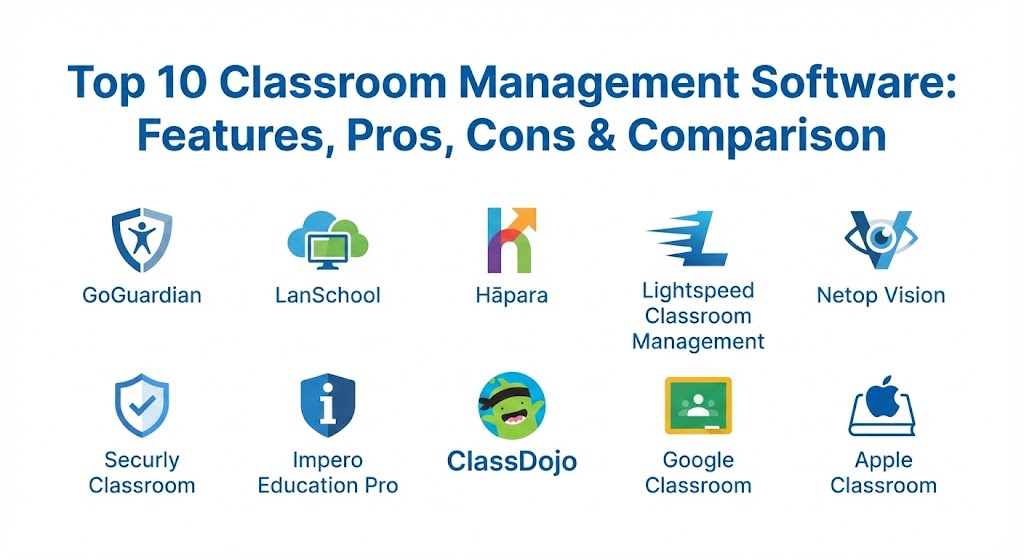
Top 10 Classroom Management Software Tools
1 — GoGuardian
GoGuardian is widely considered the industry leader in the K-12 space, offering a comprehensive suite that combines classroom management, web filtering, and student safety monitoring into a single, cloud-based platform.
- Key features:
- Real-time screen monitoring with high-definition thumbnails.
- “Timeline” view to see a chronological history of student tabs and activity.
- Integrated web filtering with AI-based content categorization.
- “Command” features to lock screens, close tabs, or “call” students directly.
- Off-campus filtering and “Beacon” for suicide and self-harm alerts.
- Detailed reporting on individual student and whole-class engagement.
- Seamless integration with Google Classroom and Clever.
- Pros:
- Exceptionally granular control; teachers can see exactly what is on a screen in real-time with zero lag.
- The safety alerts (Beacon) provide a critical layer of mental health support for school counselors.
- Cons:
- Can be expensive for smaller private schools or individual departments.
- Advanced features may require a steeper learning curve for non-tech-savvy teachers.
- Security & compliance: SOC 2 Type II, FERPA, COPPA, and CSPC compliant. Uses industry-standard AES encryption and SSO via Google or Microsoft.
- Support & community: Offers 24/7 technical support, a massive knowledge base, and a dedicated “GoGuardian Academy” for teacher certification.
2 — LanSchool (by Lenovo)
As one of the pioneers in the industry, LanSchool (now under Lenovo) offers both cloud-based and on-premise solutions, making it a favorite for schools with varying infrastructure needs.
- Key features:
- Thumbnail and full-screen monitoring across multiple operating systems.
- Web limiting and application blocking to eliminate distractions.
- Screen broadcasting (Teacher-to-Student or Student-to-Class).
- Remote control and file distribution capabilities.
- Battery status monitoring for student devices.
- Snapshot feature to capture evidence of student progress or off-task behavior.
- Simple “Raise Hand” digital messaging for student-teacher communication.
- Pros:
- Extremely reliable in computer lab environments where low latency is required.
- Supports a wide range of devices, including Windows, Mac, Chrome, and even Android/iOS.
- Cons:
- The legacy “LanSchool Classic” (on-prem) requires more IT overhead than cloud rivals.
- The user interface is functional but lacks the modern “gloss” of newer SaaS platforms.
- Security & compliance: GDPR and COPPA compliant. Includes password protection and encrypted communication between teacher and student agents.
- Support & community: Strong documentation, dedicated onboarding specialists, and a long-standing user community built over decades.
3 — Hāpara
Hāpara is unique because it was designed specifically to work with Google Workspace for Education. It focuses less on “controlling” student screens and more on “organizing” and “facilitating” student work.
- Key features:
- “Highlights” for real-time visibility into Chrome browser activity.
- “Dashboard” view which organizes all student Google Drive files by class.
- “Workspace” for creating and delivering interactive, differentiated lessons.
- Focused browsing sessions that automatically open/close specific tabs.
- Ethical monitoring features that encourage student self-regulation.
- Direct messaging and private feedback on individual Google Docs.
- Pros:
- The most integrated solution for schools that are “all-in” on Google Workspace.
- Promotes digital citizenship by giving students more agency compared to “lockdown” tools.
- Cons:
- Not a standalone tool; its value is significantly diminished if you don’t use Google Workspace.
- Screen monitoring is restricted to the Chrome browser; it cannot see desktop apps on Windows/Mac.
- Security & compliance: ISO 27001, FERPA, and COPPA compliant. Leverages Google’s native security infrastructure.
- Support & community: Excellent “Hāpara Champion” program, high-quality webinars, and a very responsive helpdesk.
4 — Lightspeed Classroom Management
Lightspeed Systems provides a cloud-native platform that excels in district-wide deployments, offering high scalability and integration with their robust web filter.
- Key features:
- Real-time screen viewing with the ability to “Spotlight” a student screen for the class.
- “Push URL” to instantly send all students to a specific resource.
- Intelligent “On-Task” alerts that use AI to notify teachers of potential distractions.
- Ability to record student sessions for review or evidence.
- Deep integration with SIS (Student Information Systems) for automated rostering.
- Unified dashboard managing both filtering and classroom monitoring.
- Pros:
- One of the best tools for IT admins who need to manage thousands of devices across multiple schools.
- The AI-driven alerts help teachers focus on teaching rather than “policing” screens.
- Cons:
- Some users report that the “On-Task” AI can occasionally flag legitimate educational sites.
- Requires a robust internet connection; performance may dip in bandwidth-constrained areas.
- Security & compliance: SOC 2, HIPAA (for health records), FERPA, and COPPA compliant. Data is encrypted at rest and in transit.
- Support & community: Tiered support options, comprehensive video tutorials, and a professional services team for large-scale implementations.
5 — Netop Vision
Netop Vision (now part of Impero) is a desktop-focused classroom management tool that has been a staple in higher education and technical computer labs for years.
- Key features:
- High-speed screen monitoring for graphics-heavy applications.
- Full remote control of student keyboards and mice for troubleshooting.
- “Attention” mode to instantly blank all student screens.
- Web filtering that works even when students are offline (local database).
- Integrated testing and polling tools.
- Ability to share high-quality video files directly to student screens.
- Pros:
- Superior performance for specialized labs (e.g., CAD, video editing, coding).
- Very granular control over application usage, not just web browsing.
- Cons:
- The setup can be more complex than purely cloud-based “Chrome-only” tools.
- Higher price point than some basic web-filtering alternatives.
- Security & compliance: FIPS 140-2, GDPR, and HIPAA compliant. Features end-to-end encryption for all remote sessions.
- Support & community: World-class technical support and detailed implementation guides for complex network environments.
6 — Securly Classroom
Securly started as a web filter but has evolved into a full-featured “wellness and classroom” platform, with a unique focus on student mental health.
- Key features:
- Browser-based screen monitoring with “Live View.”
- “Site Lock” to keep students within a specific collection of web pages.
- Integrated “Announce” feature to send text or audio messages to students.
- Parent portal that gives families visibility into their child’s digital school day.
- AI-based sentiment analysis to detect cyberbullying or self-harm in student searches.
- “Teacher-Student Chat” for discreet 1:1 assistance.
- Pros:
- The parent-involvement feature is unique and helps bridge the gap between home and school.
- Very affordable for smaller districts and individual schools.
- Cons:
- Lacks some of the advanced hardware-level controls (e.g., USB blocking) found in LanSchool.
- Primarily focused on the browser environment (Chrome, Safari, Edge).
- Security & compliance: SOC 2, COPPA, FERPA, and CIPA compliant. Cloud-native architecture with robust encryption.
- Support & community: Friendly, responsive support team and a growing “Securly Lounge” user community.
7 — Impero Education Pro
Impero offers a “triple-threat” solution that combines classroom management, network management, and student safeguarding into one powerful package.
- Key features:
- Advanced keyword detection to flag inappropriate or concerning language.
- Detailed inventory and power management for all school devices.
- Real-time screen monitoring and remote desktop control.
- Patch management and software distribution for IT teams.
- Log of all keystrokes and screenshots for forensic investigation.
- Integrated “Wellness” dashboard for safeguarding officers.
- Pros:
- The best “all-in-one” tool for schools that want one piece of software for both teachers and IT staff.
- Unmatched depth in safeguarding and identifying “at-risk” student behaviors.
- Cons:
- The interface is incredibly dense; it can be overwhelming for a casual user.
- High system requirements for the server-side components (if using on-prem).
- Security & compliance: ISO 27001, GDPR, and UK “Keeping Children Safe in Education” (KCSIE) compliant.
- Support & community: Extensive training certifications, localized support in many countries, and a robust user manual.
8 — ClassDojo
While often categorized as a “behavior management” tool rather than “screen management,” ClassDojo is the most widely used platform for building classroom culture in primary education.
- Key features:
- Point-based “Dojo Points” system to encourage positive behaviors.
- “Class Story” and “Student Story” for sharing photos and videos with parents.
- “Big Ideas” videos focusing on social-emotional learning (SEL).
- Integrated messaging with real-time translation for non-English speaking parents.
- ToolKit featuring timers, noise meters, and random student selectors.
- Digital portfolios where students can showcase their best work.
- Pros:
- Unbeatable for increasing parent engagement and school-to-home communication.
- Free for individual teachers, making it accessible to anyone with an internet connection.
- Cons:
- Zero screen monitoring or device control features; it is strictly for behavior and culture.
- Some critics argue that public point systems can be discouraging for certain students.
- Security & compliance: SOC 3, Privacy Shield, FERPA, and COPPA compliant. Very transparent privacy policies.
- Support & community: Massive global community of “Dojo Ambassadors” and endless free resources for teachers.
9 — Google Classroom
Google Classroom is a Learning Management System (LMS) with “Classroom Management lite” features. It serves as the primary hub for assignments and communication for millions of teachers.
- Key features:
- Streamlined assignment creation, distribution, and grading.
- Integration with Google Meet for synchronous remote lessons.
- Automated calendar updates for all student due dates.
- “Originality Reports” to check for plagiarism.
- Real-time commenting and feedback on student work.
- Guarded communication via the “Class Stream.”
- Pros:
- Completely free for schools using Google Workspace for Education.
- The simplest “assign and collect” workflow in the industry.
- Cons:
- No native screen monitoring, tab locking, or browsing control features.
- Lacks the behavioral data and safeguarding alerts of specialized tools like GoGuardian.
- Security & compliance: Google Cloud’s world-class security, FERPA, COPPA, and GDPR compliant.
- Support & community: Vast library of tutorials, Google Educator Groups (GEGs), and enterprise-level support for paid tiers.
10 — Apple Classroom
For schools that have invested heavily in the iPad ecosystem, Apple Classroom is the native tool designed to turn the iPad into a powerful teaching assistant.
- Key features:
- Launch apps, websites, or books on every student device simultaneously.
- “Screen View” to see what any student is doing on their iPad or Mac.
- Ability to lock students into a single app for “guided access” during exams.
- Shared iPad support, allowing multiple students to use the same device with personalized logins.
- Wireless document sharing via AirDrop.
- Remote password reset for student Managed Apple IDs.
- Pros:
- No cost for schools; it is a free app designed for iPad/Mac users.
- Seamless, high-performance integration with Apple hardware that third-party apps can’t match.
- Cons:
- Strictly limited to Apple devices; zero support for Chromebooks or Windows.
- Requires a Mobile Device Management (MDM) solution like Jamf for full functionality.
- Security & compliance: Highly secure Apple ecosystem, FERPA and COPPA compliant. Privacy is a core Apple pillar.
- Support & community: Apple Education Support, Apple Teacher program, and extensive local dealer networks.
Comparison Table
| Tool Name | Best For | Platform(s) Supported | Standout Feature | Rating (Gartner / TrueReview) |
| GoGuardian | High-School / Safety | Chrome, Windows | Beacon Safety Alerts | 4.8 / 5 |
| LanSchool | Reliability / Labs | Win, Mac, Chrome, iOS | Low-Latency Monitoring | 4.6 / 5 |
| Hāpara | Google Workflow | Chrome (Google Apps) | Google Drive Dashboard | 4.7 / 5 |
| Lightspeed | Large Districts | Win, Mac, Chrome, iOS | AI “On-Task” Alerts | 4.5 / 5 |
| Netop Vision | Technical Labs | Windows, Mac | Full Remote Control | 4.4 / 5 |
| Securly | Parent Inclusion | Chrome, Mac, iOS | Integrated Parent App | 4.5 / 5 |
| Impero | IT + Safeguarding | Win, Mac, Chrome, iOS | Keyword/Safeguarding Logic | 4.3 / 5 |
| ClassDojo | Primary / Culture | Web, iOS, Android | Behavior Points System | 4.9 / 5 |
| Google Classroom | Assignment Workflow | Web-Based | G-Suite Integration | 4.8 / 5 |
| Apple Classroom | iPad Environments | iPad, Mac | Native Hardware Control | 4.7 / 5 |
Evaluation & Scoring of Classroom Management Software
Evaluating classroom management software requires looking at more than just the price tag. The most important metric is how much “teaching time” the tool saves versus how much “administrative time” it adds.
| Category | Weight | Evaluation Notes |
| Core Features | 25% | Includes screen monitoring, tab control, locking, and filtering. |
| Ease of Use | 15% | Teachers should be able to start a session in 2 clicks or less. |
| Integrations | 15% | Must connect seamlessly with SIS/LMS (Google, Clever, etc.). |
| Security & Compliance | 10% | Strict adherence to student data privacy (FERPA/COPPA) is non-negotiable. |
| Performance | 10% | Refresh rates for thumbnails must be high enough to catch “window switching.” |
| Support & Community | 10% | Quality of documentation and responsiveness of tech support. |
| Price / Value | 15% | Free tiers for individual teachers are a significant bonus. |
Which Classroom Management Software Tool Is Right for You?
The “right” tool depends on your specific role and the technology your school already uses.
- Solo Teachers & Home-Schoolers: If you are an individual teacher with no budget, ClassDojo (for behavior) and Google Classroom (for assignments) are the best free foundations. For basic monitoring, see if your district offers a free license for Apple Classroom if you use iPads.
- Small to Mid-Size Schools (SMB): Organizations that are 100% Chromebook-based should prioritize GoGuardian or Hāpara. These are easy to deploy and provide exactly what is needed for web-based learning without excessive IT overhead.
- Large Districts & IT Directors: If you manage a fleet of 5,000+ devices, Lightspeed or Impero are the most scalable options. They offer the central management and reporting features needed to oversee an entire district’s digital footprint.
- Specialized Labs & Technical Instructors: If you teach coding, AutoCAD, or Adobe Creative Suite, you need the remote control and high-performance monitoring of Netop Vision or LanSchool Classic.
- Budget vs. Premium: While Google and Apple offer free tools, “Premium” tools like GoGuardian are worth the investment for the time they save in classroom discipline and the critical safety alerts they provide via AI.
Frequently Asked Questions (FAQs)
1. Is classroom management software “spyware”?
No. While it allows for monitoring, the goal is educational guidance and safety. High-quality tools (like Hāpara) encourage “ethical monitoring,” where students are notified when their screens are being viewed, fostering a relationship of trust.
2. Does it work when students are at home?
This depends on the tool and the district’s policy. Many tools allow for “off-campus” filtering and monitoring for school-owned devices to ensure 24/7 safety, while others only function during defined school hours.
3. Will these tools slow down my school’s internet?
Modern cloud-based tools are highly optimized. LanSchool, for example, is famous for using very low bandwidth. However, seeing 30 high-definition live video feeds at once will always put some load on your Wi-Fi access points.
4. Can students bypass these management tools?
Enterprising students will always try to find workarounds, but enterprise-grade tools install at the “System” or “Admin Extension” level, making them nearly impossible to remove or disable without admin credentials.
5. How do these tools integrate with my grading system?
Most classroom management tools integrate with Clever or ClassLink, which then sync with your Student Information System (SIS). This ensures your rosters are always up-to-date automatically.
6. Do these tools track keystrokes?
Some enterprise-grade tools like Impero do have keystroke logging for forensic/safeguarding purposes. However, most teacher-facing tools (like GoGuardian) focus on screen viewing and browser history rather than individual keystrokes.
7. Is student data sold to advertisers?
Absolutely not. Compliance with FERPA and COPPA means these companies are legally forbidden from selling student data. Always check for the “Student Privacy Pledge” on a vendor’s website.
8. Can I use these tools for remote learning?
Yes. In fact, tools like GoGuardian Teacher and Hāpara became indispensable during the pandemic, allowing teachers to “look over a student’s shoulder” even when they were miles apart.
9. What happens if a student has a personal device (BYOD)?
BYOD management is harder. Typically, teachers can only manage the browser if the student logs into their school account, or the district may require a “management profile” to be installed on the personal device.
10. How long does it take to set up?
Cloud-based tools like GoGuardian can be deployed district-wide via the Google Admin Console in about 15 minutes. On-premise solutions like LanSchool Classic may take several days of IT configuration.
Conclusion
Classroom management software is no longer a luxury; it is a necessity for the modern educator. Whether you choose the cultural engagement of ClassDojo, the deep integration of Hāpara, or the high-power monitoring of GoGuardian, the goal remains the same: creating a safe, focused, and productive learning environment. The “best” tool is the one that fits your hardware, respects student privacy, and—most importantly—fades into the background so that the real work of teaching and learning can take center stage.